

How to create Booking Engine Pages with all your desired information
We have implemented new functionality in our Booking Engine that lets you create additional pages to add all your desired information.
It is very easy to use. You can find guidelines as follows
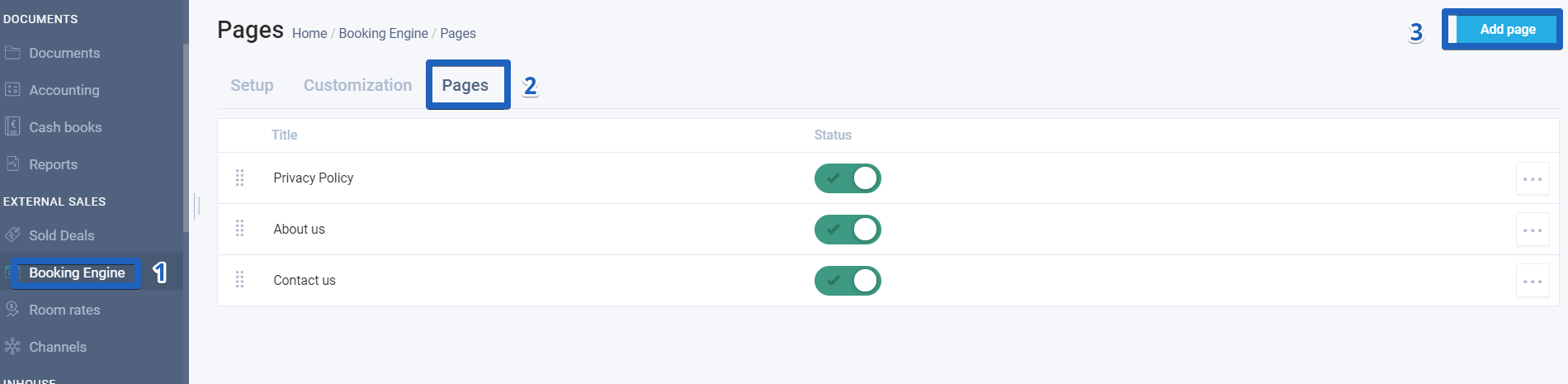
Go to your Booking Engine module on the left side of your account, and click on the tab ´Pages´ and ´Add page´:
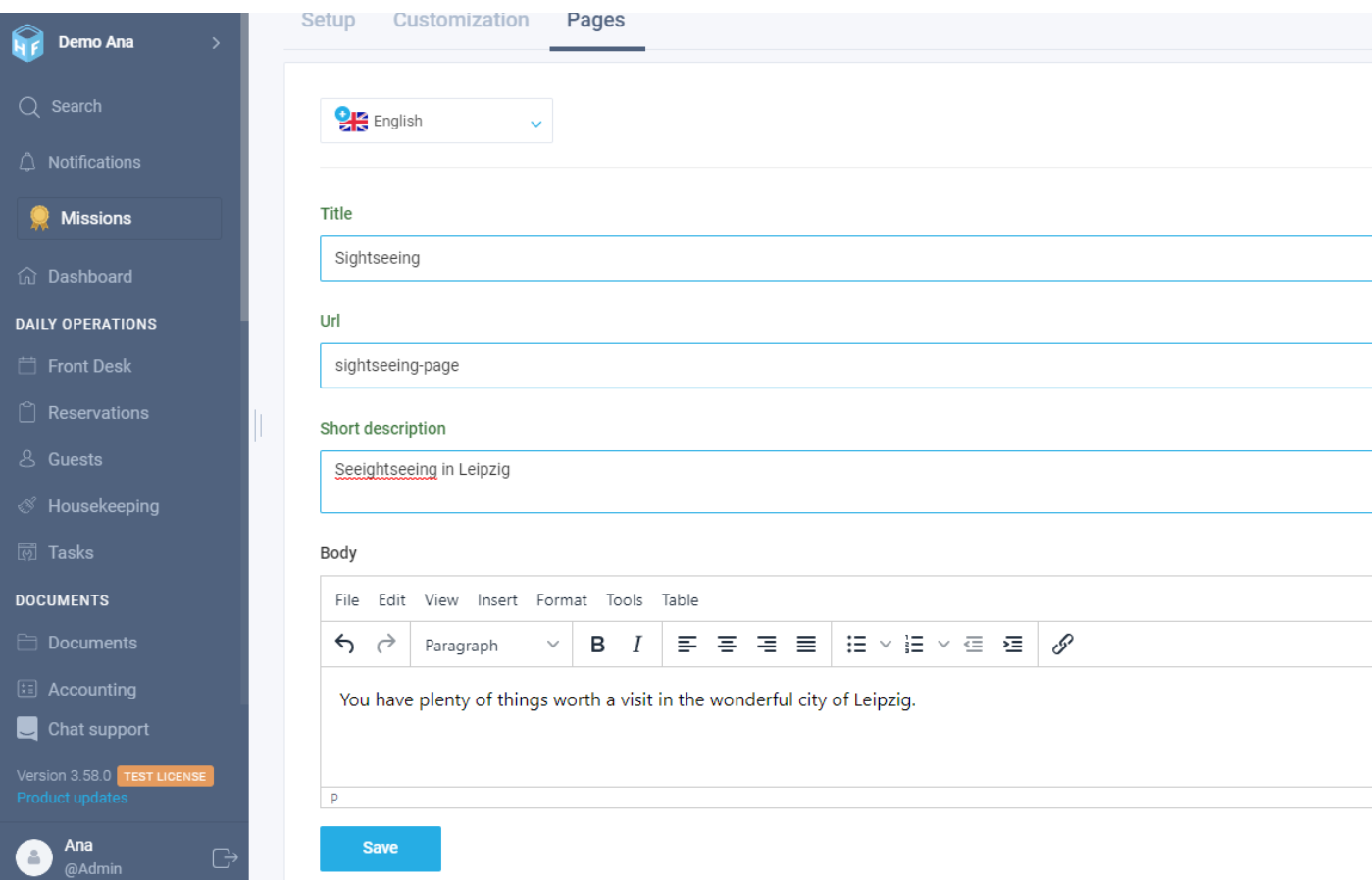
- ´Language field´: please note that if you have added more languages to be translated (settings > general > languages), this field indicates, after saving the page, that it has not been translated to other languages with a ´blue +´ or it has been translated to other languages with a ´green tick´.
- Add a title (e.g. Sightseeing).
- In the URL field, name the page as it will be displayed on the URL (e.g: sightseeing-page).
- You can add a short description in the ´short description´ field.
- Add the description.
- Press ´save´.


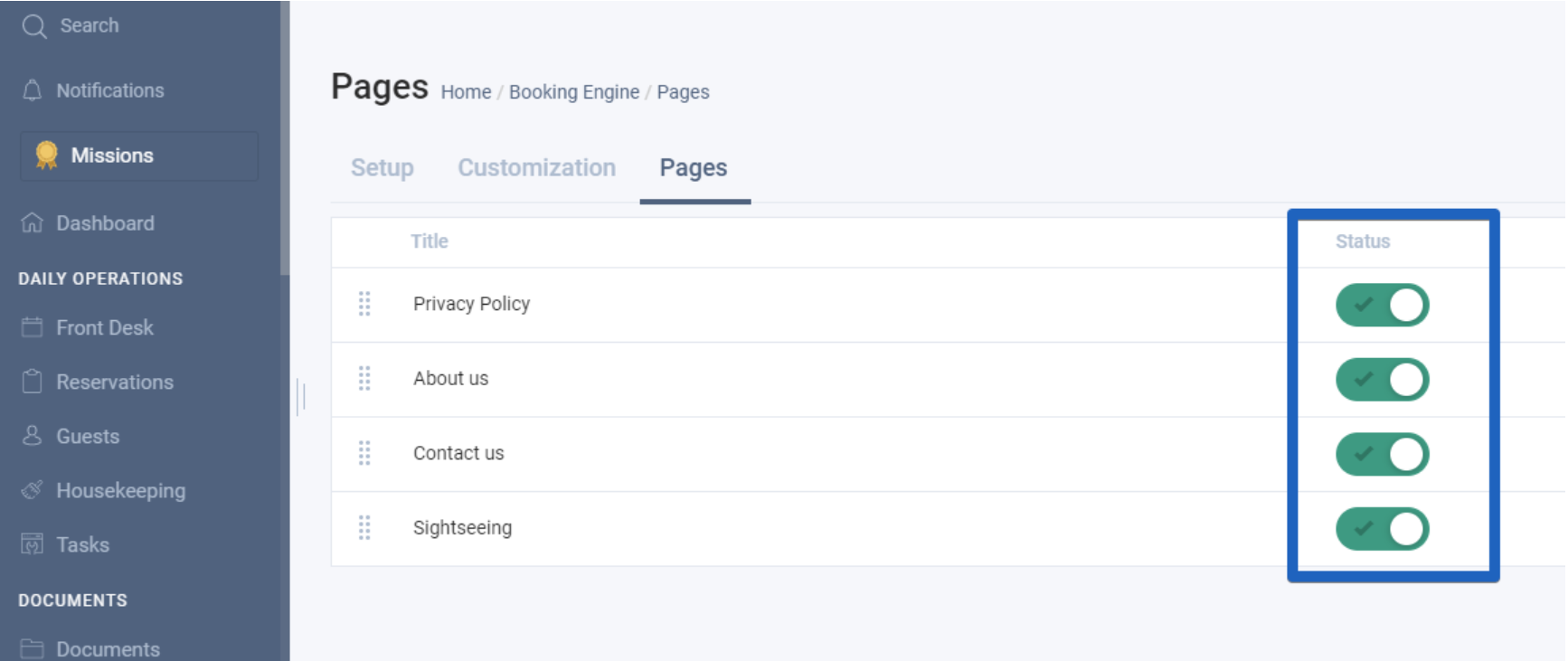
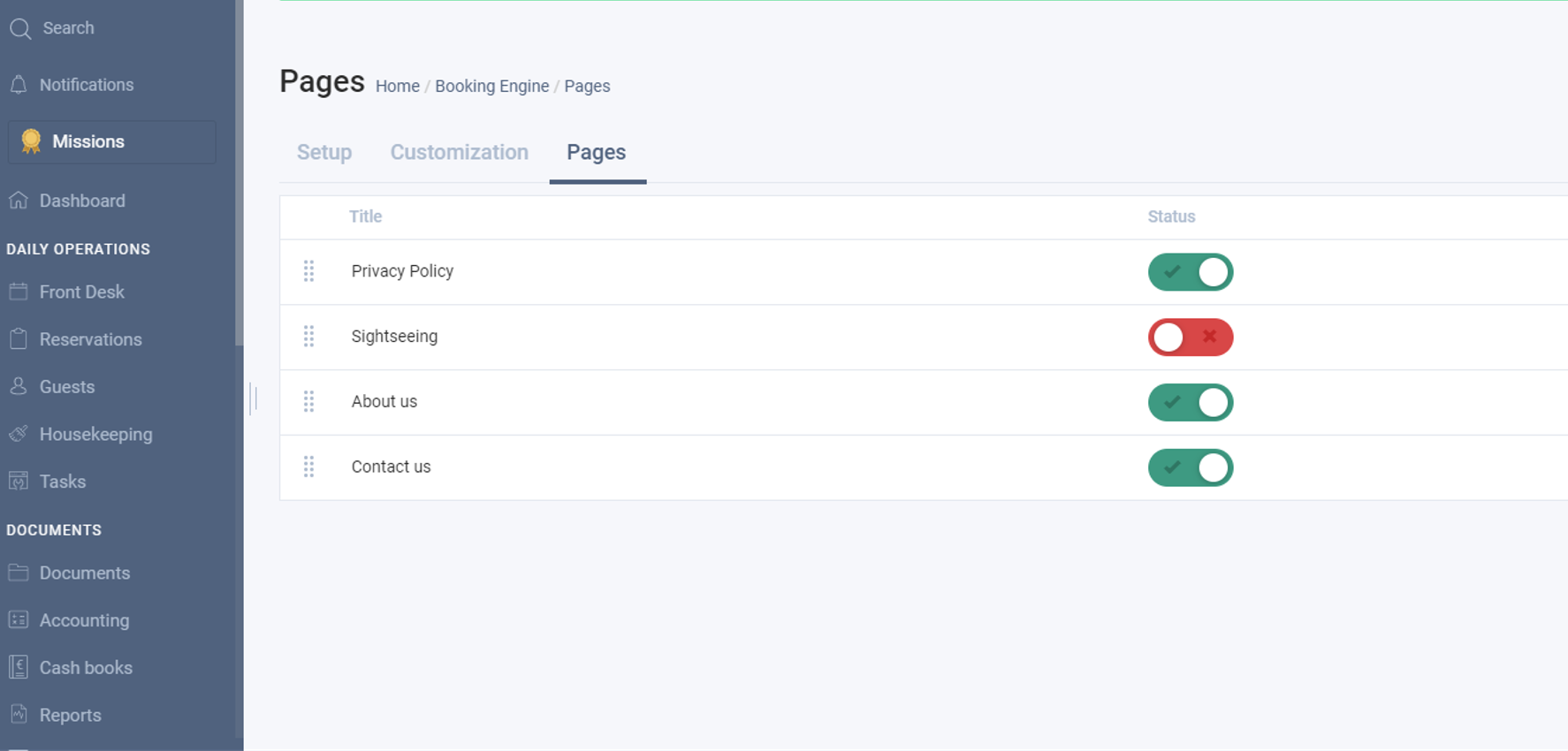
Now, you have an overview of all your pages. Also, you can activate/deactivate them to be visible by pressing the toggle. Red means deactivated (it will not be shown on your booking engine) and green means activated (it will be shown on your booking engine):
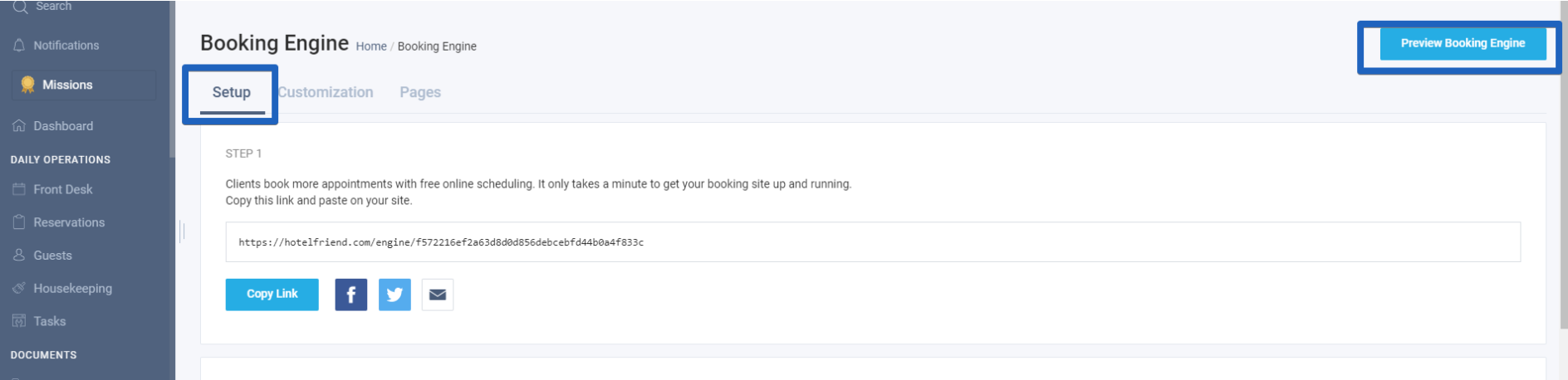
To preview your pages, please go to the ´setup´ tab and click on ´preview booking engine´:
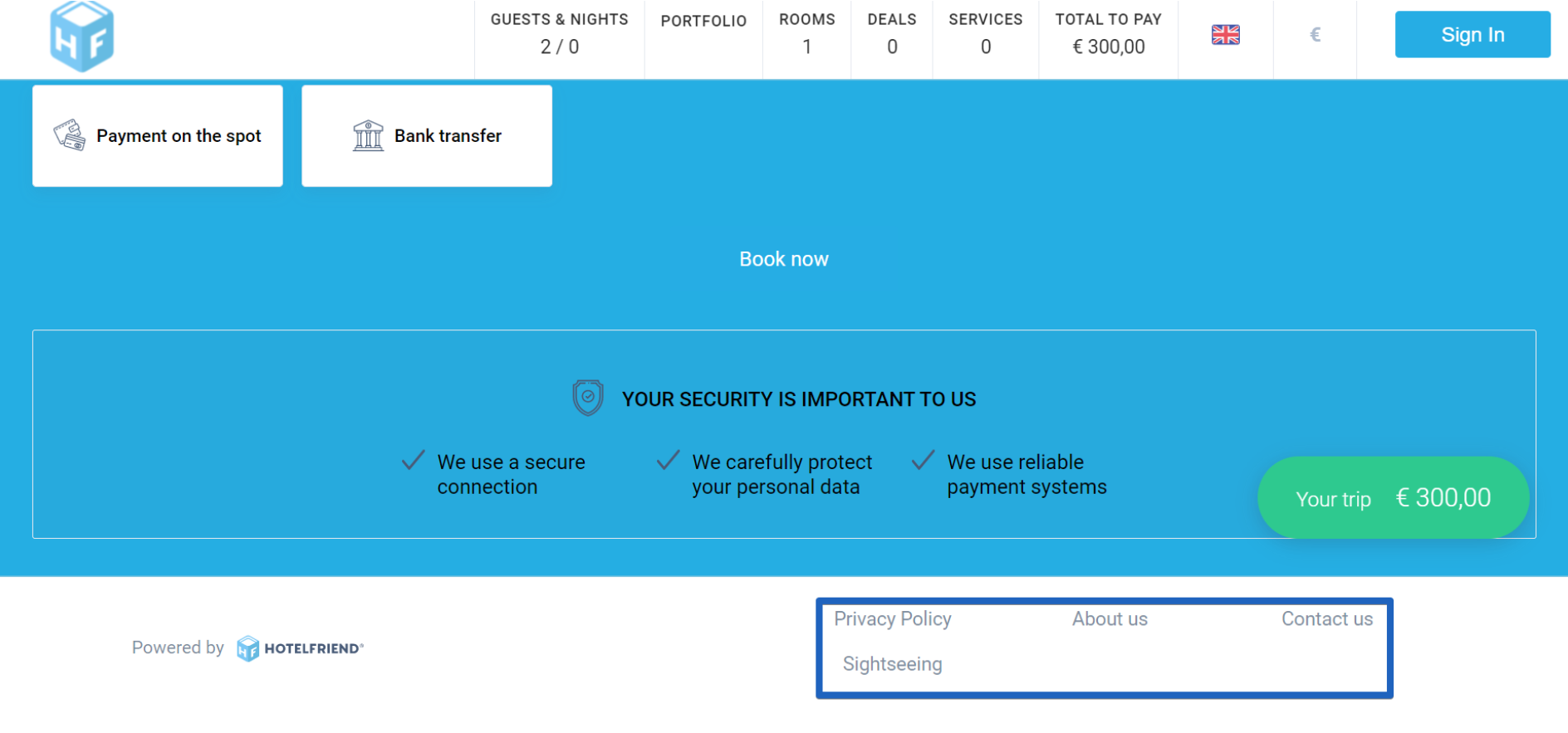
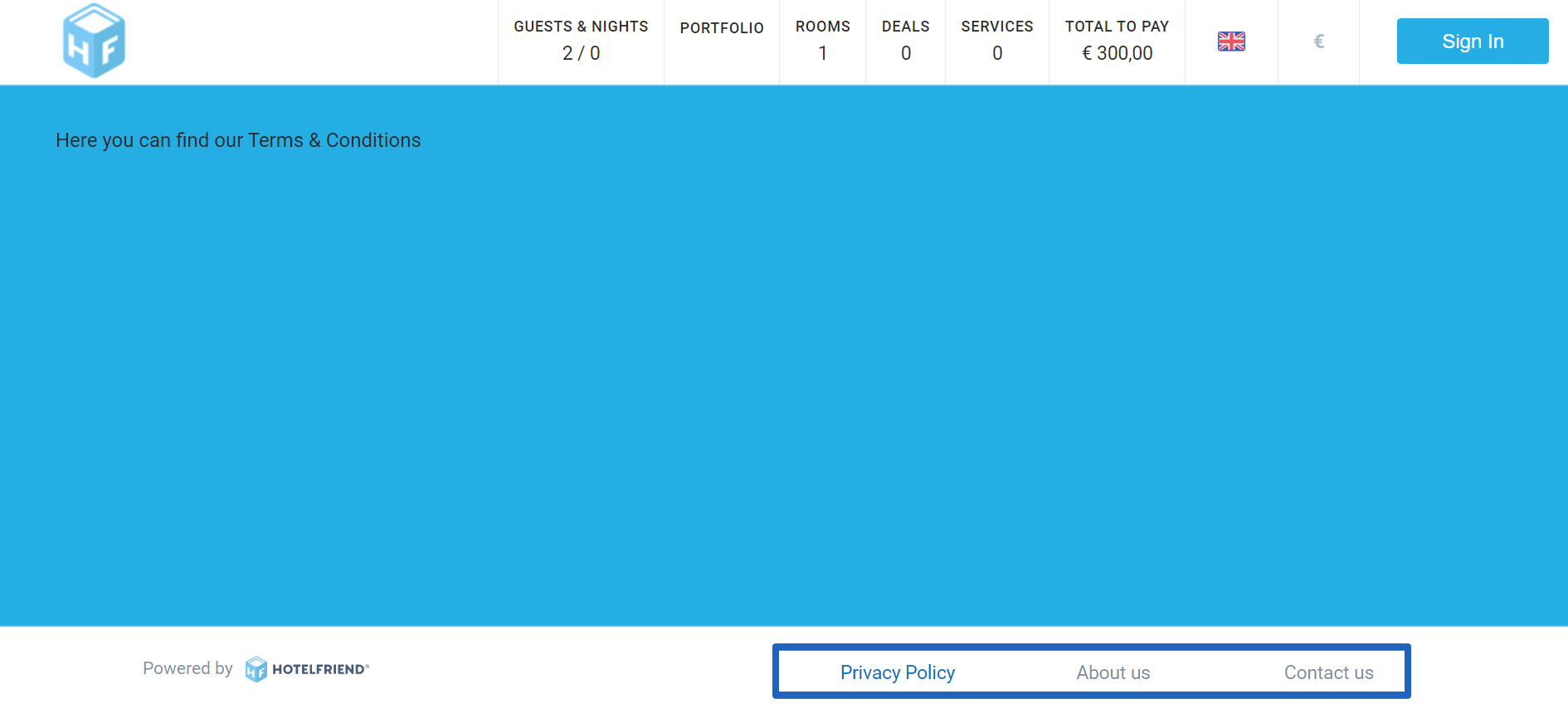
The new pages you have just created will display at the bottom of your booking engine:
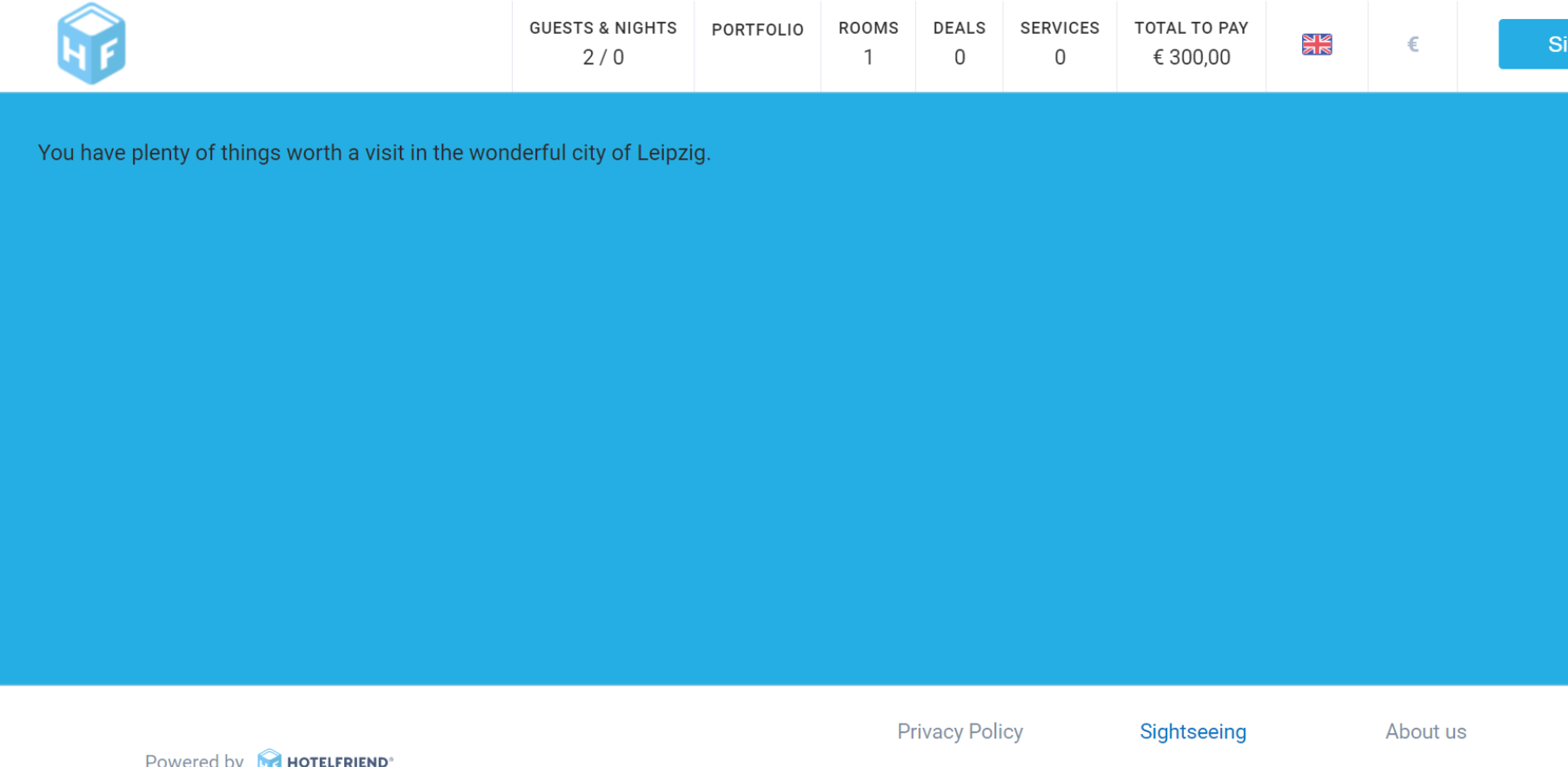
When your visitors click on the pages, they will be able to see the content you have introduced previously on the ´description´ field:
Pages can be always edited, deleted or reordered. To do so, go back to ´booking engine´ module → pages
- To reorder the pages, click on the points next to the name of the pages. You will see a hand icon and now you can drag the page to another position to be displayed: (in the example below we have dragged our sightseeing page from the 4th position to the second):
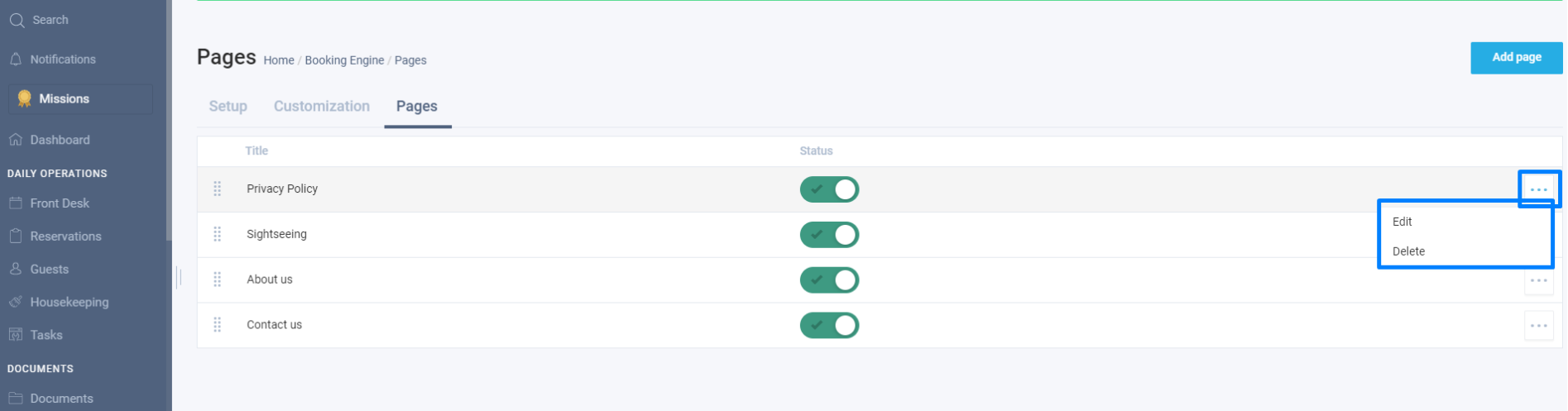
- To edit and/or delete go back to the ´pages´ tab and click on the ellipsis on the right of the desired page. You will have then the option of editing and/or deleting that specific page:
- To edit and/or delete go back to the ´pages´ tab and click on the ellipsis on the right of the desired page. You will have then the option of editing and/or deleting that specific page:
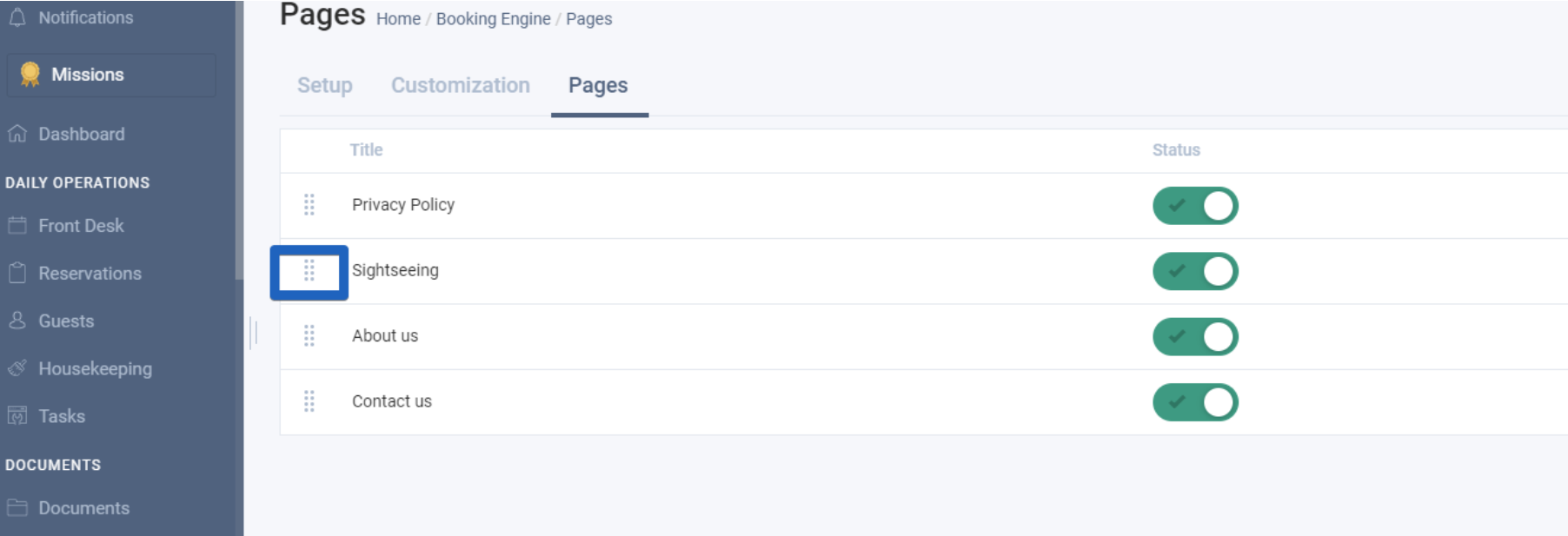
We can see that the page is displayed in a different position in our booking engine:
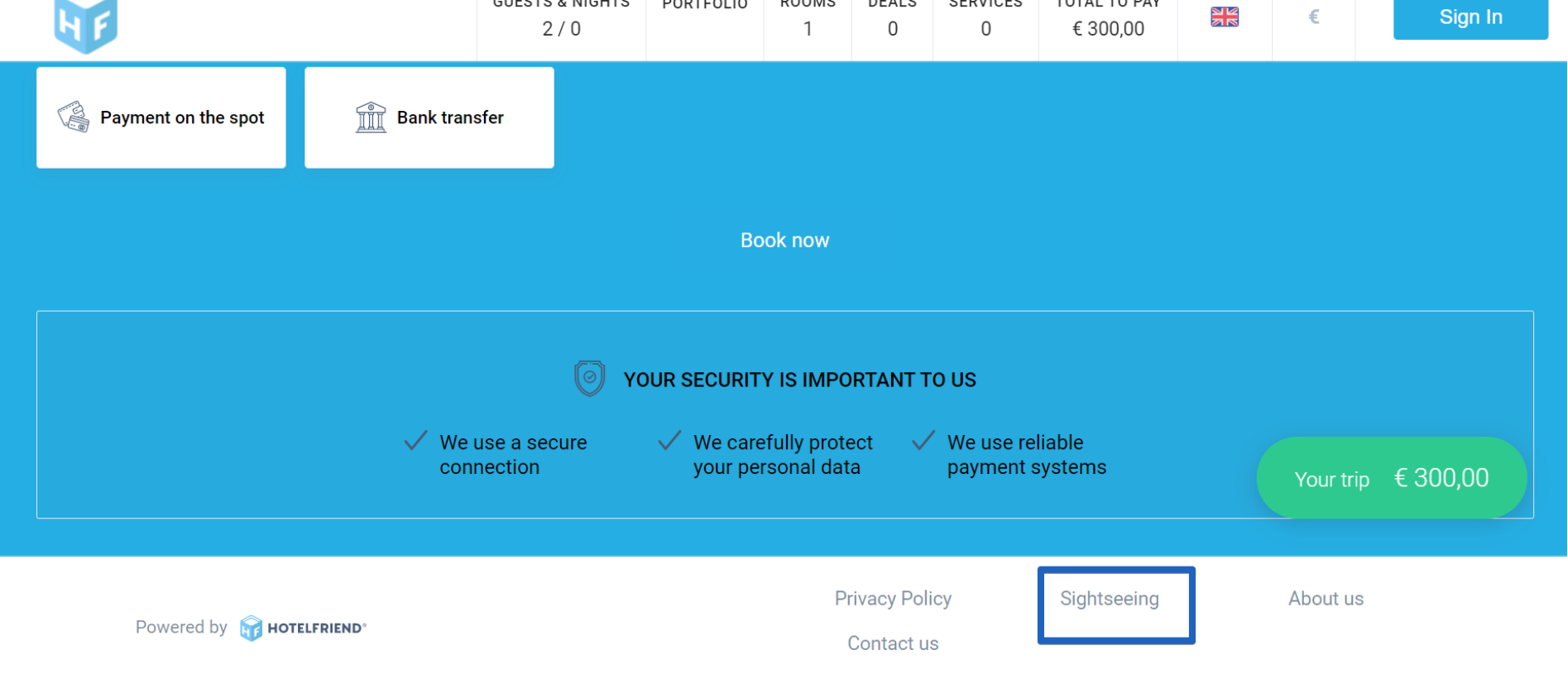
Please note, instead of deleting the page, you can deactivate it by clicking on the toggle (red status) to not be shown on your booking engine:
The Leipzig Opera
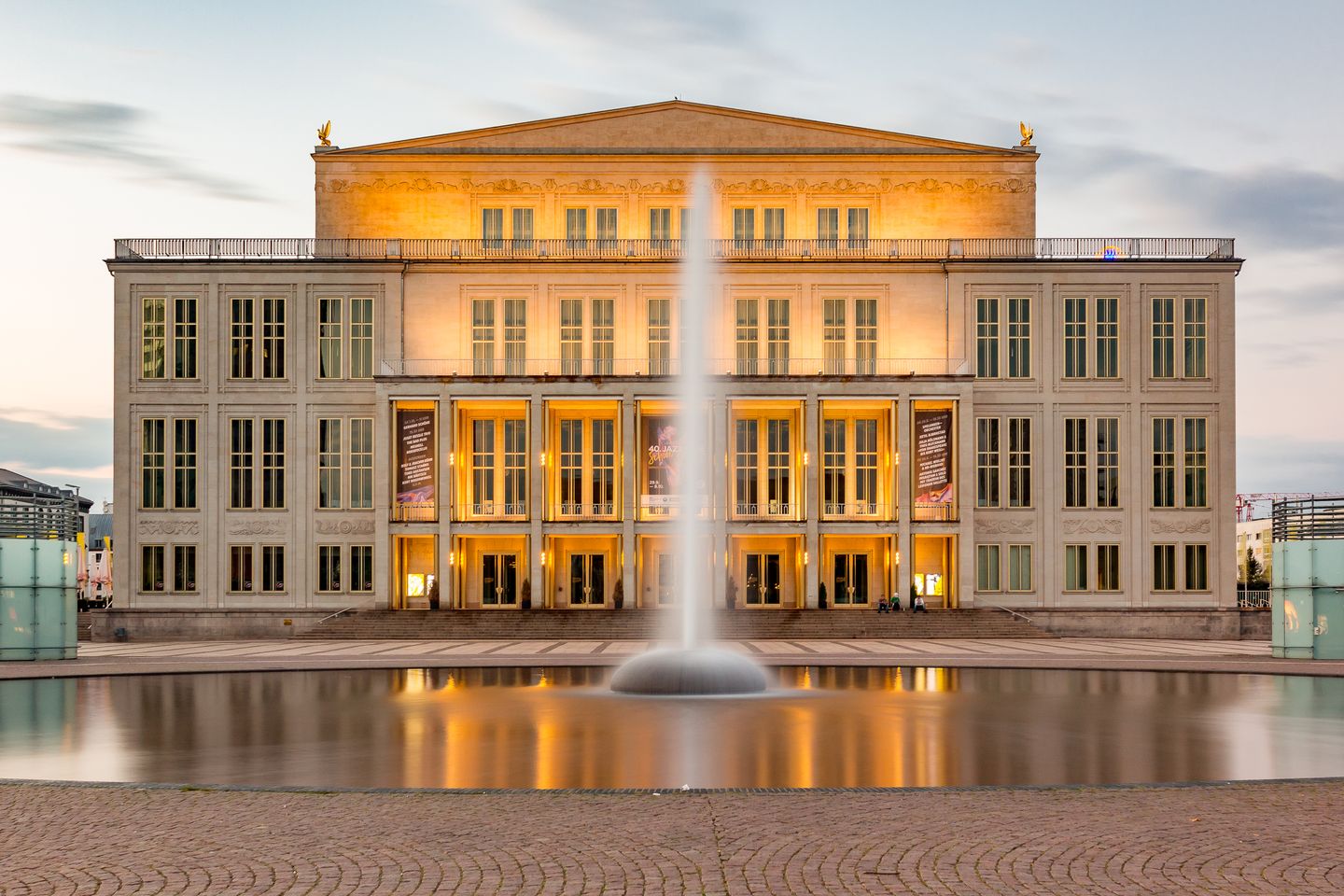
Located at the Augustusplatz, in front of the building of the Leipzig Gewandhaus Orchestra, the Leipzig Opera is one of the oldest operas in Europe that was established in 1693. During World War II, the building was destroyed, however, it was reconstructed and the grand opening was held on the 8th of October, 1960. The Opera does not have its own orchestra, however, the world-renowned Gewandhaus Orchestra has been performing there since 1840.
Nowadays, three diverse theatre groups act in the Leipzig Opera: opera, ballet troupes, and the troupe of the Musical Comedy.
The very beginning
The Musical Comedy Theater leads its story from the Operetta Theater that was founded at the beginning of the 20th century. It occupied the site of the “Old Theater” that was free after moving the Opera to the “New Theater”. As part of the Leipzig Opera, the Musical Comedy Theater officially became in 1990. The small theatre troupe of Musical Comedy of 15 artists involves the students from The University of Music and Theatre "Felix Mendelssohn Bartholdy" in their performances.
The Leipzig Opera House has the Big Hall and the Chamber Hall named after Richard Wagner. The Chamber plays the role of a gallery: a lot of pictures and photographs are on the walls here. The lectures and some concerts are conducted in this hall from time to time.
The Opera House has everything to make the performances spectacular and affecting: the best conductors, orchestra, choreographers and dancers, troupes, as well as it is equipped with moving platforms, revolving base plate, and many others necessary facilities to make the plays incredible!
Besides the classical plays, starting from 2009 with the coming of choreographer Mario Schröder, who continued the tradition of experimental ballet, the world saw such brilliant performances as “Jim Morrison” and “Chaplin”.
Leipzig Opera Program 2020
All performances presented in the Opera are always spectacular, exceptional, and soulful! Be sure to see “Lucia di Lammermoor” by Donizetti. The opera became one of his most successful works, where the astounding bel canto arias make the audience plunge into the feelings of heroes.
At Christmas 2020, the famous children's opera “Hansel and Gretel” based on the Brothers Grimm fairytale will be performed there.
In December 2020, the Leipzig Opera House will also present "Alice in Wonderland" by Mirko Mahr – the performance full of magic and fantasy, which was inspired by the famous story for children.
One of the most remarkable epic music dramas, which was first presented on the stage of the Leipzig Opera in 2016, is the complete cycle of “The Ring of the Nibelung” by Richard Wagner. The performance was successful and, consequently, is now solidly established in the Opera's repertoire. The cycle, which lasts a total of 16 hours, will soon be presented again during the 2022 Wagner Festival.
How to get to the Leipzig Opera
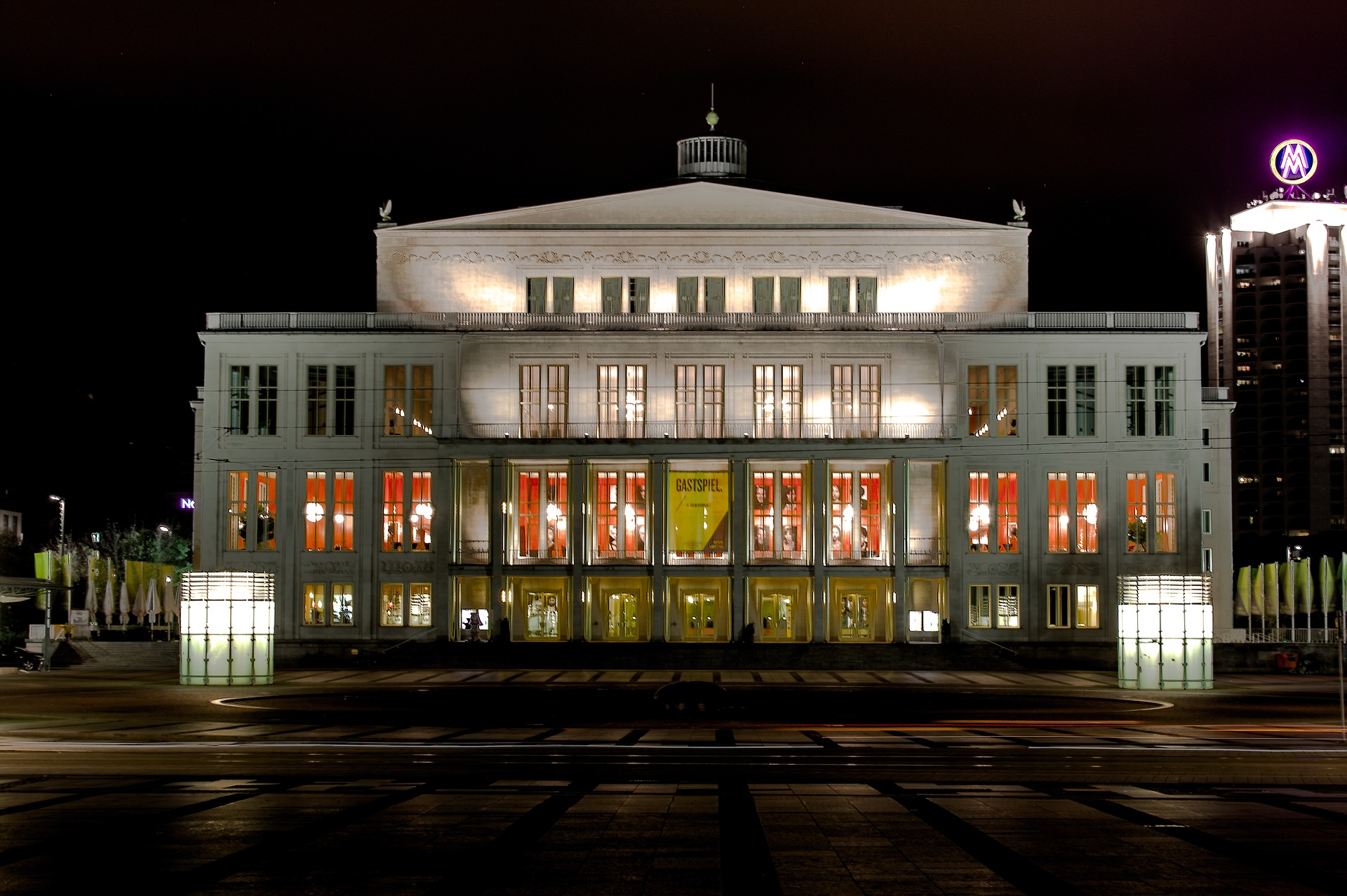
The building is situated in the central part of the city. You can get to the Opera by tramway numbers 4, 7, 8, 10, 11, 12, 15, and 16. The stop's called Augustusplatz.
The Musical Comedy Theater house is located on Dreilindenstrasse 30. To get there, take the trams’ numbers 3, 7, 8, or 15 and get off the tram on the Strassenbahnhof Angerbrucke stop. It will take five minutes’ walk to reach the theater.
Good to know - HotelFriend tips
Your ticket and seat reservation to the Leipzig Opera is your travel ticket as well in the city public transport. It is valid three hours before a performance and three hours after it.
Parking
If you come by car, there is chargeable underground parking at Augustplatz. So, if you buy the parking ticket in advance, it will cost you €5,00, while if you buy the parking ticket just before the start of the performance, the price is €5,50.
It is recommended to purchase the parking ticket beforehand to avoid the queues
The guests of the Musical Comedy Theatre have a possibility to park their vehicles behind the Theater house free of charge. From Monday to Saturday, the car park is open from 4.30 p.m., and on Sunday and during National Public Holidays, the car park for visitors is open from 1.30 p.m.
Where to buy a ticket
The ticket to any Leipzig Opera’s performance can be purchased in the cash office in the house of the opera that is open from 10 a.m. to 7 p.m. from Monday to Saturday. You can also order a ticket by telephone calling + 49 (0)341 1261261.
Use the convenient payment by money transfer or by Mastercard, Visa-Card, and American Express credit card.
Ticket discounts
Children under the age of 12 have a 50% discount off the standard price; schoolchildren, students, and trainees have a 40% discount; people with disabilities get a 30% discount off the standard price.
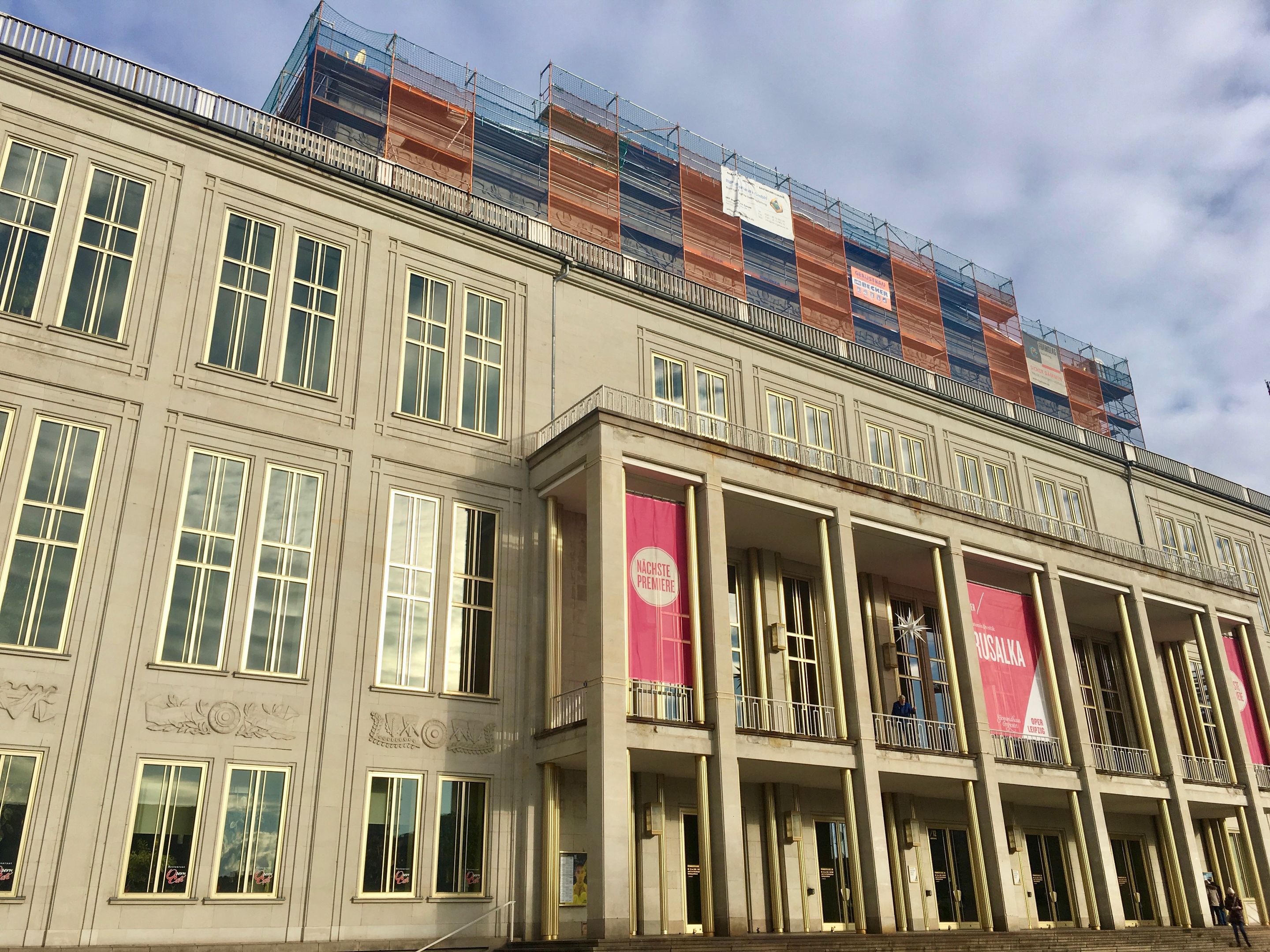
Be attentive that the tickets to guest performances, on New Year’s Eve, to premieres and specially priced events are purchased at full price for all categories of visitors.
Accommodation near the Opera in Leipzig
Due to the central location of the Opera and the Musical Comedy Theater, it makes it easy to get to the places. There are several comfortable hotels not far from there, which offer accommodation for any taste and budget. The four-star Hotel Markgraf with free parking service is situated within walking distance from the Augustusplatz. It offers comfortable single rooms, superior rooms, and apartments in a quiet place of Leipzig.
With HotelFriend you can design your stay in a hotel according to your preferences, as the platform gives you a possibility to reserve any hotel’s service together with an overnight stay in advance. Book it as a special deal and get the best discount.
Budget inn or first-class hotel – any kind of accommodation can be found in close vicinity to the Leipzig Opera.
For cost-conscious travelers to Leipzig, we could highlight the pretty Via City Hotel, which is located on one of the most popular streets of the city − the Karl-Liebknecht street. From this spot it is easy to get to the Leipzig Opera: it will take just 20 minutes on foot.
Plan your journey to Leipzig in advance with HotelFriend and feel the advantages!