

How to configure Custom Fields for Direct and Booking Engine Reservations
Custom fields allow you to gather specific guest information that meets your property's unique needs. Whether for reception reservations or Booking Engine reservations, setting up these fields ensures you collect all the necessary details. This guide will walk you through the process of configuring and managing such custom fields in your HotelFriend system.
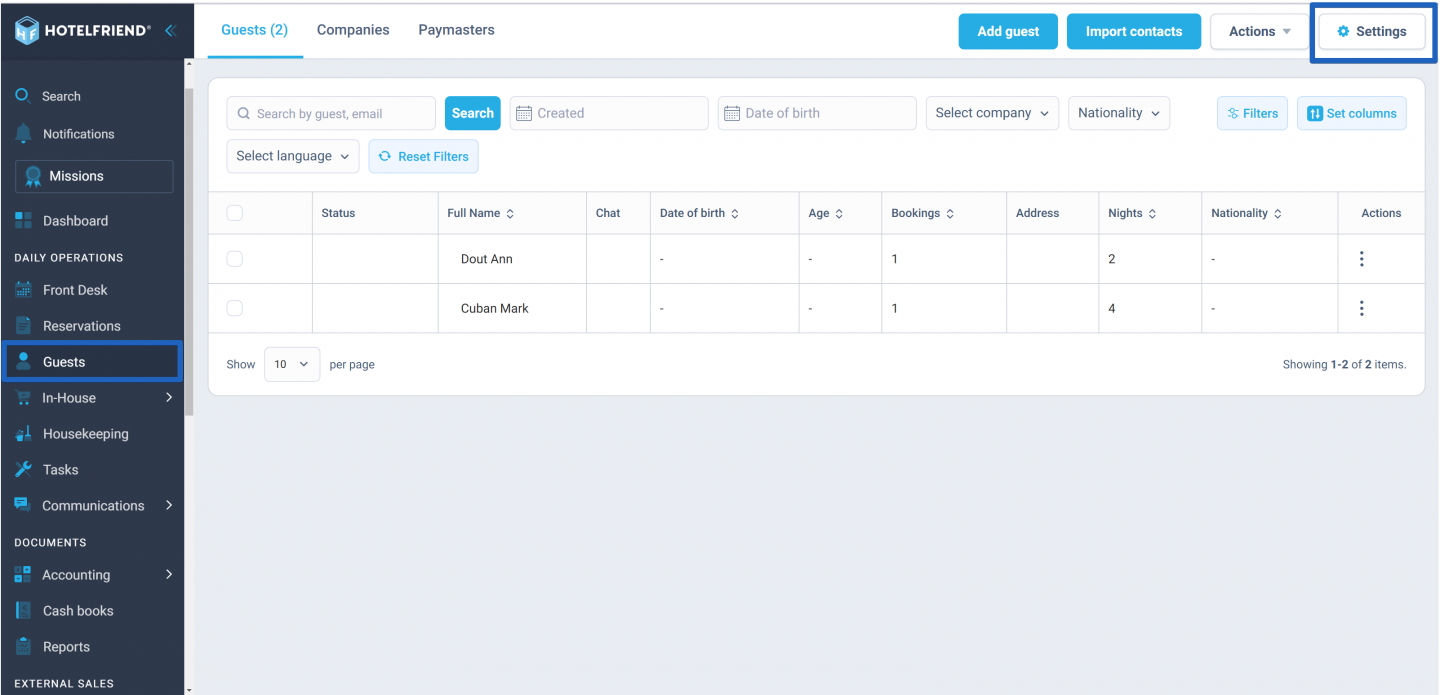
- In the menu on the left, click on the Guests module and select Settings.
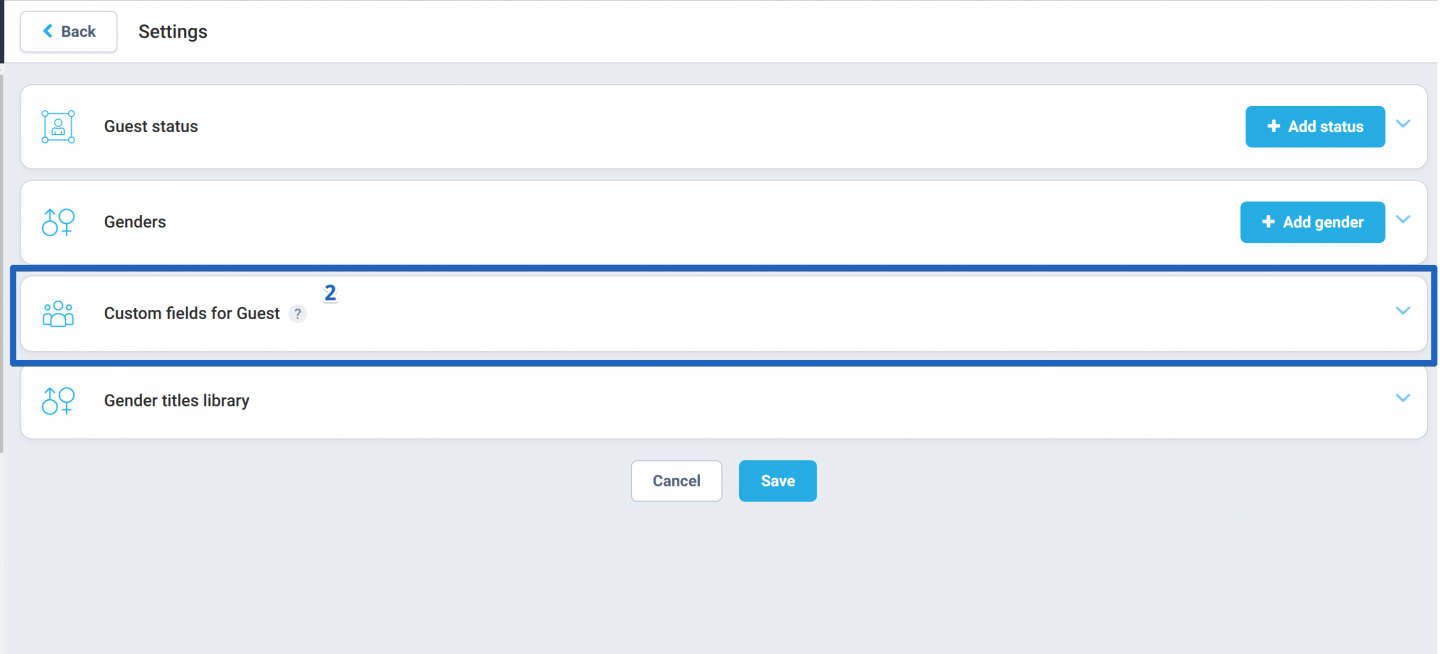
- Locate the Custom fields for Guest block and click on it.
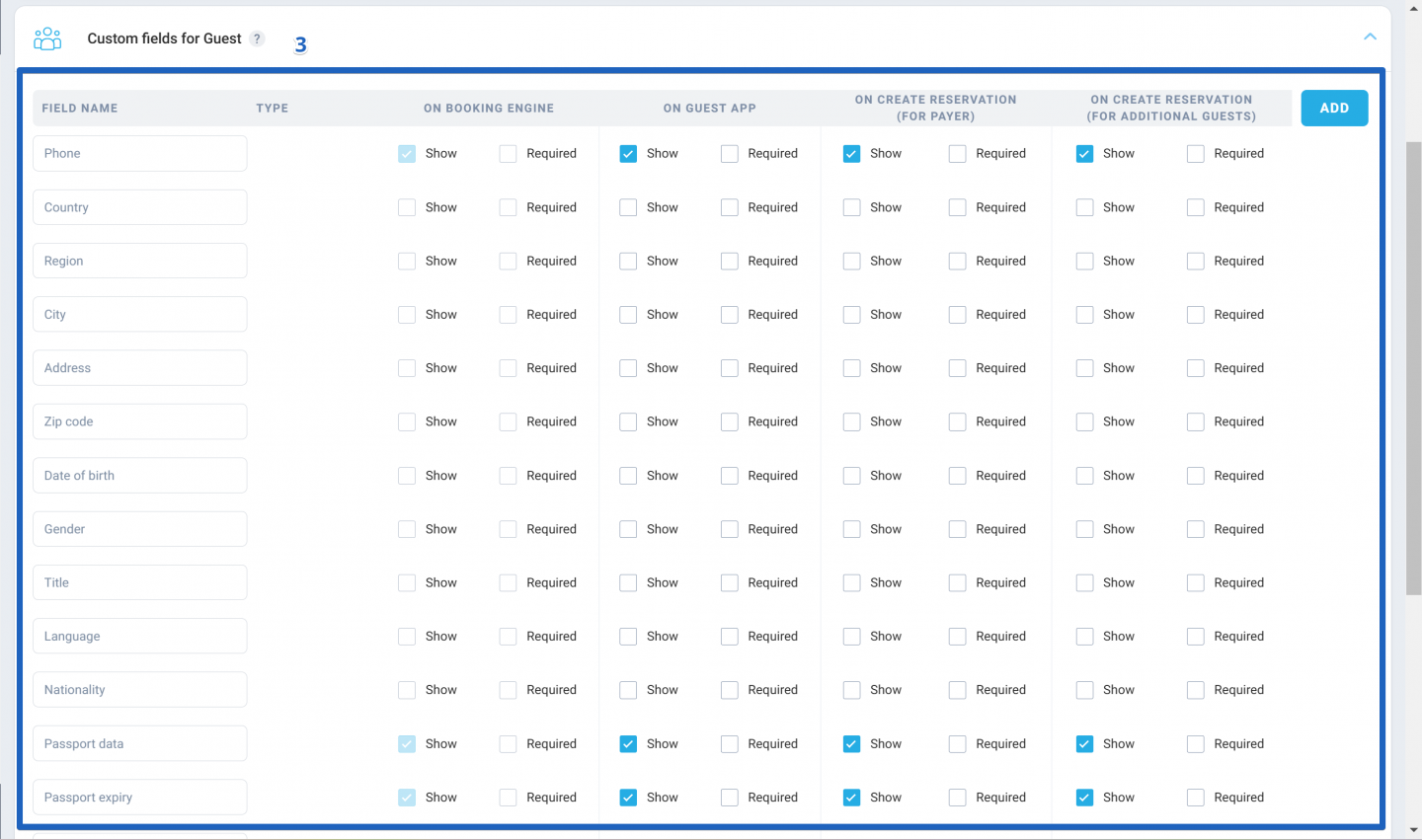
- In the list that appears, check the fields you want to display for data entry in the system and via the Booking Engine. Mark any mandatory fields under the Required Field column.
- To add a new custom field, click the Add button.
- The new field will appear below all default fields. Enter the field's name and select the desired checkboxes.
- Click Save to save your changes.
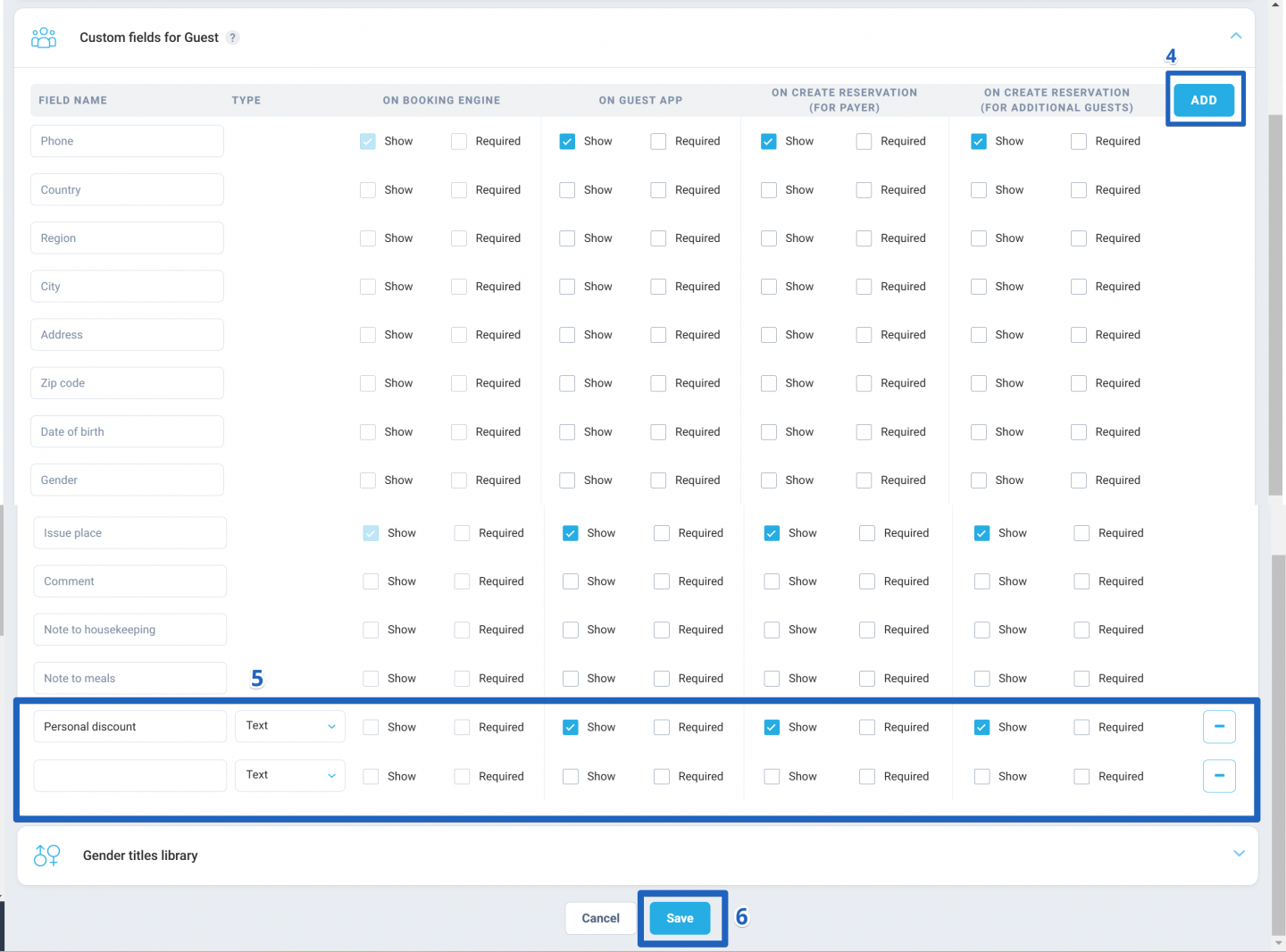
If you need to remove a custom field that you've added, simply click the "-" button next to the field.
Author:

