

How to create a custom email template
Custom email templates in HotelFriend allow you to personalize and tailor your communications to meet specific needs, such as sending special promotions, guest updates, or exclusive offers. These templates can be used for manual sending or integrated into automated workflows for better guest experience.
Follow these steps to create a custom email template:
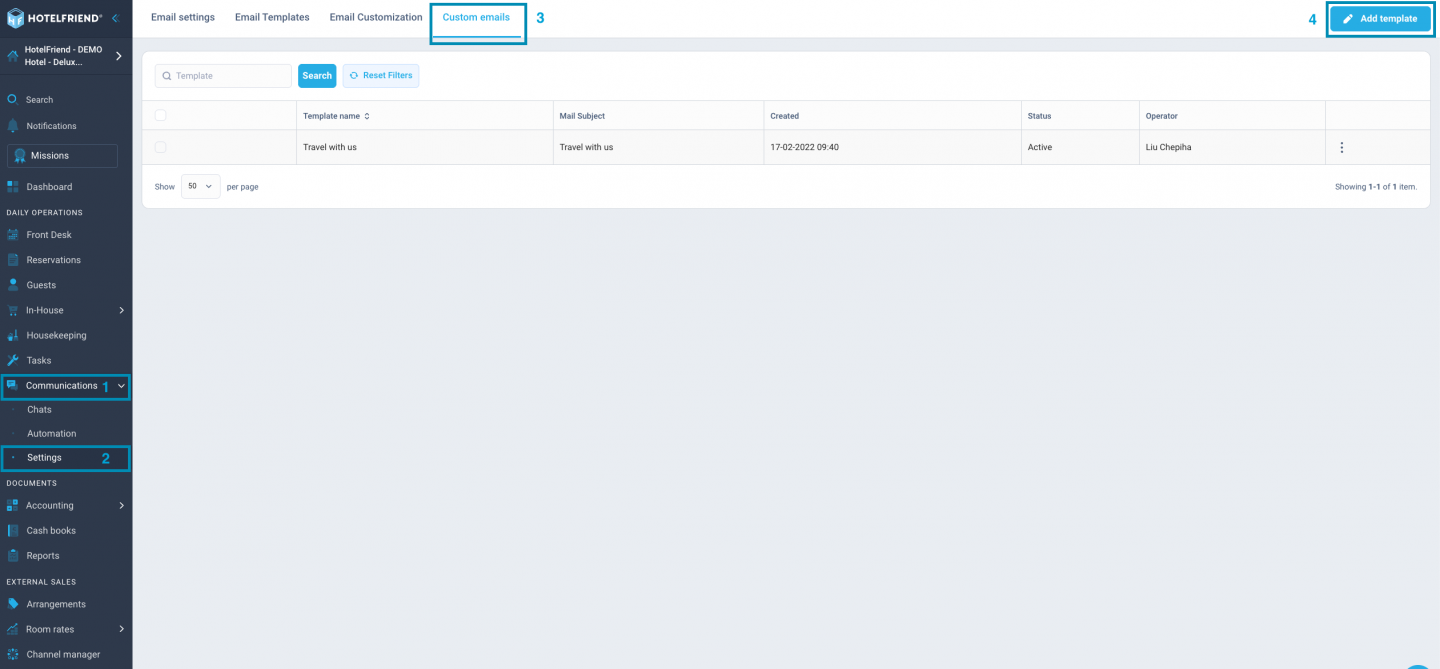
- Navigate to the Communications section in the left-side menu.
- Once you're in the Communications module, click Settings.
- Go to the Custom emails tab.
- Click on the Add template button in the right upper corner.
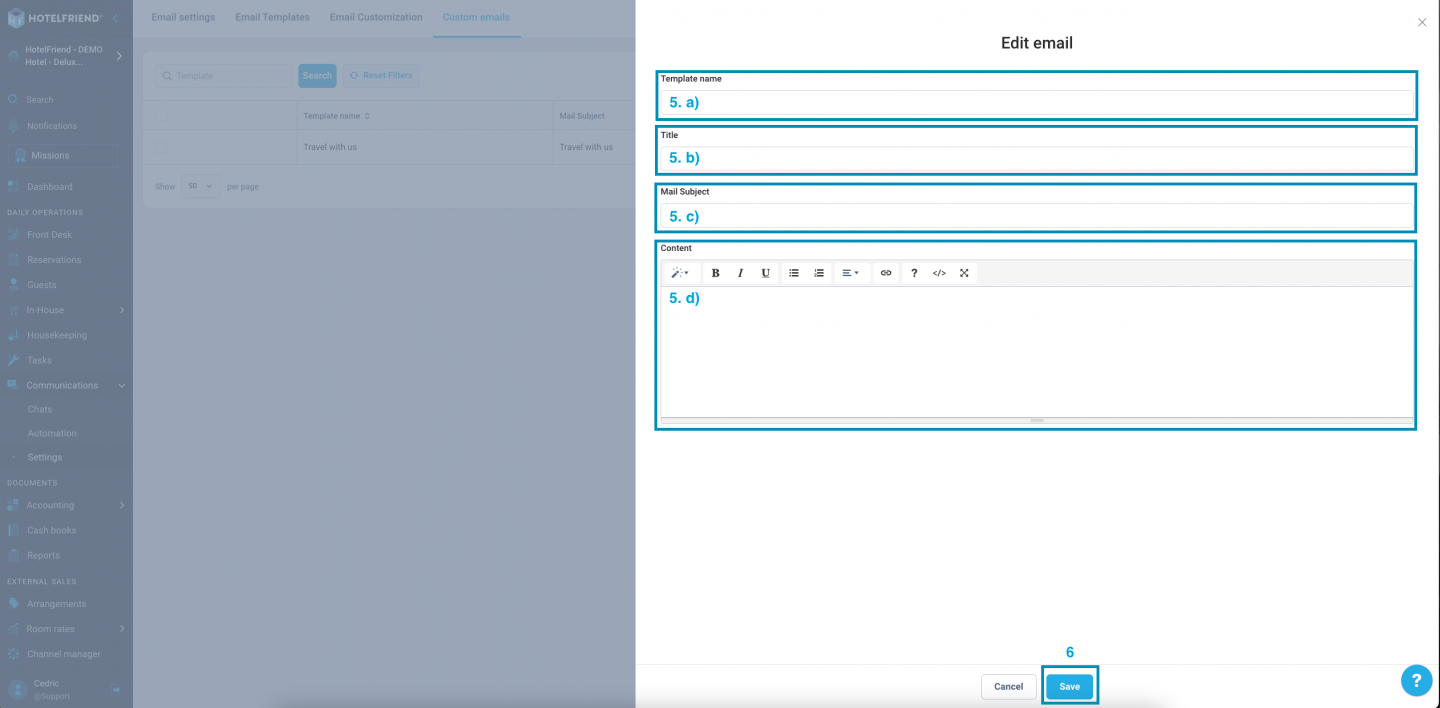
- Fill in the required fields to create your email template:
- a. Template name: Choose a unique name for your template, making it easy to identify later.
- b. Title: Provide a title for your email template.
- c. Mail Subject: Enter the subject line of the email that will be displayed to recipients.
- d. Content: Write the body of your email, including any special offers or personalized messages.
- Click Save.
Author:

