

How to customize Guest Statuses
The flexibility to tailor guest statuses gives you more control over managing your guest profiles. This short guide simplifies the process, providing clear instructions on how to create, customize, modify, and remove new guest statuses in the HotelFriend system.
How to customize Guest Statuses
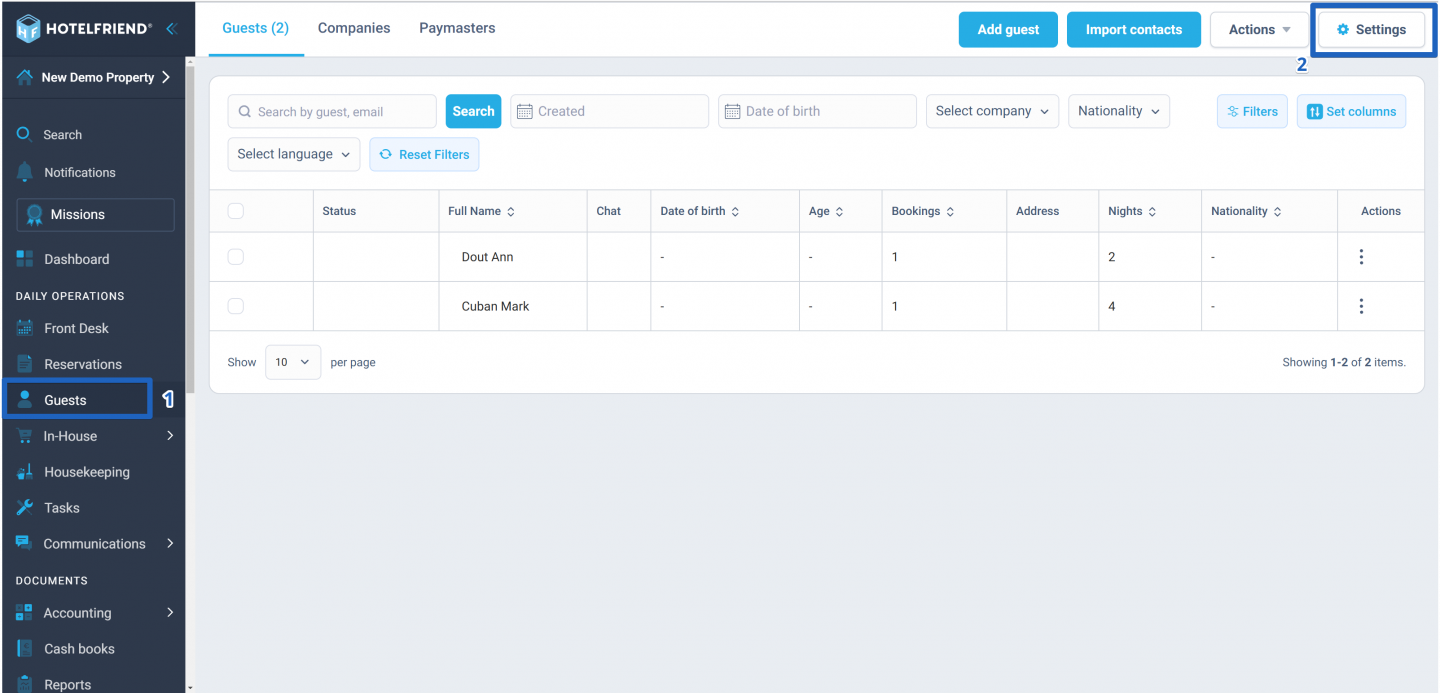
- In the menu on the left, go to the Guests module.
- Click on the Settings button in the top right corner.
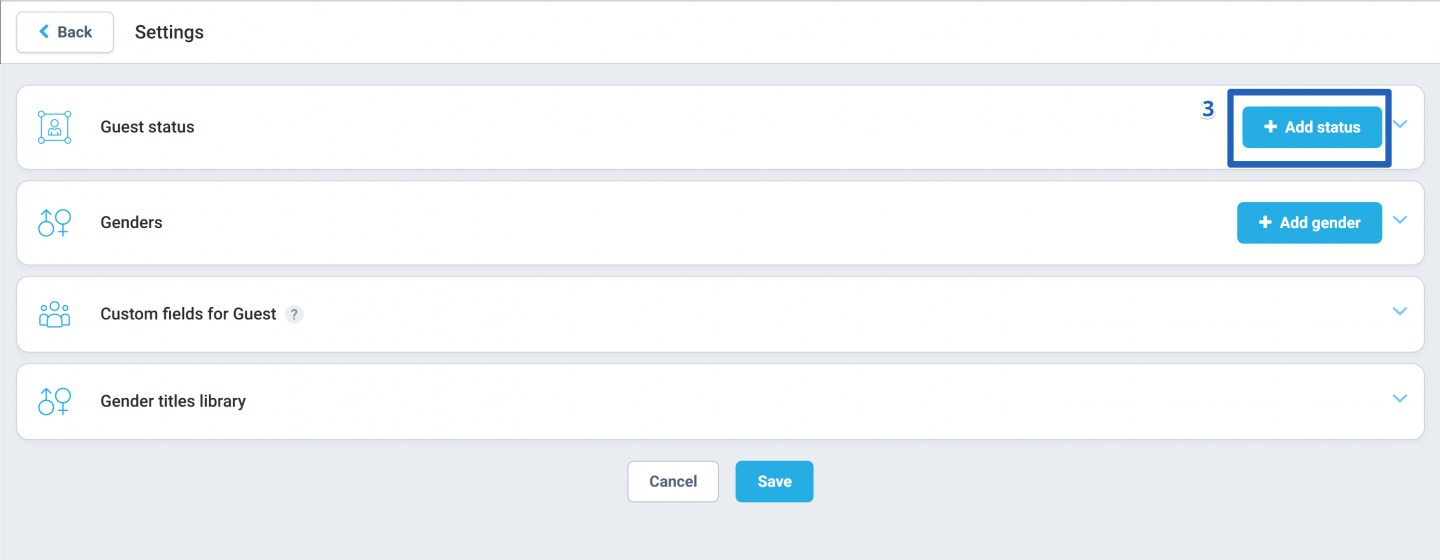
- Locate the + Add status button in the Guest status section and click it.
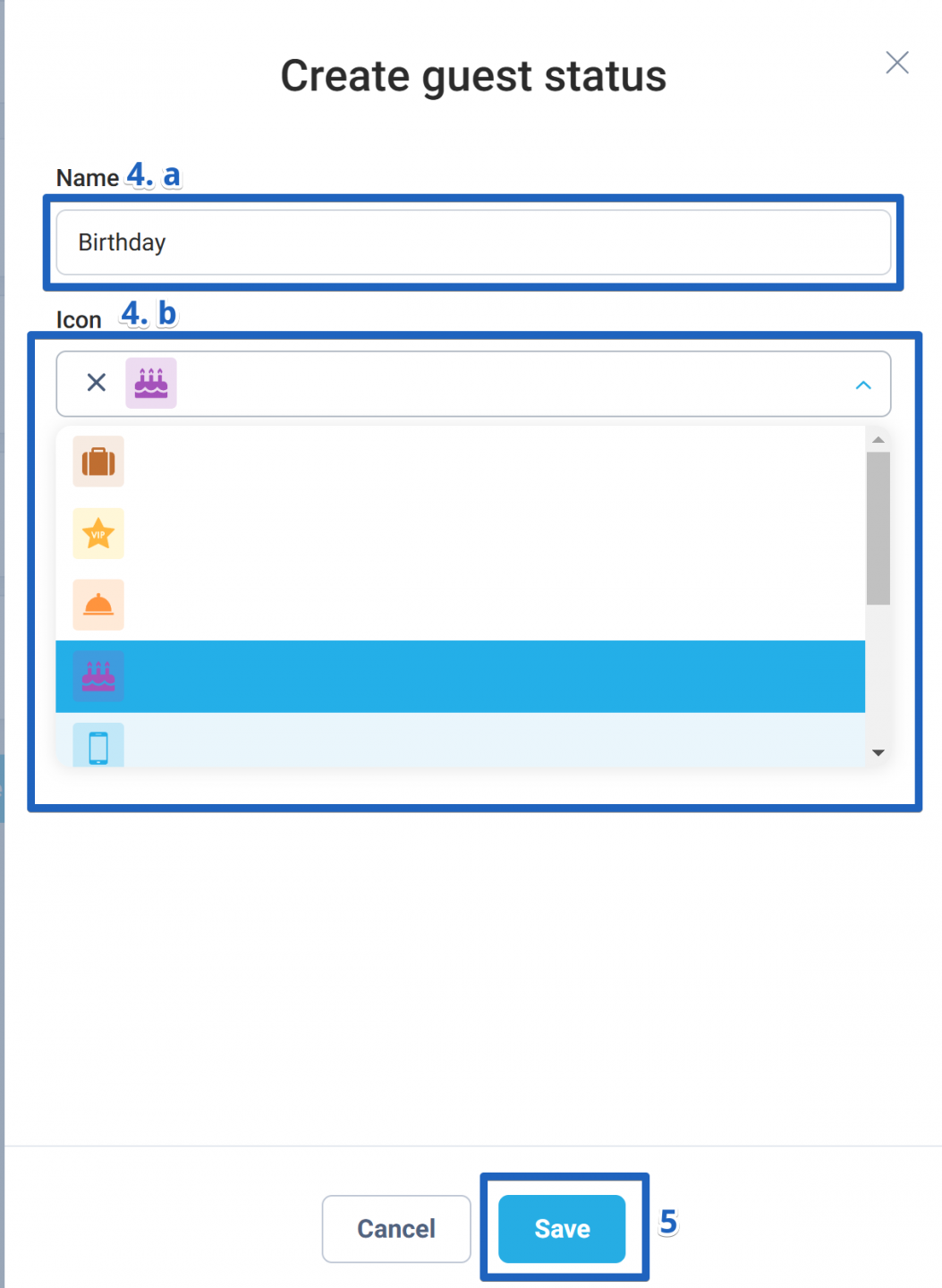
- A new window will open where you can:
- Name your new status.
- Choose an icon from the dropdown list for your new status.
- Click Save.
These new statuses can be changed, deleted, or added to guest cards whenever you need.
Editing or deleting statuses
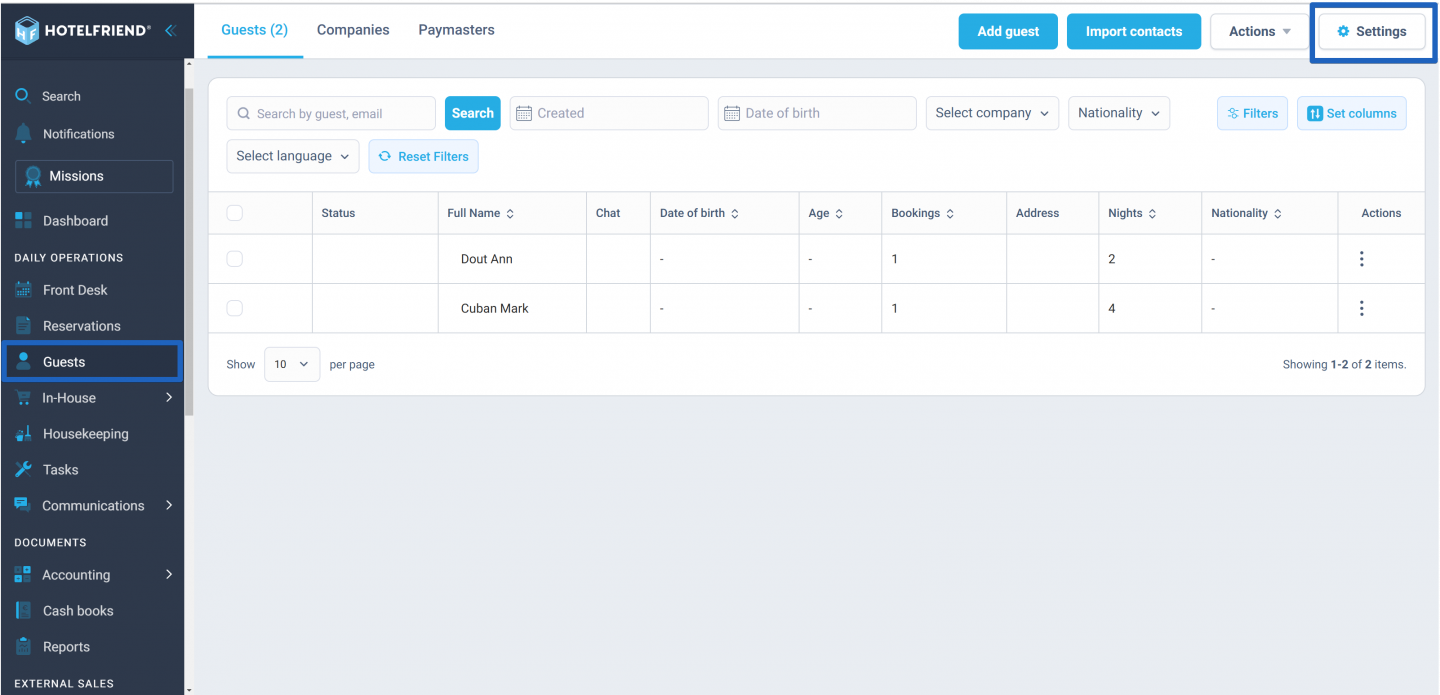
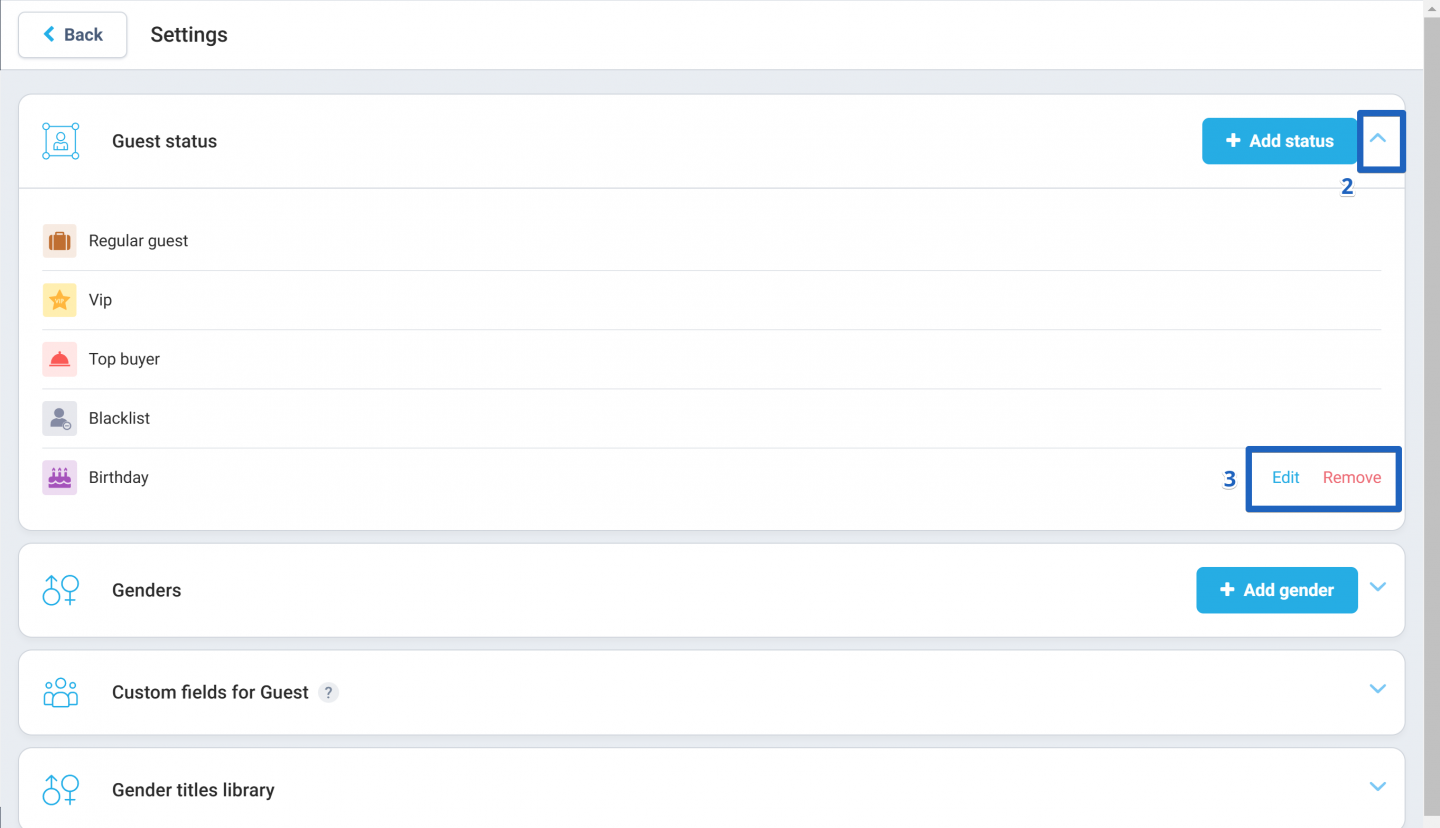
- To change or delete a status, head to the Guests module and click Settings.
- Press on the dropdown arrow next to + Add Status in the Guest status block.
- Next to the status you want to change or remove, click Edit or Remove.
Author:

