

How to add an order to a reservation
When a guest requests additional services, you can easily add an order to their reservation. This can be done either in the Orders module or directly from the guest's booking card. Follow the steps below to learn how to add an order in both ways.
Adding an order through the Orders module
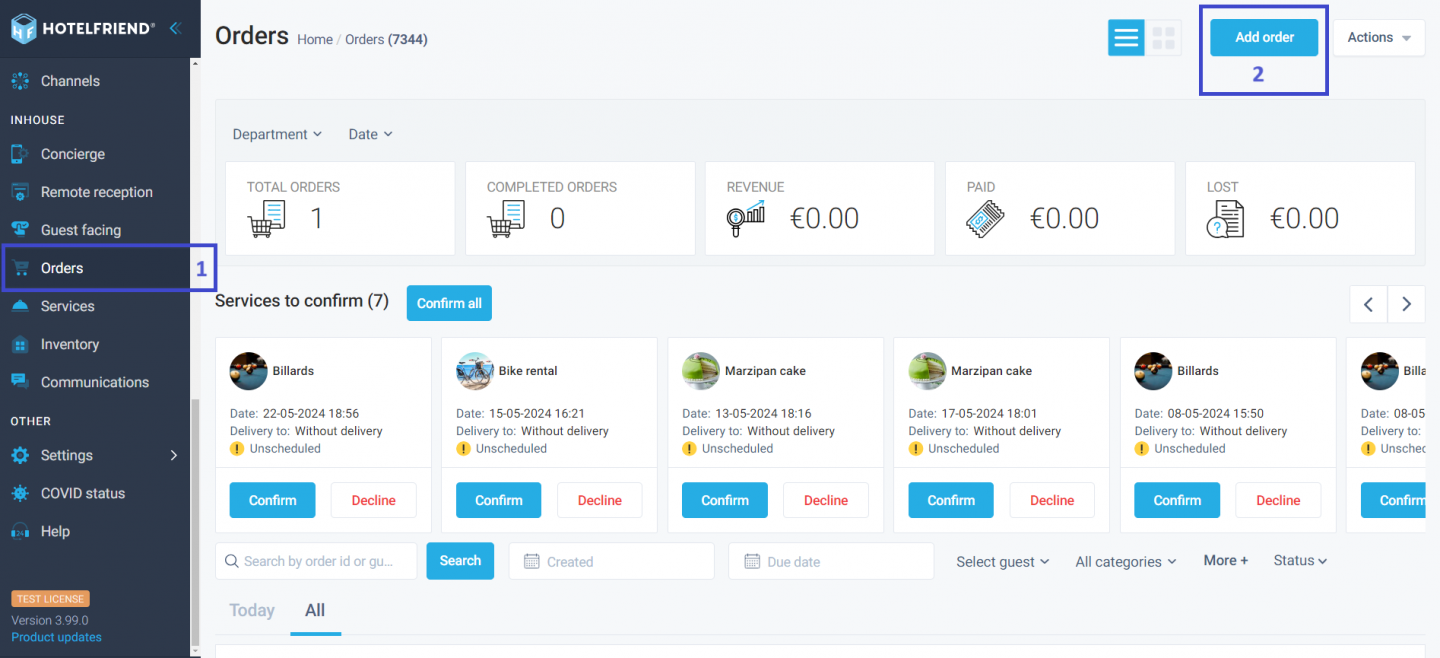
- Select Orders from the menu on the left side of the screen.
- Click the "Add order" button located in the upper right corner.
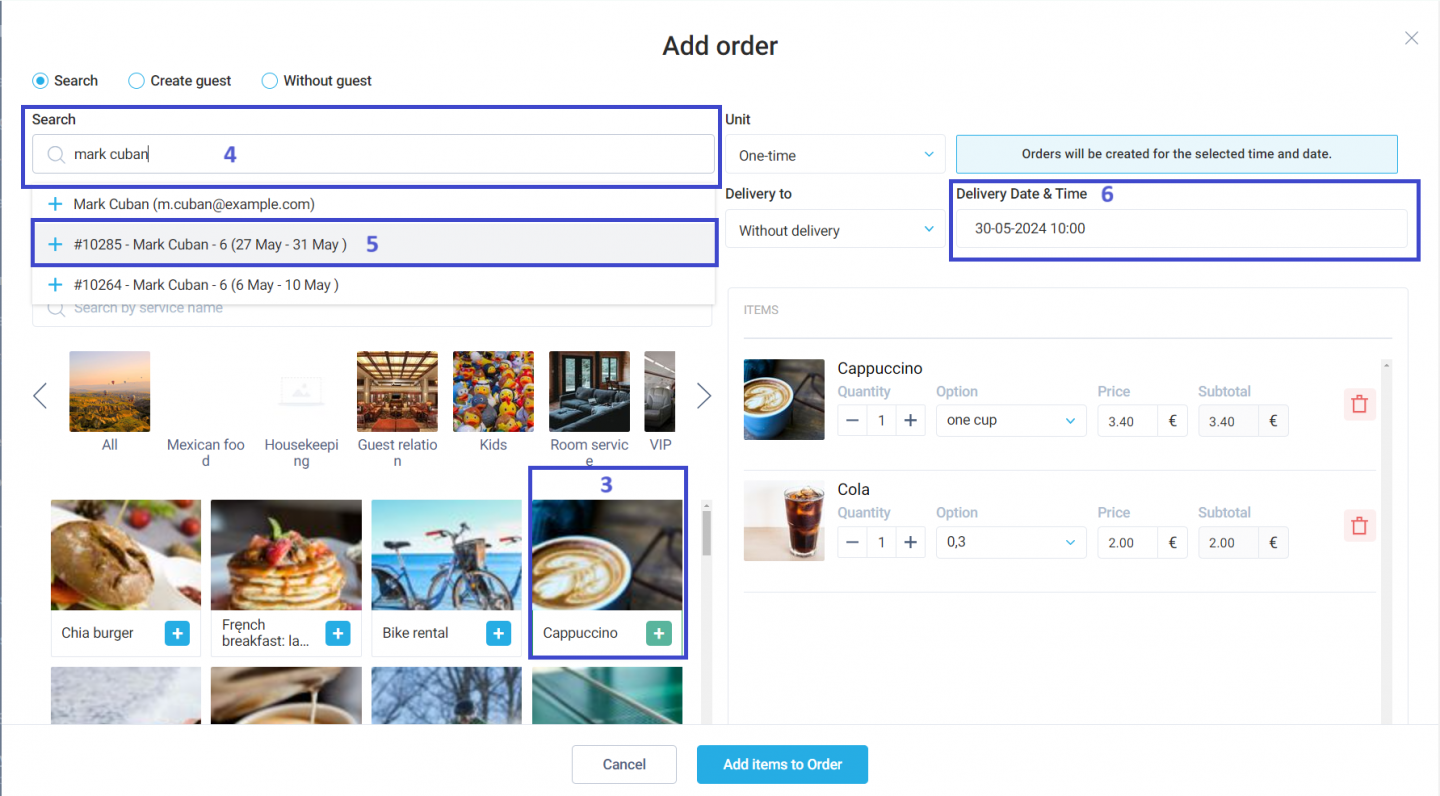
- Click the "+" button next to the services you wish to add.
- In the Search field, enter the guest's last name, first name, or email to pull up their data.
- In the "Dates of Stay" field, select the booking period to which you want to add the order.
- If the service is for a specific date and time, select the appropriate delivery date and time in the "Delivery Date & Time" field.
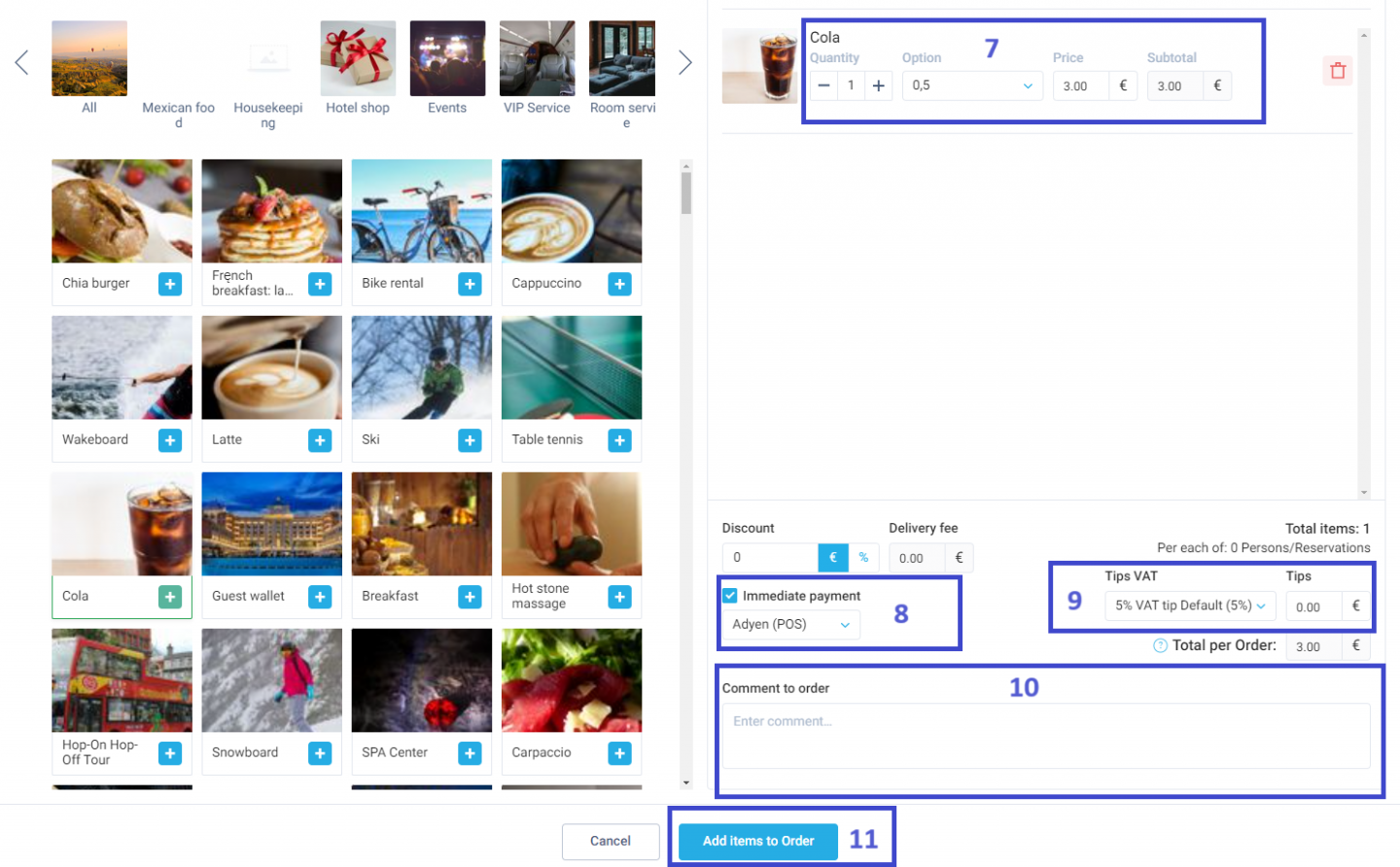
- Change the quantity using the +/- buttons and specify the price in the "Price" field.
- Scroll to the bottom of the page, and if the guest paid for the service instantly, check the "Immediate payment" box and select the Payment Method from the list. The payment status will automatically update to "paid."
- Specify the tips in the "Tips VAT" and "Tips" fields. The final price will be reflected in the "Total per Order" field.
- Use the "Comment to order" field to add any additional notes.
- Click the "Add items to Order" button to save the order.
- Open the guest's booking card from the relevant section.
- Select "Add Order" from the Actions menu in the upper right corner. The guest data and booking period will be pulled up automatically.
- Complete the order creation process in the same manner as shown above in the Orders module steps.
Use the search field if necessary to find specific services.
Adding an order from a booking card
Adding an order from a booking card follows a similar process to the Orders module.
Do you have any questions remaining? Please feel free to contact our technical support team through the Ticket Support form or by emailing support@hotelfriend.com. We're here to help!
Author:

