

How to change or reset your password
If you can’t access your HotelFriend account or simply want to update your login credentials for security reasons, you can easily change or reset your password in a few quick steps.
Resetting your password from the login page
You can request a password reset directly from the login page. All you need is access to the email address linked to your account. After setting a new password, you’ll be able to sign in again right away.
Follow the steps below to reset your password:
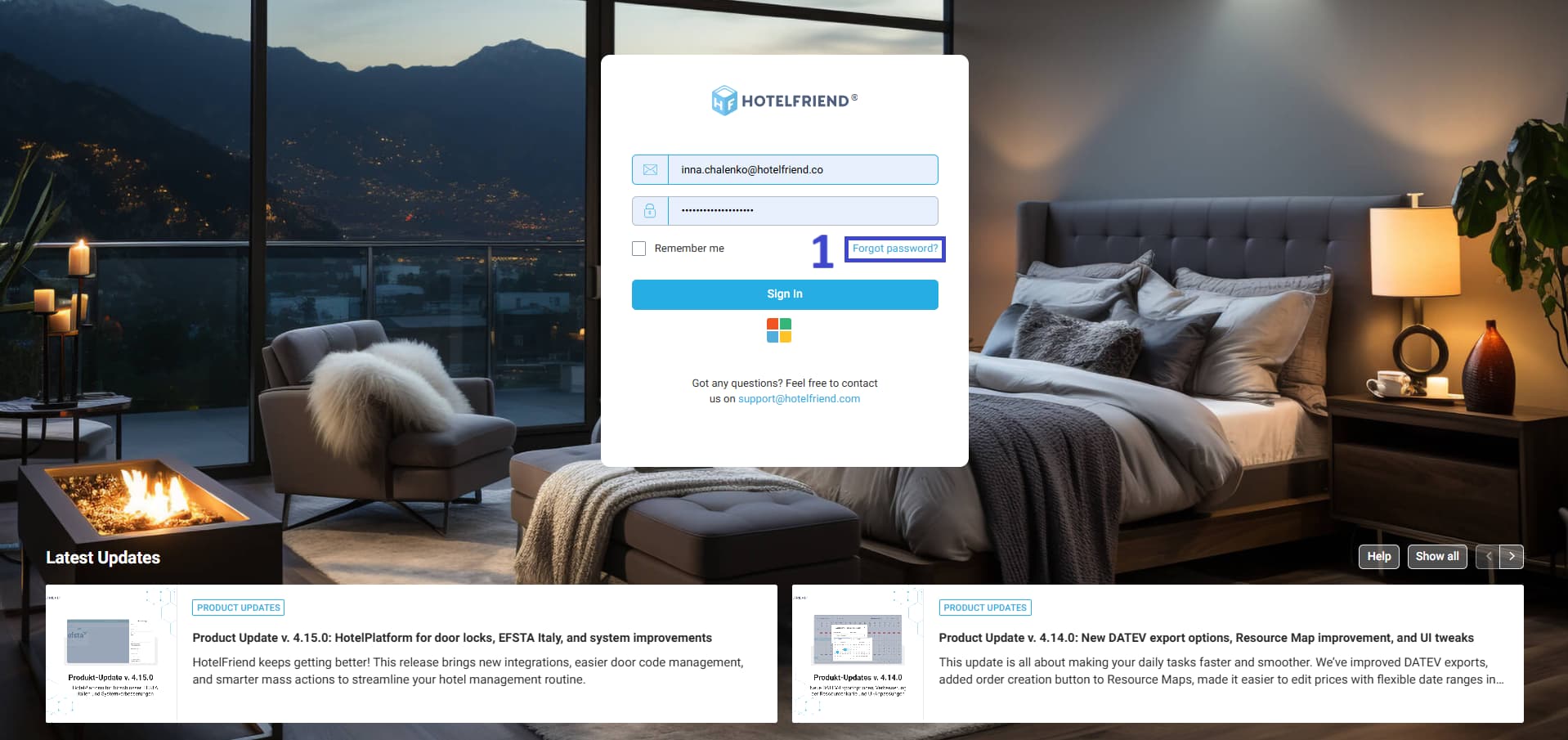
- Go to app.hotelfriend.com and click Forgot password below the password field.
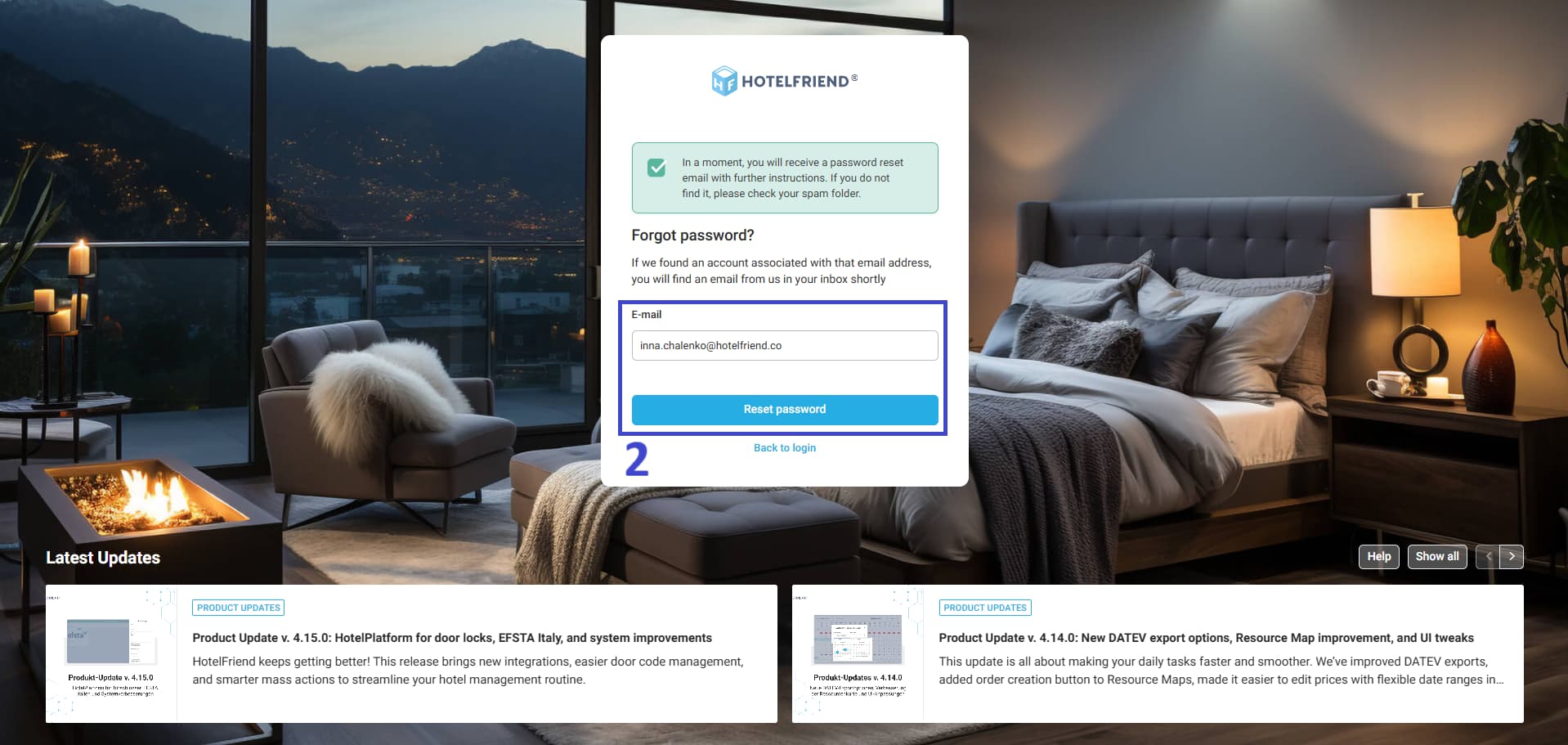
- Enter the email address associated with your HotelFriend account and click Reset password.
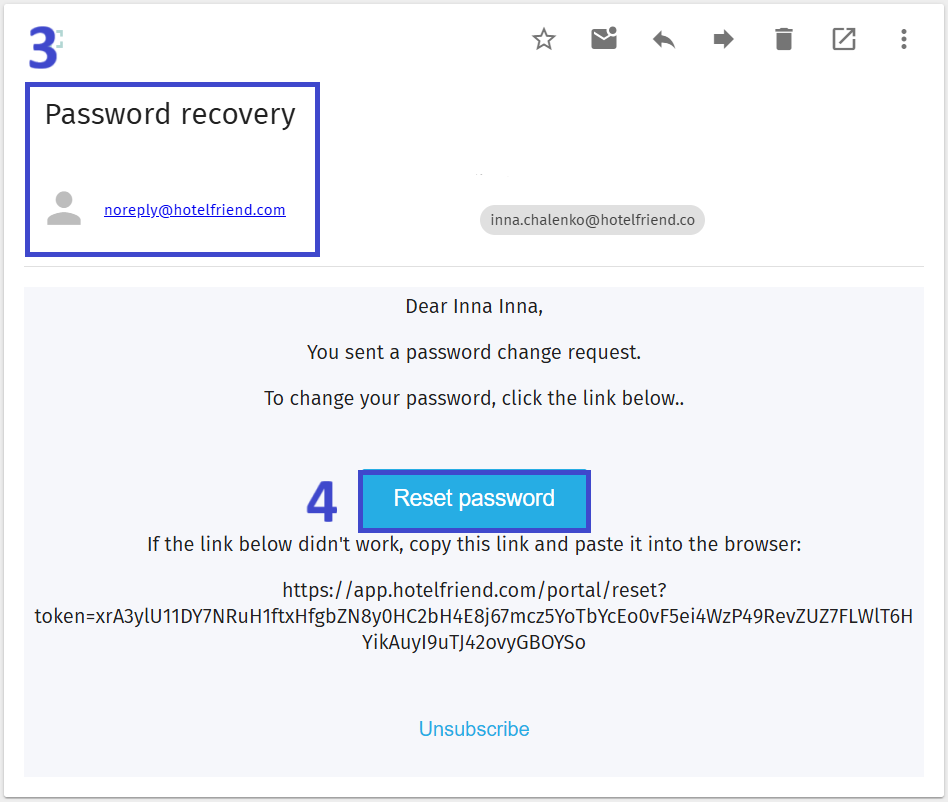
- Check your inbox for an email from noreply@hotelfriend.com with the subject Password recovery.
- Open it and click the Reset password button.
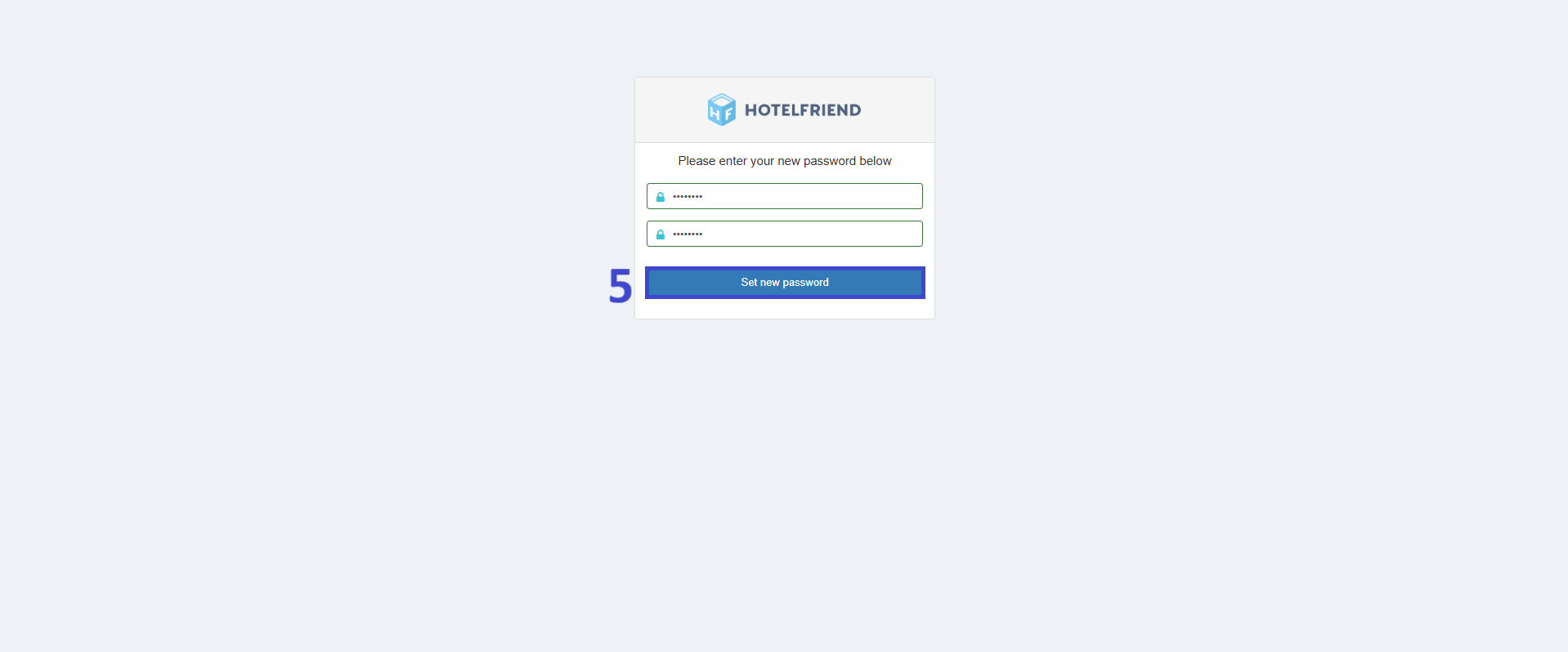
- On the page that opens, enter and confirm your new password, then click Set new password.
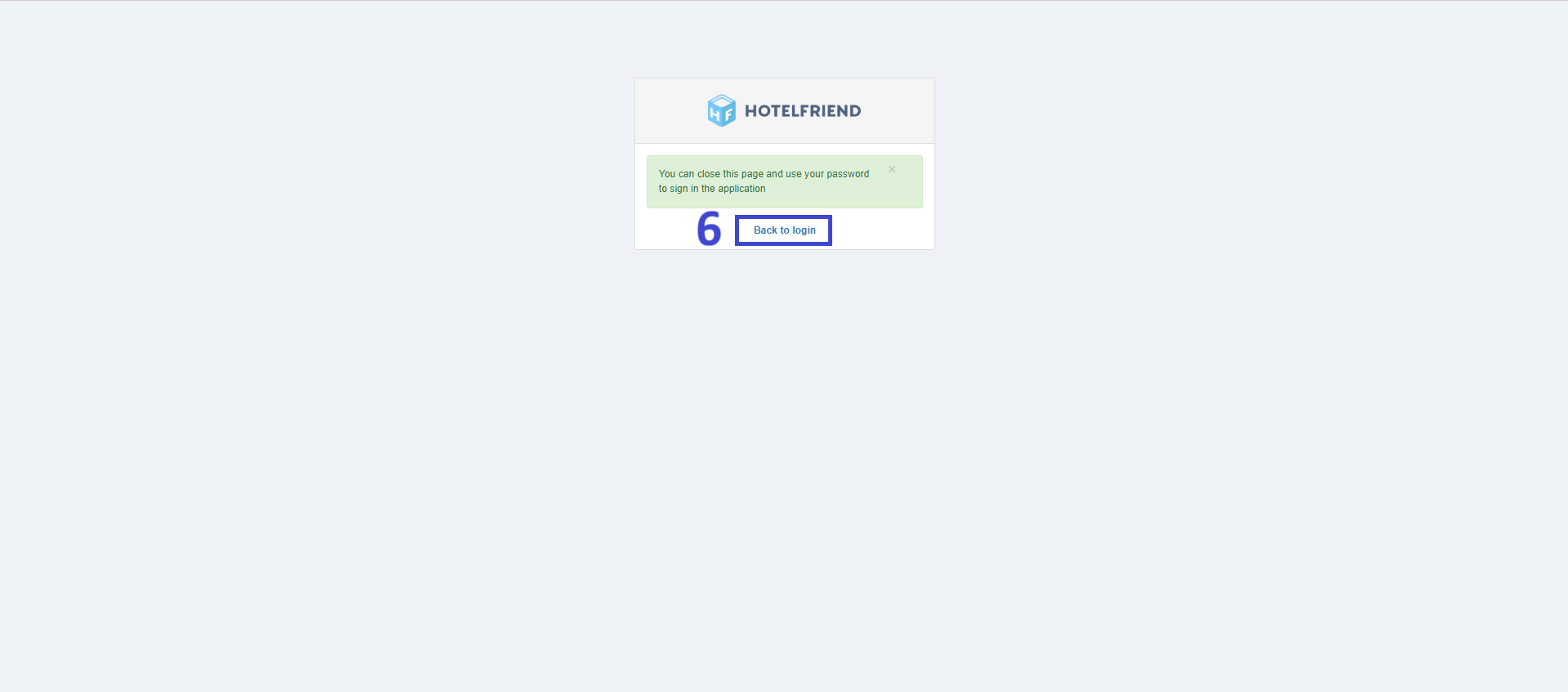
- Once the password is successfully changed, you will see a confirmation message. Click Back to login.
- Return to the login page and sign in using your new password.
If you don’t see the email, check your spam folder.
Changing your password in User settings
If you are already logged in and want to change your current password, you can do it directly from your user profile.
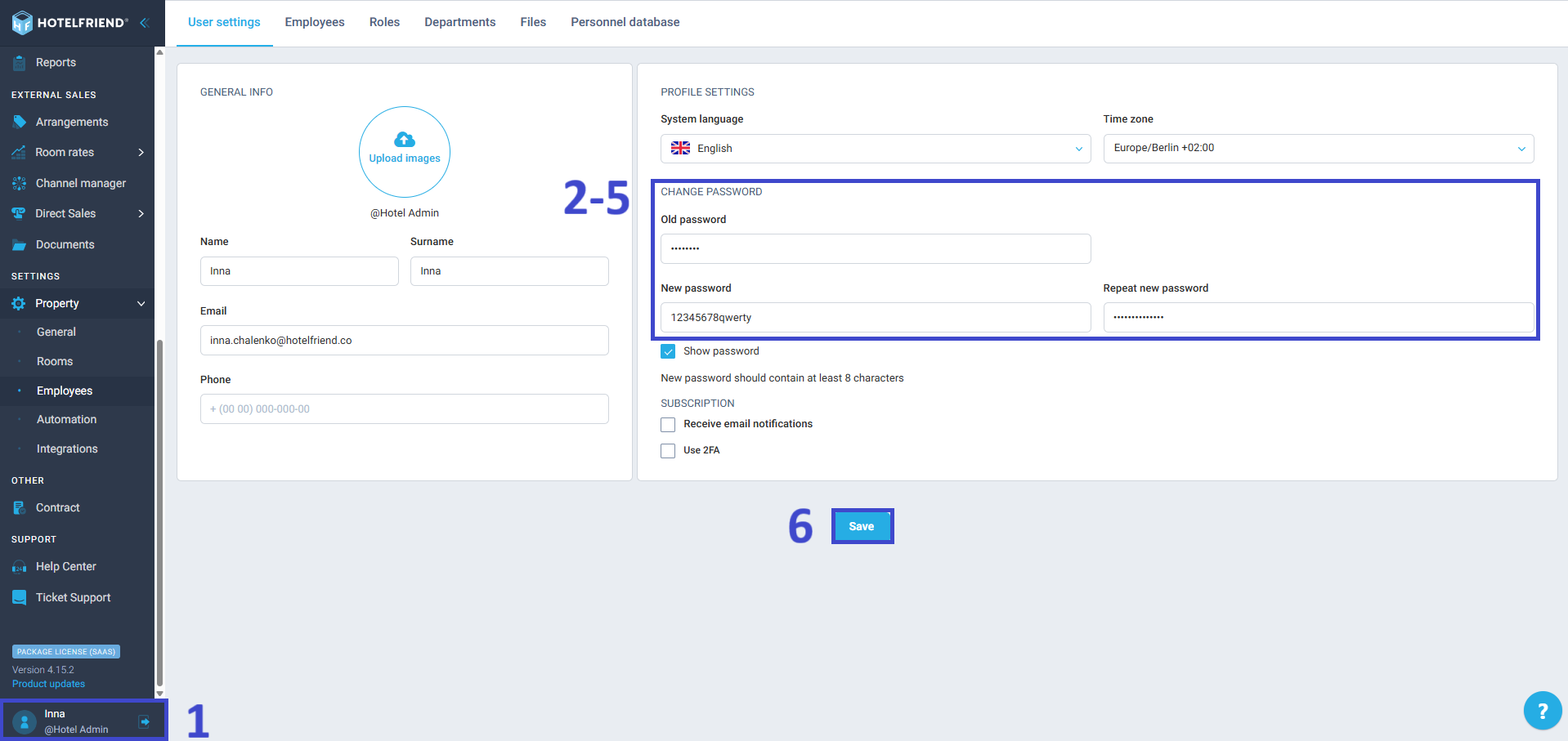
- In the left-side menu, click on your Profile.
- Go to the Change password section.
- In the Old password field, enter your current password.
- In the New password field, type your new password.
- In the Repeat new password field, re-enter the same new password to confirm it.
- Click Save.
Optional: Tick the Show password box to make sure everything is entered correctly.
Your password will be updated immediately. You can use your new credentials the next time you log in.
Tip: For security reasons, choose a strong password that includes at least 8 characters, a mix of uppercase and lowercase letters, numbers, and special symbols. We also recommend updating your password regularly and avoiding reuse of old passwords.
If you’re still having trouble resetting your password and signing in to your account, please contact our support and we’ll help.

