

How to apply Booking Restrictions across Channel Manager
Restrictions help you control when and how your rooms are sold on connected OTAs (Online Travel Agencies) via the Channel Manager. By setting clear booking conditions, you can optimize occupancy, avoid unwanted short stays, and manage your sales strategy across all distribution channels.
Why use restrictions?
Restrictions let you:
- Ensure minimum revenue per booking (e.g., require at least 2 nights stay on weekends).
- Control guest flow (e.g., prevent check-ins on specific days like Christmas Eve).
- Adjust occupancy during high-demand periods (e.g., close sales for OTAs if you want to prioritize direct bookings).
Example
You can set a 3-night minimum stay for New Year’s Eve to avoid one-night bookings, or you can block check-outs on a Saturday to keep rooms available for longer stays.
Important note: Most OTA systems support booking restrictions for a maximum of 1 year from the current date. Please ensure your restrictions fall within this timeframe so they display correctly on OTA platforms.
How to add a restriction for Channel Manager source
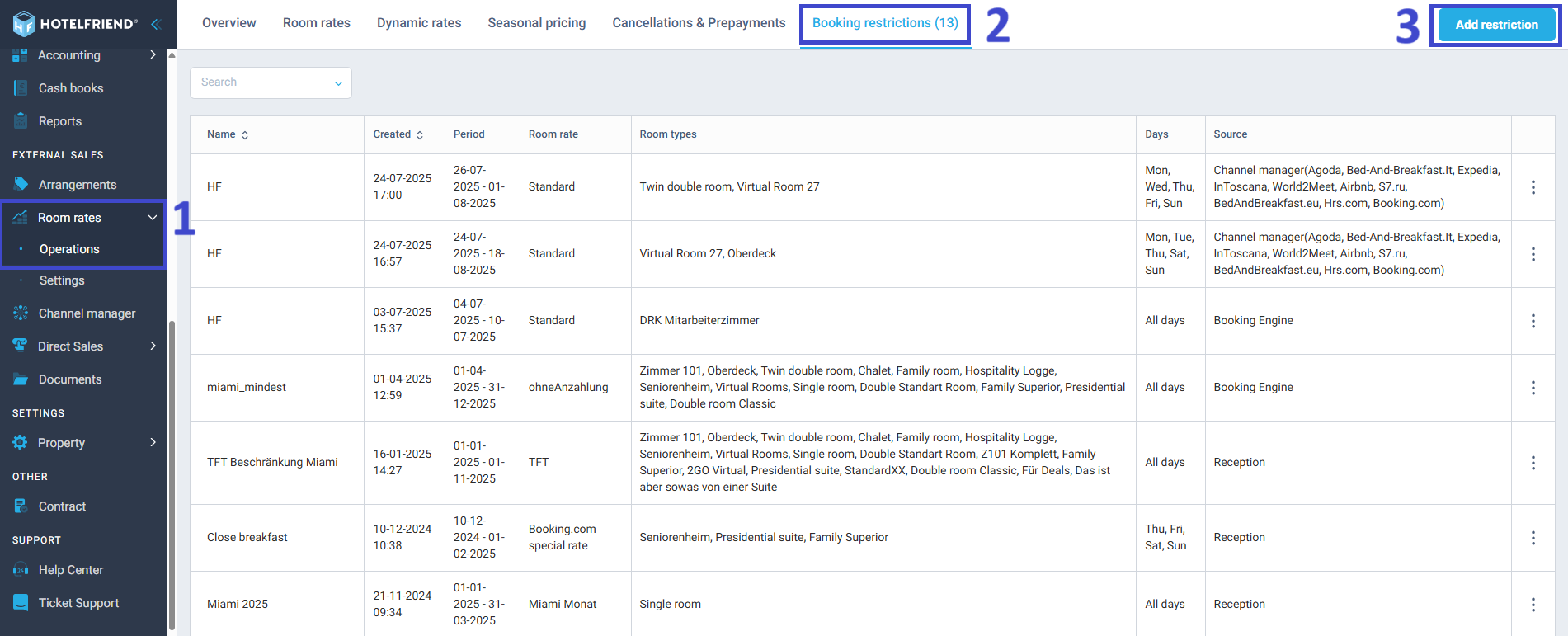
- Go to the Room Rates module in your HotelFriend account.
- Open the Booking Restrictions tab.
- Click the Add Restriction button.
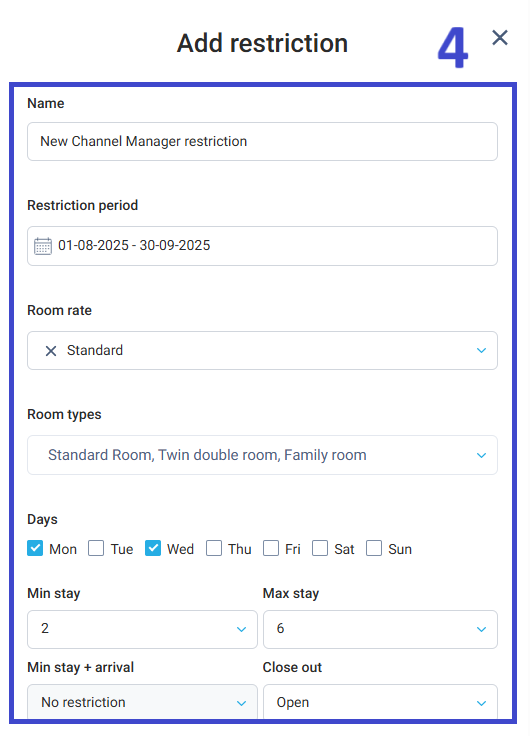
- Fill in the required details:
- Name of the restriction
- Restriction Period: Select the start and end dates using the calendar.
- Room Rate: Choose the applicable rate from the drop-down list.
- Room Types: Select one or more room types to apply the restriction to.
- Days of the Week: Choose which weekdays the restriction should apply to.
- Stay Conditions: Set up rules such as:
- Min Stay (minimum nights)
- Max Stay (maximum nights)
- Min Stay + Arrival (minimum stay required on arrival day)
- Status: Decide how the room will be available:
- Open
- Closed
- Open, but no check-in
- Open, but no check-out
- Open, but no check-in and no check-out
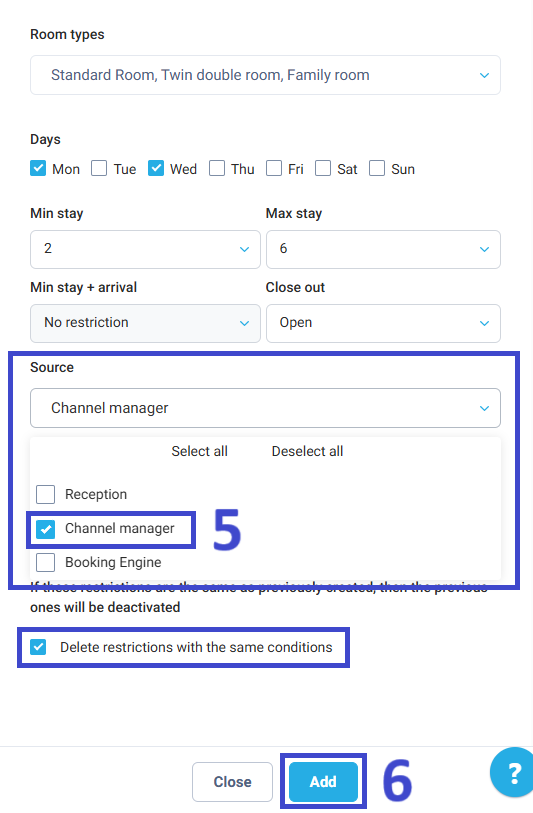
- Source: Select Channel Manager to apply the restriction to all connected OTAs.
- Click Add to save the restriction.
- When you select Channel Manager, the restriction applies to all connected OTAs at once.
- If you want to set different restrictions for different channels (e.g., one rule for Booking.com and another for Expedia), please contact the HotelFriend Support Team.
To avoid duplicates, enable Delete restrictions with the same conditions. This will deactivate existing identical restrictions (Optional).
Important to know
Author:

