

How to schedule future orders for several days
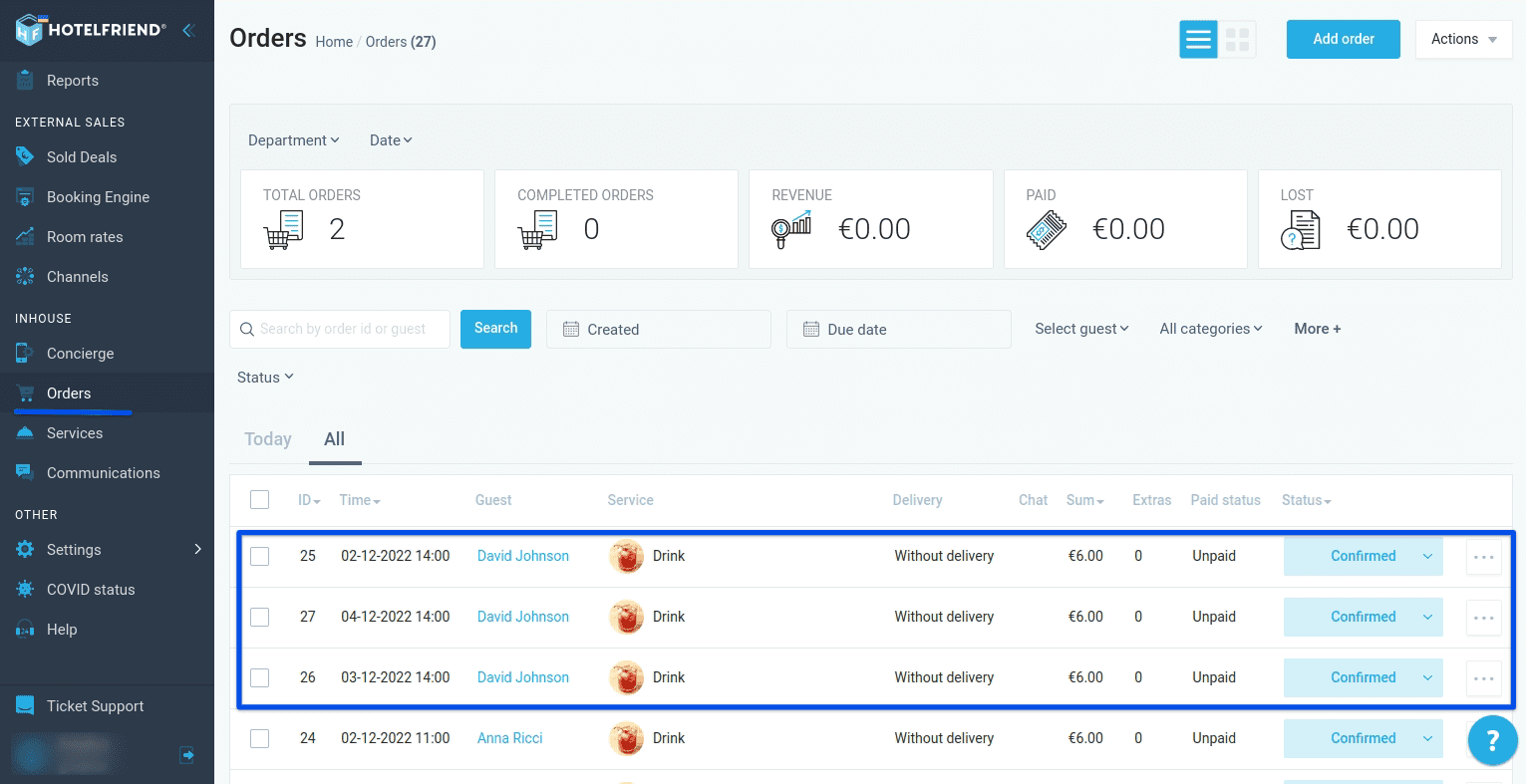
HotelFriend allows you to create bookings for specific dates and schedule guest orders ahead. When creating a new order, you can duplicate it for several days at once and avoid creating the order for each day separately. The orders will be automatically duplicated by the system for each selected date.
Here is how to create orders that are scheduled for specific dates and times:
- Go to Orders.
- Click the Add order button in the right upper corner.
- In the window that opens, add information about guests, and select services by clicking on the “+” button.
- In the Unit field, select the Custom dates option.
- Specify the desired delivery dates.
- Verify the information and click Add items to order.
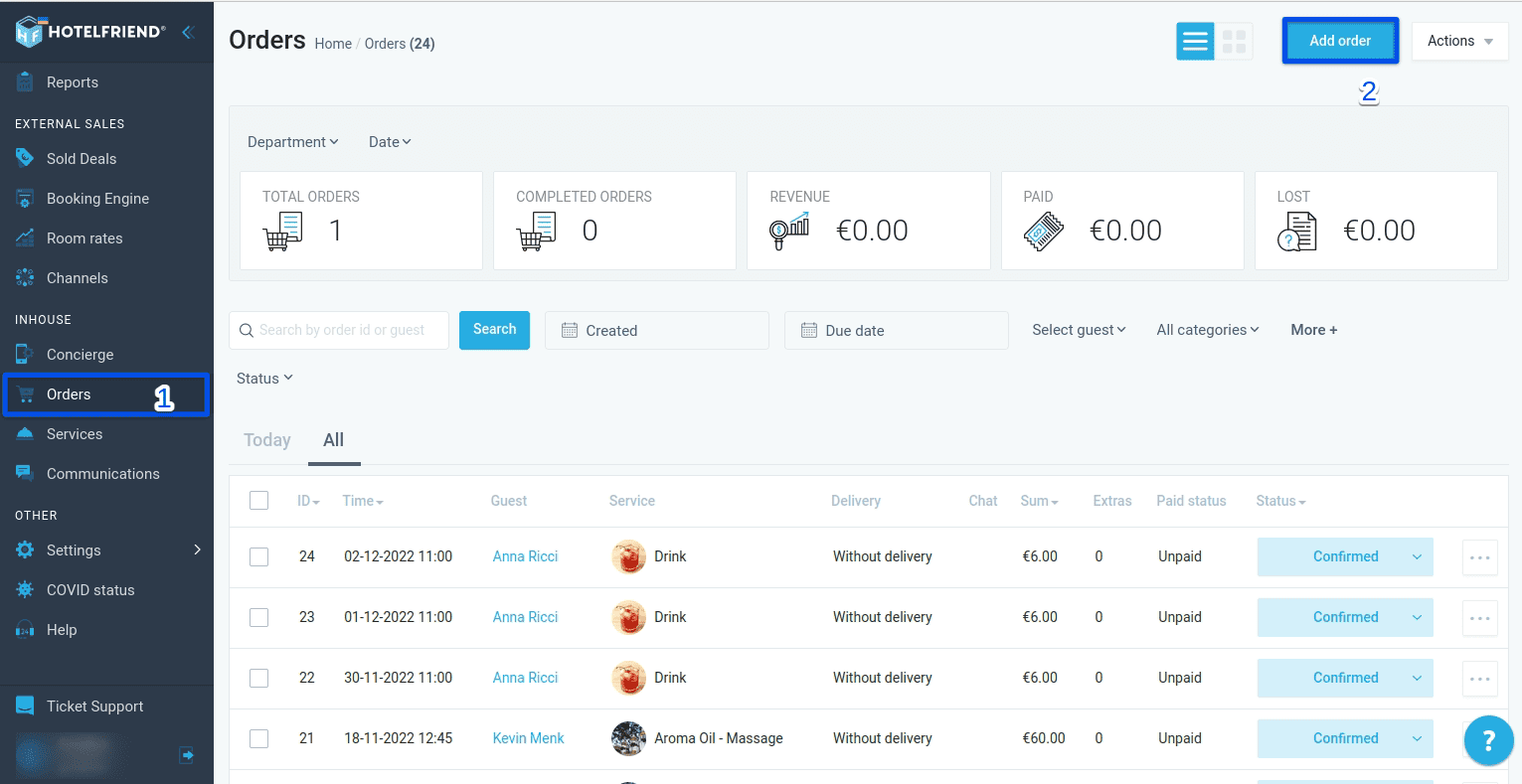
You can create an order tied to a particular booking both from the Orders module and from the guest's booking card.
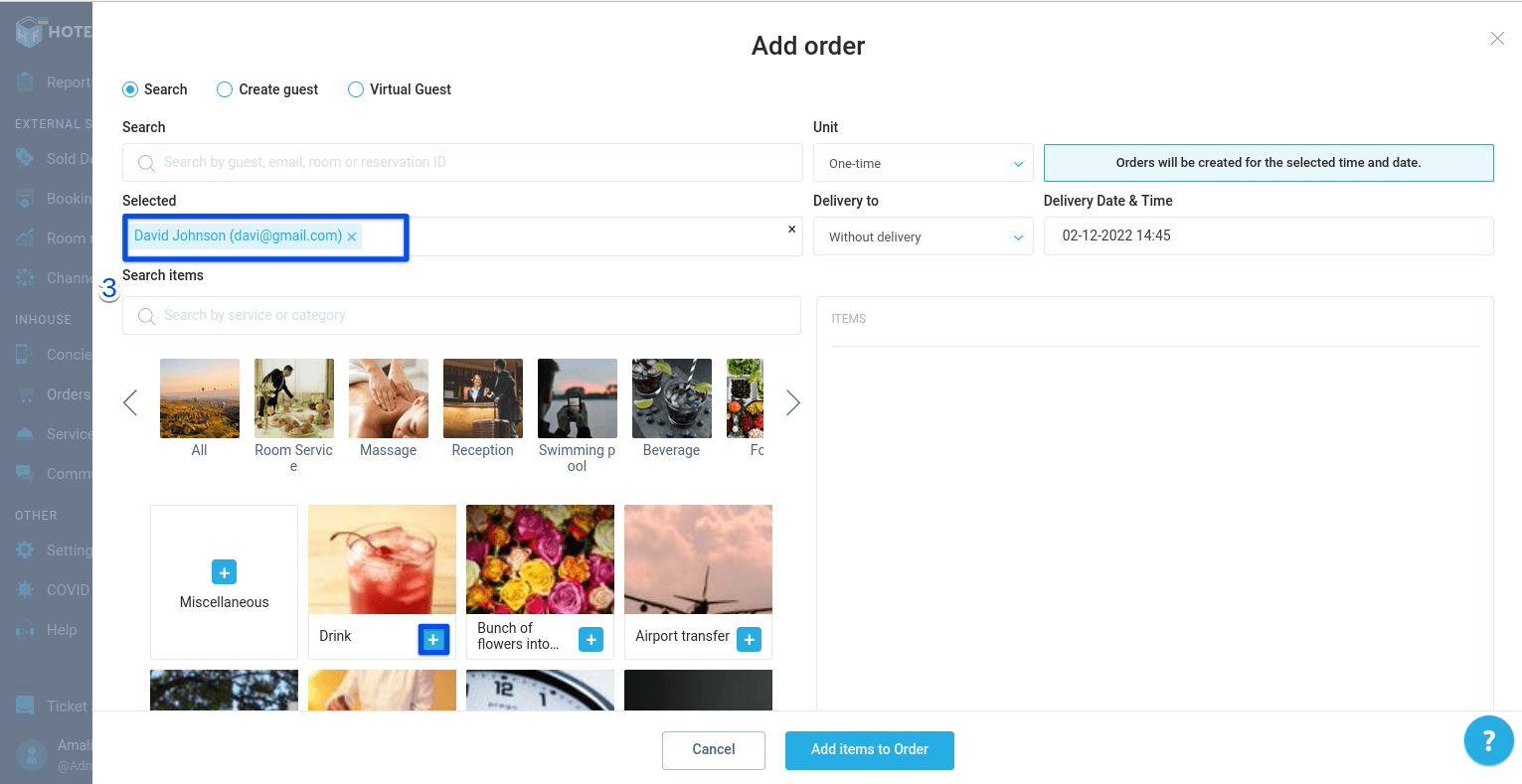
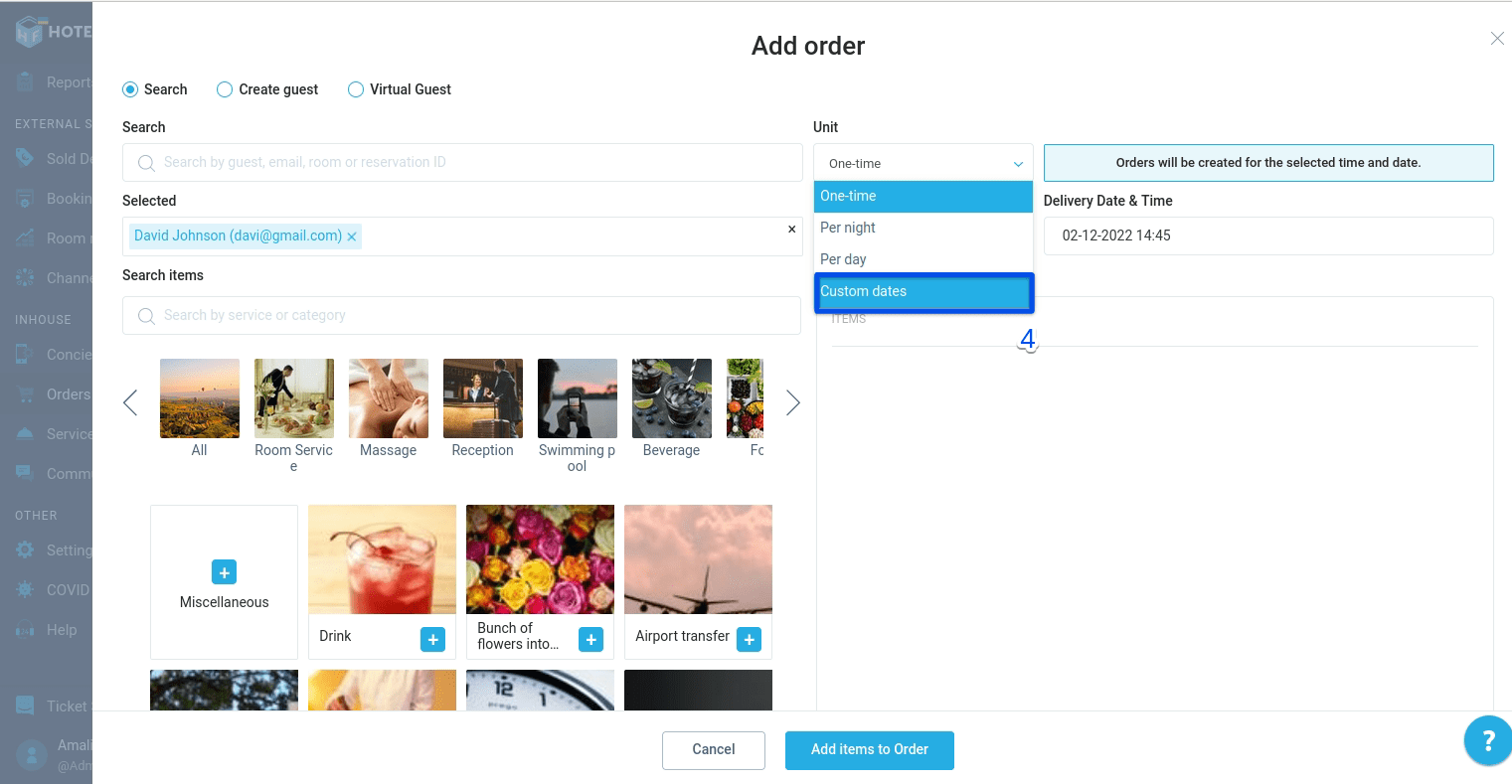
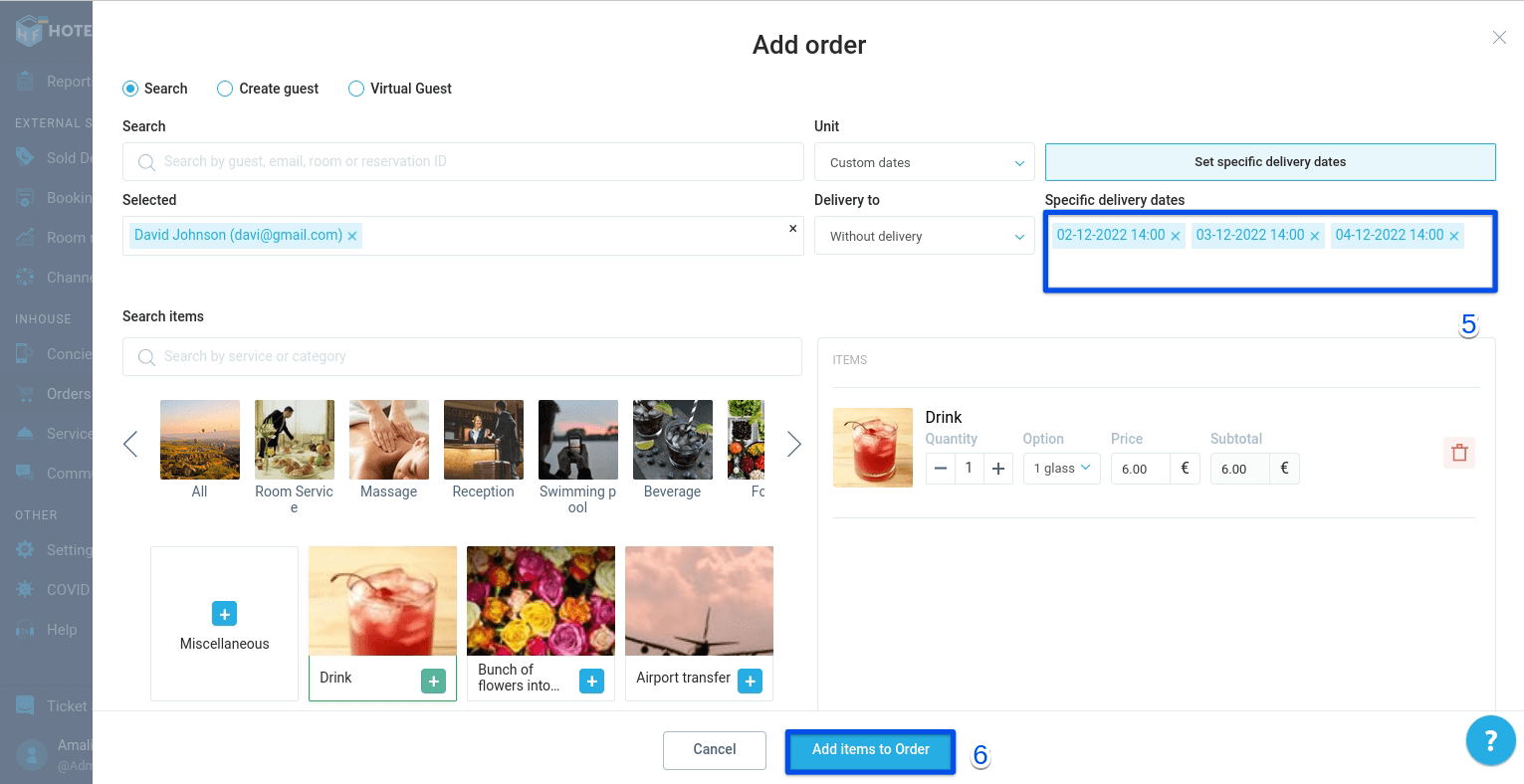
You can check all created orders in the Orders module, in the guest booking card, or in the guest card.
If you need any help or advice in scheduling your orders, please contact our support team and we’ll do our best to assist you!
Author:

