

Managing multiple hotels with the Multi Front Desk
The Multi Front Desk in HotelFriend PMS is designed to help hoteliers manage availability across several properties from one central location. This feature allows you to view and monitor available room quotas for each hotel you oversee. This article explains how to use the Multi Front Desk and where to manage bookings for multiple hotels.
What is the Multi Front Desk?
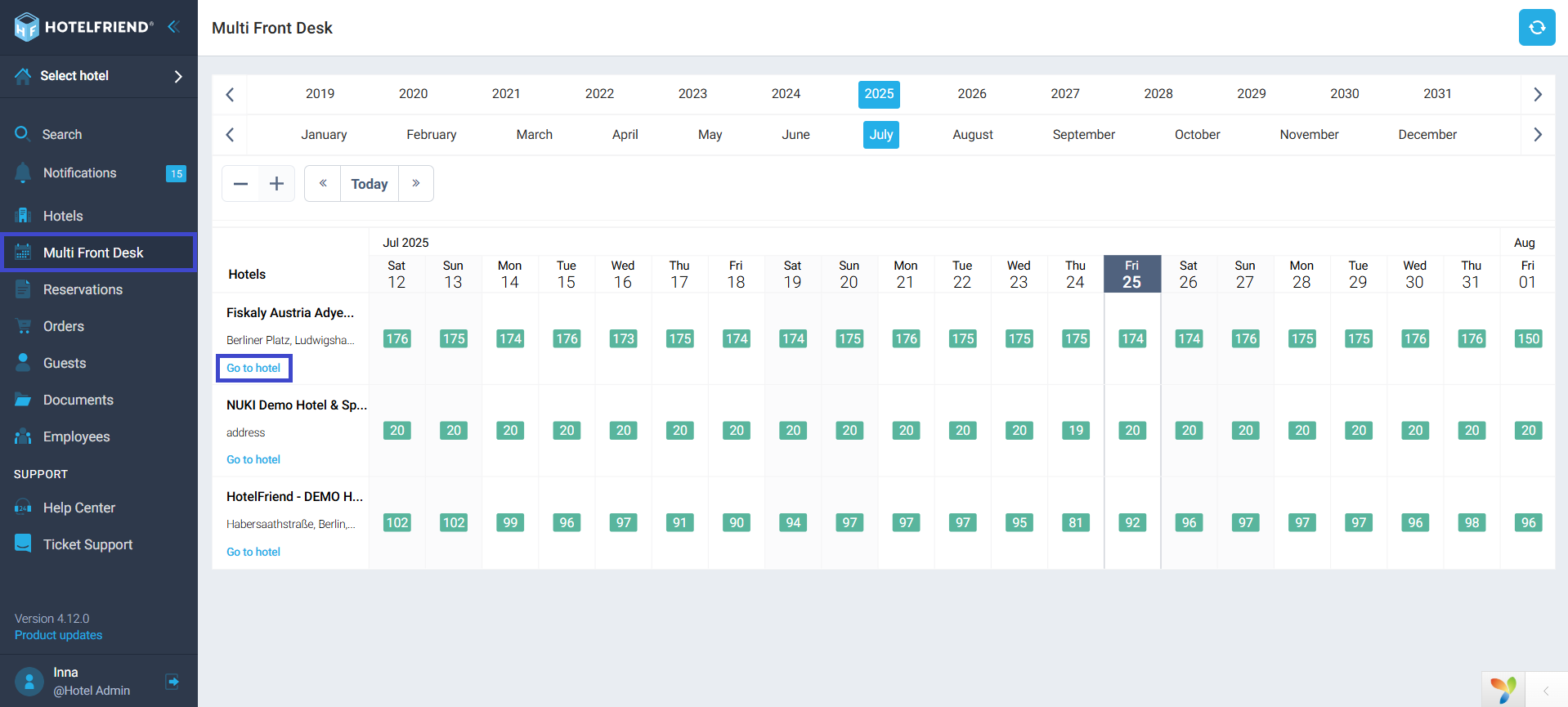
The Multi Front Desk provides a calendar view showing the available quotas (number of available rooms) for each hotel you manage. It’s especially useful for hotel chains, franchise groups, or property managers with oversight of several locations.
The Multi Front Desk does not display individual bookings. To view or manage reservations, you need to click “Go to hotel” and access the hotel’s individual dashboard.
Calendar navigation
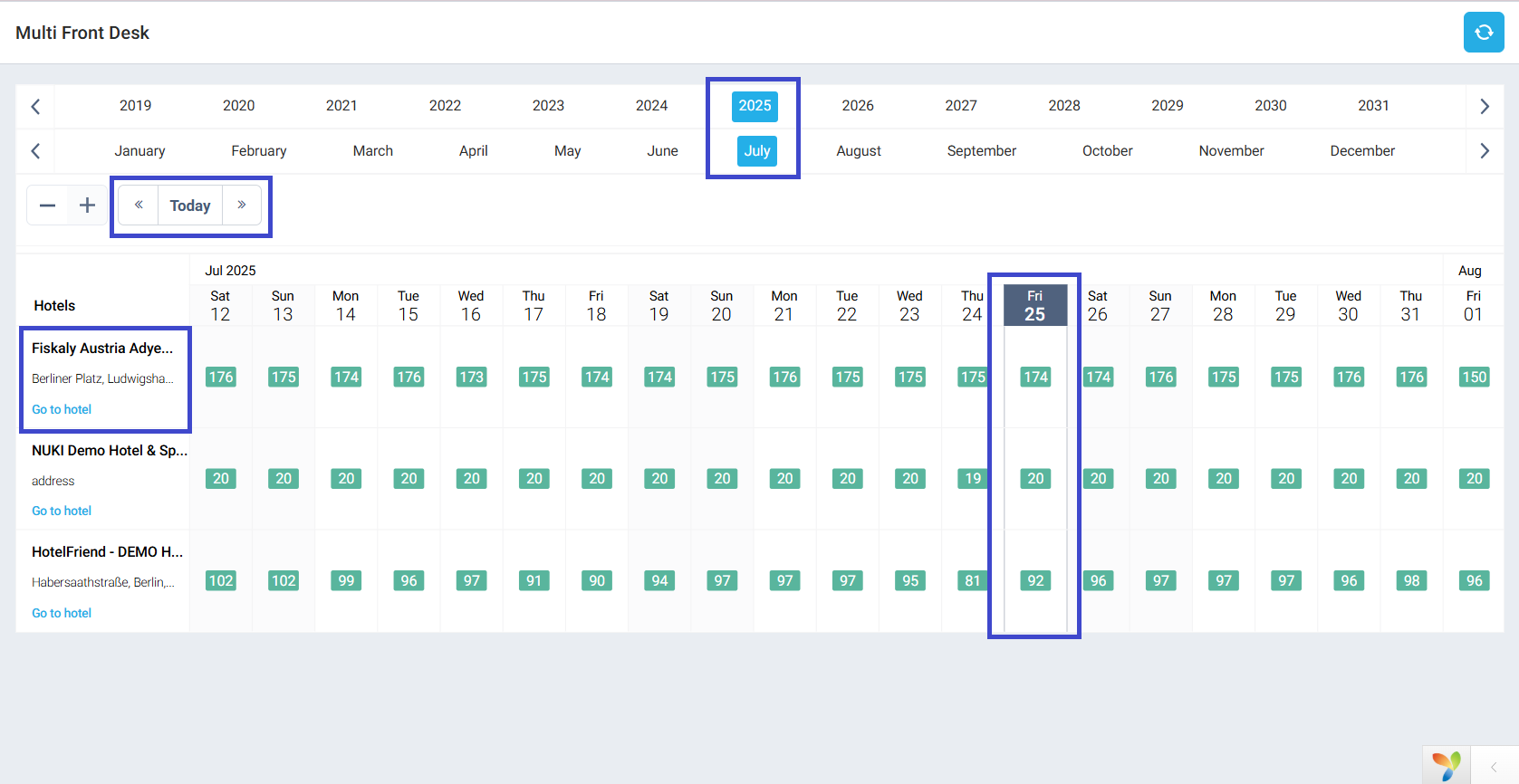
At the top of the page, you can navigate through the calendar using the following controls:
- Year and month selector – Choose the time period you want to view.
- Day view – See availability by specific date.
- Today button – Return to the current date.
- Left and right arrows – Quickly move forward or backward through the days and months.
Each row represents a hotel, while each column shows the number of available rooms on that date.
Hotel overview
Each hotel listed in the Multi Front Desk includes the following information:
- Hotel name
- Hotel photo (thumbnail)
- Address
- “Go to hotel” button – Takes you directly to the selected hotel’s dashboard to view bookings, rates, and Front Desk settings.
This way you can easily identify each property at a glance and quickly access detailed hotel data as needed.
Refresh availability
You can update availability data using the refresh icon (circular arrow) located in the upper right area of the calendar. This helps you to make sure that the room quotas you see are up-to-date, especially after new bookings or cancellations.
Viewing reservations across all hotels
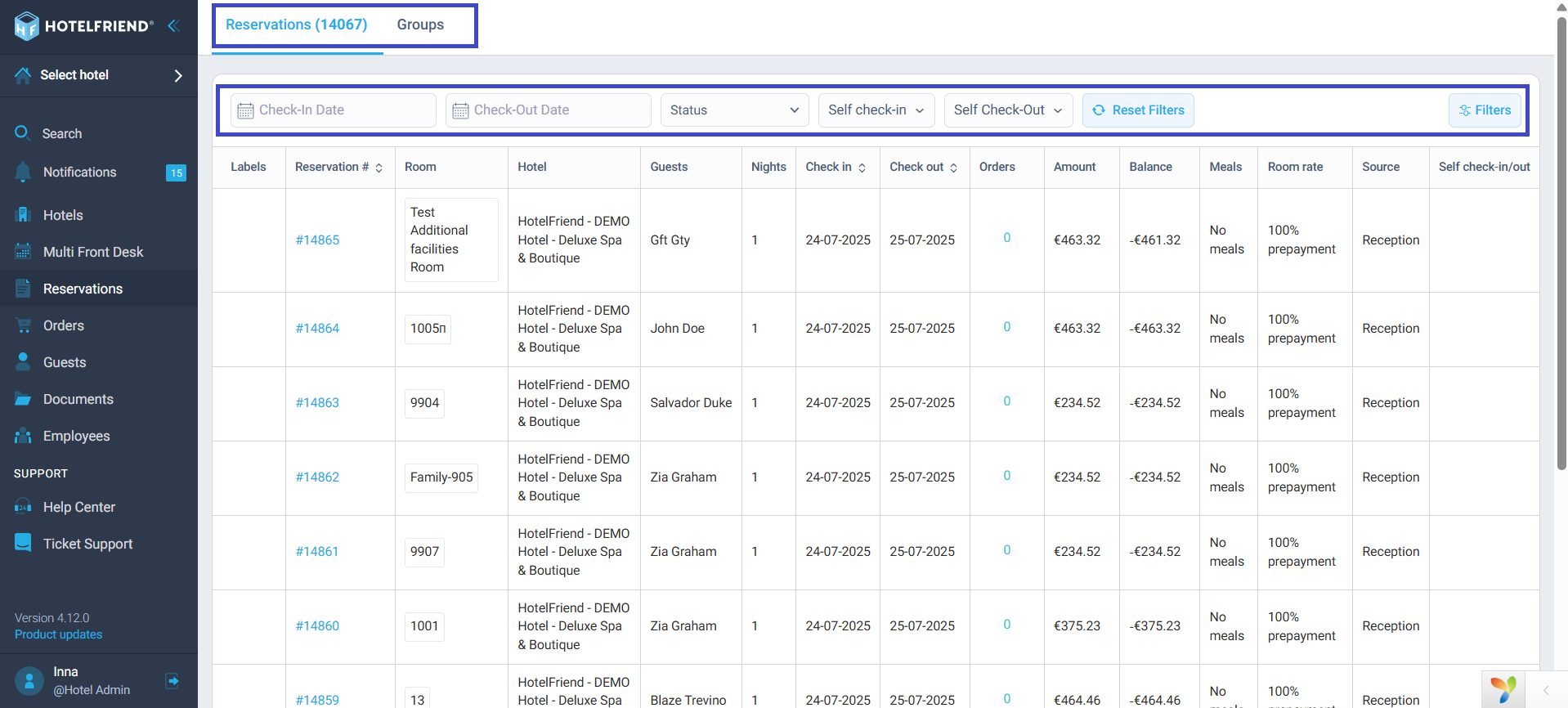
To view all reservations from all hotels in one place, go to the Reservations tab in the left-hand menu. This section provides a consolidated view of both individual and group bookings.
Tabs available
- Reservations – Lists all single-room or guest reservations.
- Groups – Shows bookings made for multiple rooms or guests under a single reservation.
Available filters
Use filters to quickly find the reservations you need. You can search and filter by:
- Check-in / Check-out date
- Reservation status (confirmed, canceled, etc.)
- With or without self check-in / self check-out
- Reservation type
- Invoices (issued or not)
- Early check-in
- Late check-out
These filters help you sort through large volumes of reservations in a few clicks.
The Multi Front Desk offers a clear overview of room availability across all your hotels, helping you stay organized and make decisions faster. While you can’t manage bookings directly from this view, it provides quick access to each hotel’s Front Desk and Reservations.
For full reservation management across all hotels, use the Reservations tab to track and filter bookings in detail.

