

How to set up Rooms & Multiple rooms
Setting up rooms correctly in your hotel's system is important for giving guests up-to-date and clear information about your inventory. In this simple guide, you will learn how to set up Rooms and Multiple rooms in HotelFriend.
How to set up Rooms
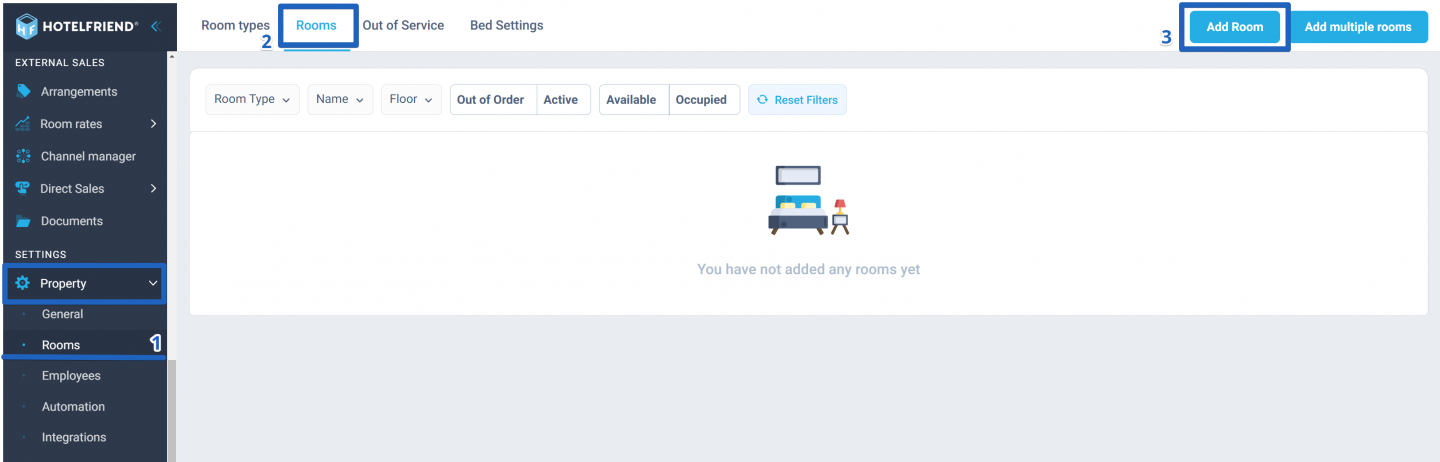
- In the menu on the left, click on Property and select Rooms.
- Go to the Rooms tab.
- Click the Add room button in the top right corner.
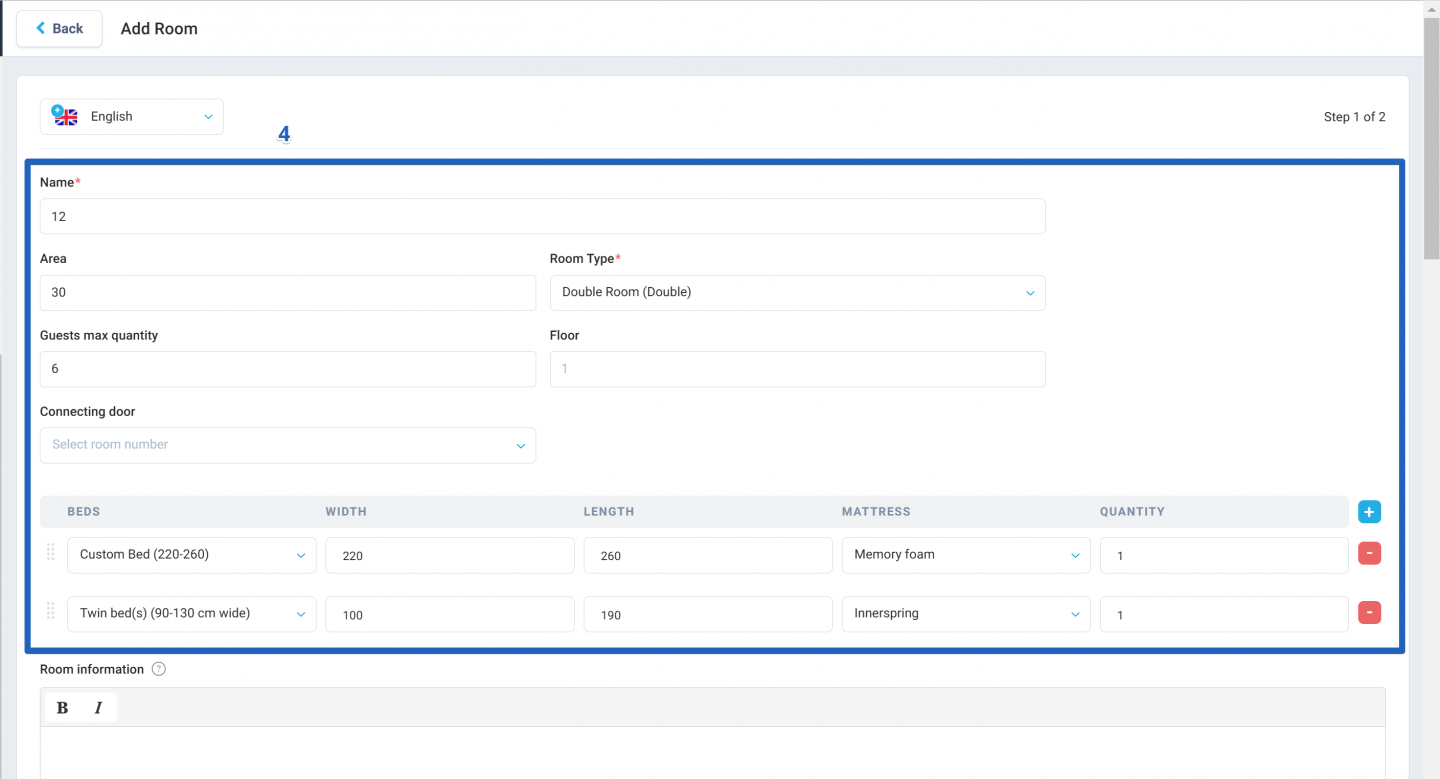
- Fill in the following fields:
- Enter the room number in the Name field.
- Pick the room type from the dropdown list.
- If the room has special features, note any differences in size, guest capacity, beds, or facilities.
- Scroll down and click the Save button.

Adding Multiple rooms to a room category
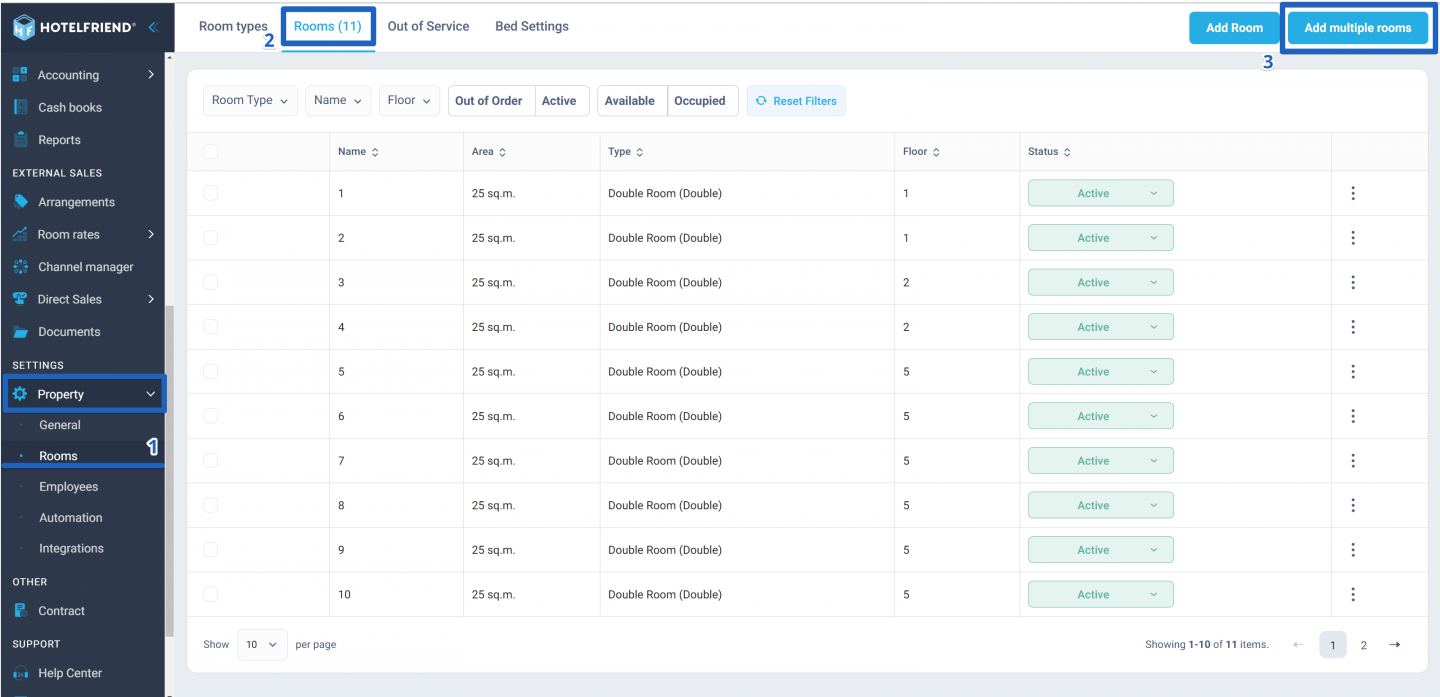
- In the menu on the left, click on Property and select Rooms.
- Go to the Rooms tab.
- Click the Add multiple rooms button in the top right corner.
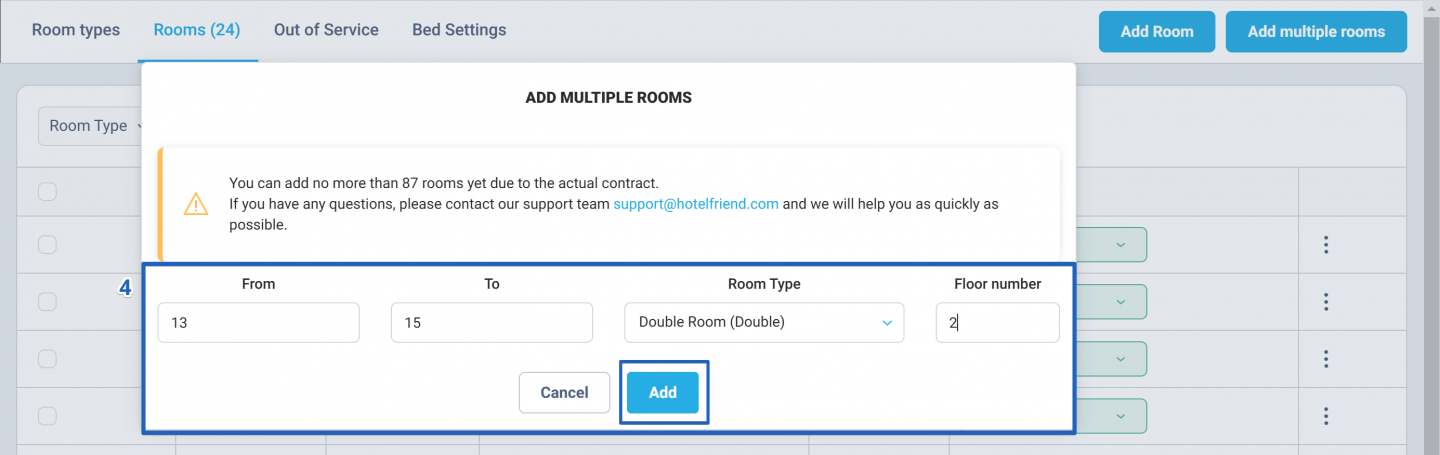
- Fill in these details:
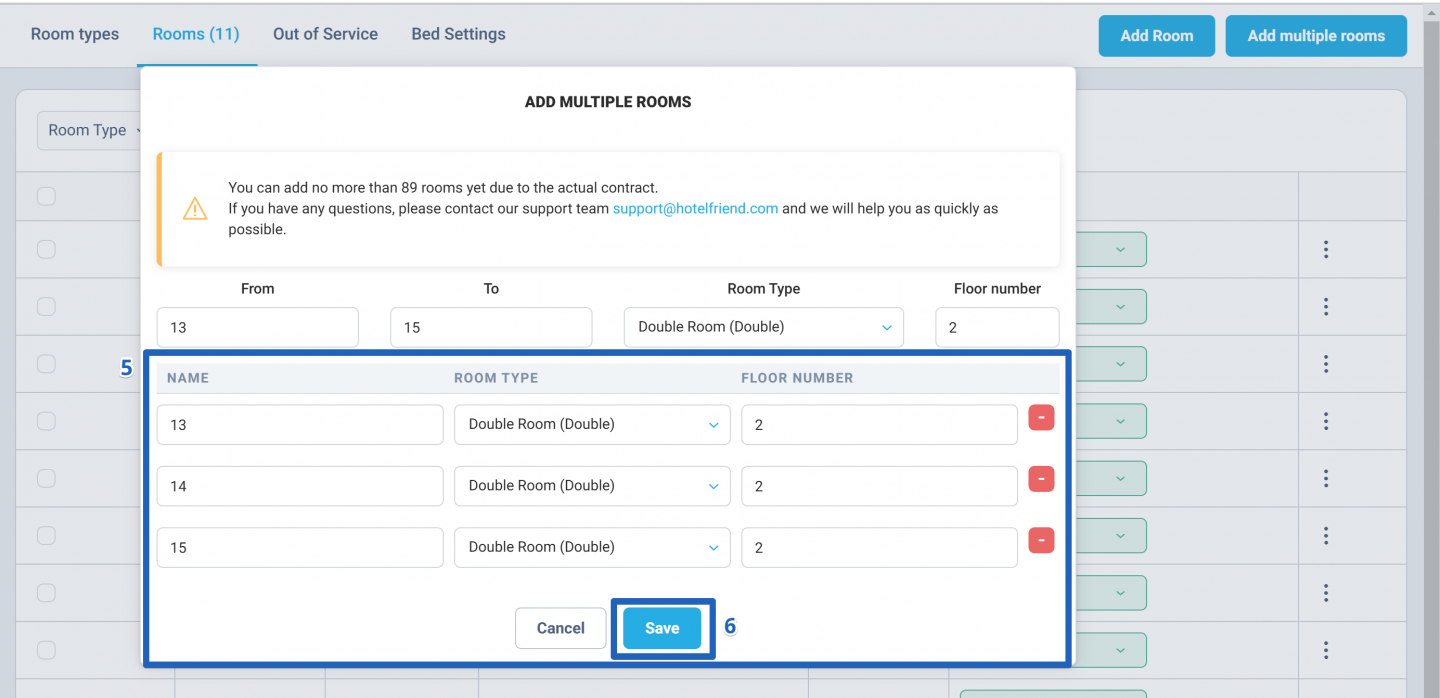
- Enter the range of room number (for example, from 13 to 15).
- Pick the room type from the dropdown list.
- Add the floor number if needed.
- Click the Add button.
- Check and adjust the information in the pop-up window if necessary.
- Click the Save button.
Using Quick Actions
After creating all rooms, you can use the Quick action menu:
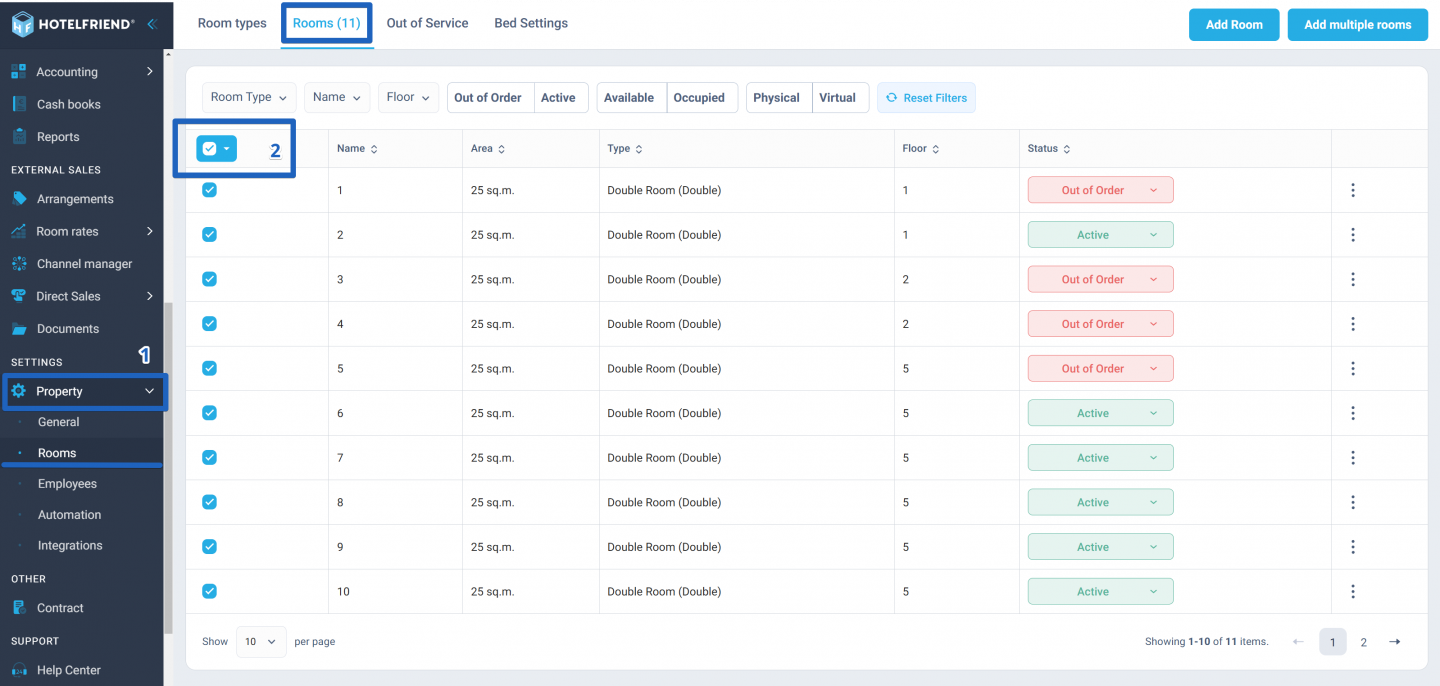
- Go to the Rooms tab (Property > Rooms > Rooms tab) to manage your rooms with the Quick actions menu.
- Select all rooms by checking the box next to the Name column.
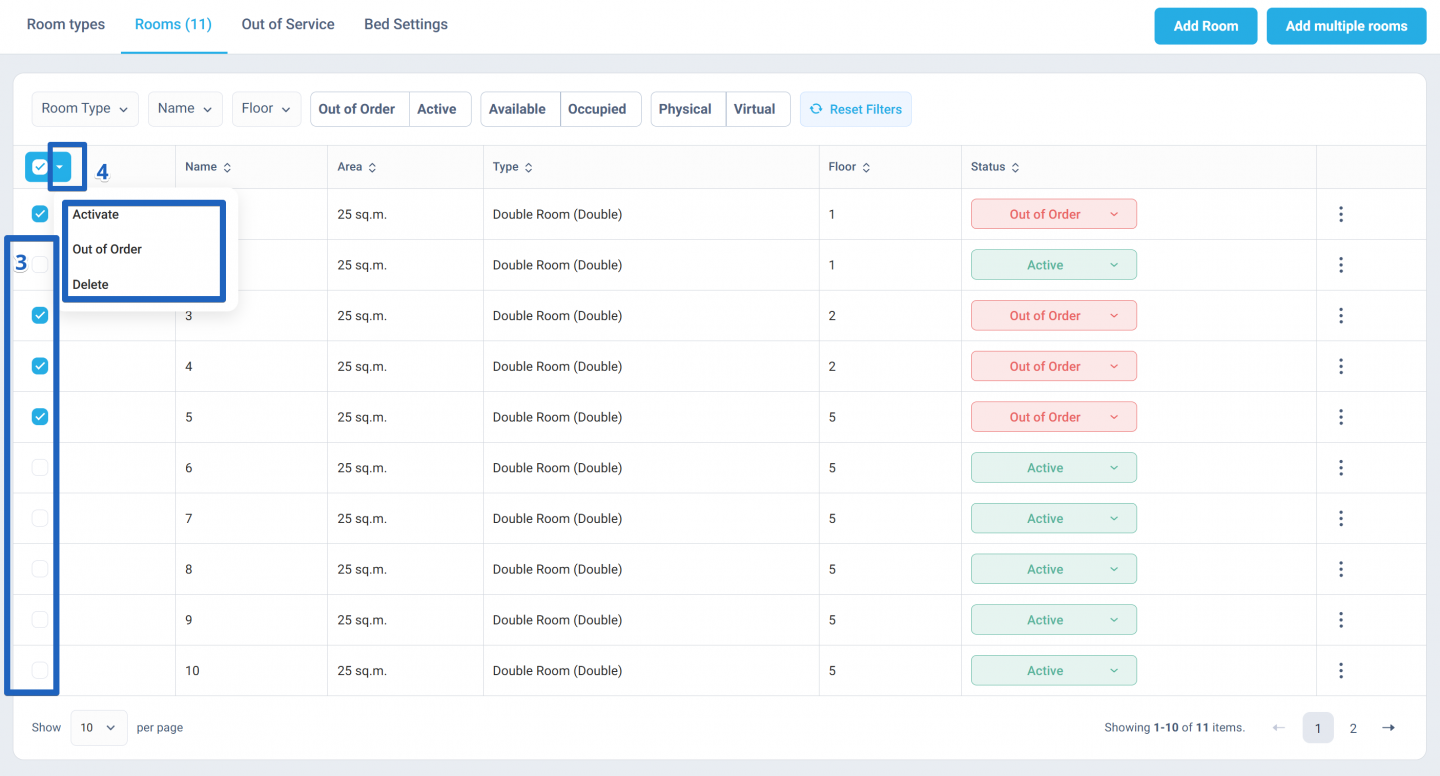
- If necessary, uncheck the rooms whose status doesn’t need to be changed.
- Click the button near the select-all checkbox. A menu will pop up with options: Activate, Out of Order, or Delete.
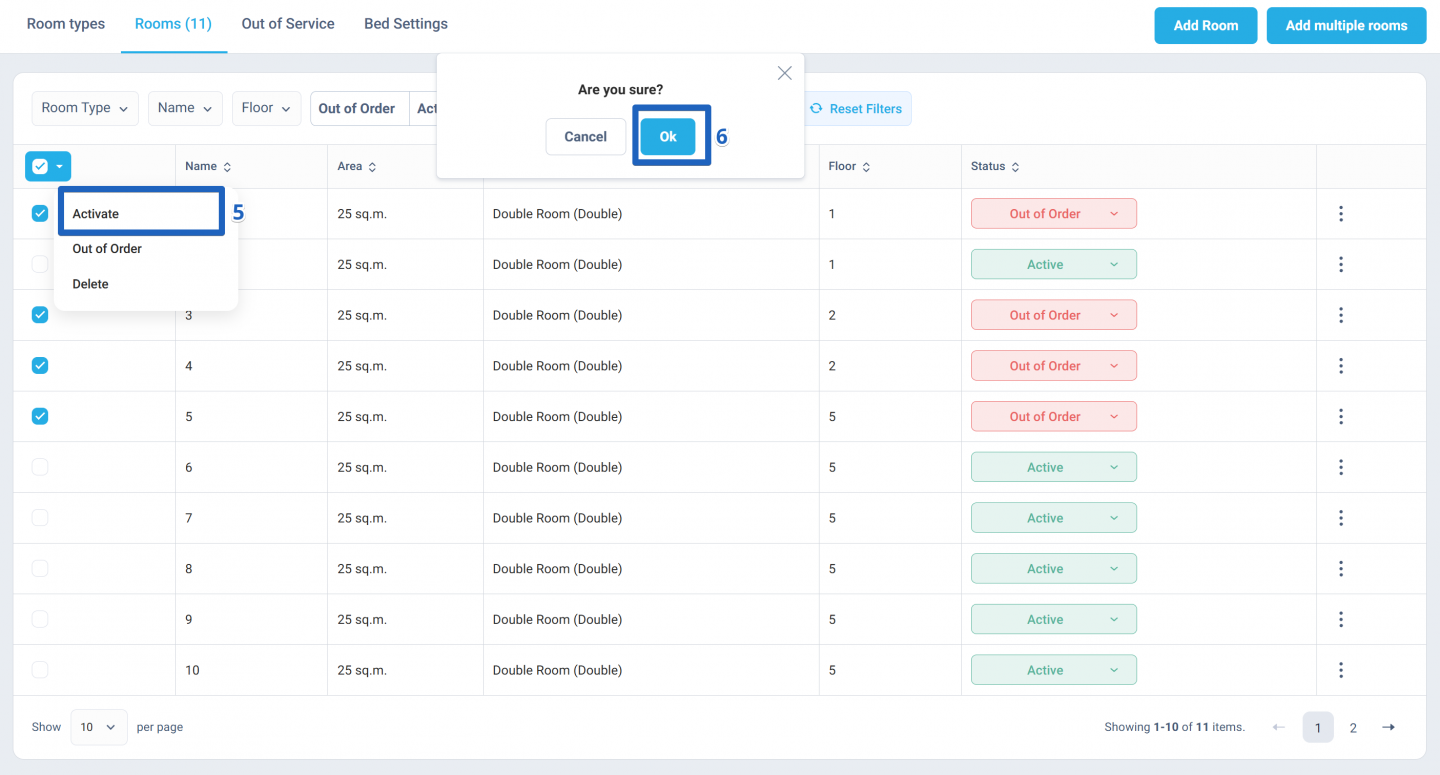
- Choose what you want to do: Activate, set the Out of Order status, or Delete.
- In the pop-up, press OK to confirm. The room statuses will be updated.
Author:

