

How to set and send door codes without a Door Lock integration
If your hotel does not use a door lock integration, you can still provide guests with door codes for accessing their rooms. These codes can be sent manually or automatically as part of the booking confirmation process.
Important: This feature only works if there are no door lock integrations connected in Property > Integrations.
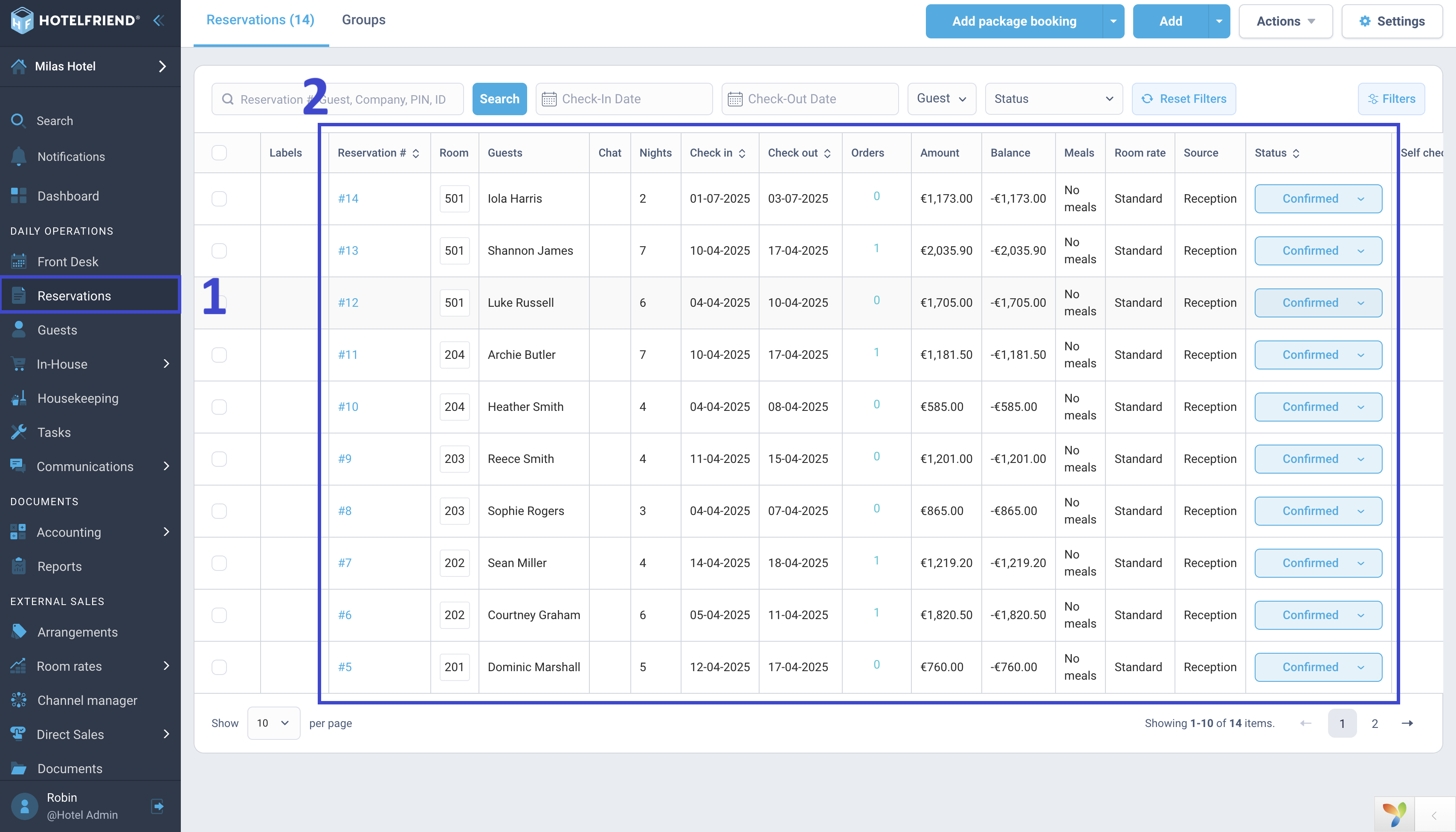
- Go to the Reservations module in the left-side menu.
- Find and open the desired reservation.
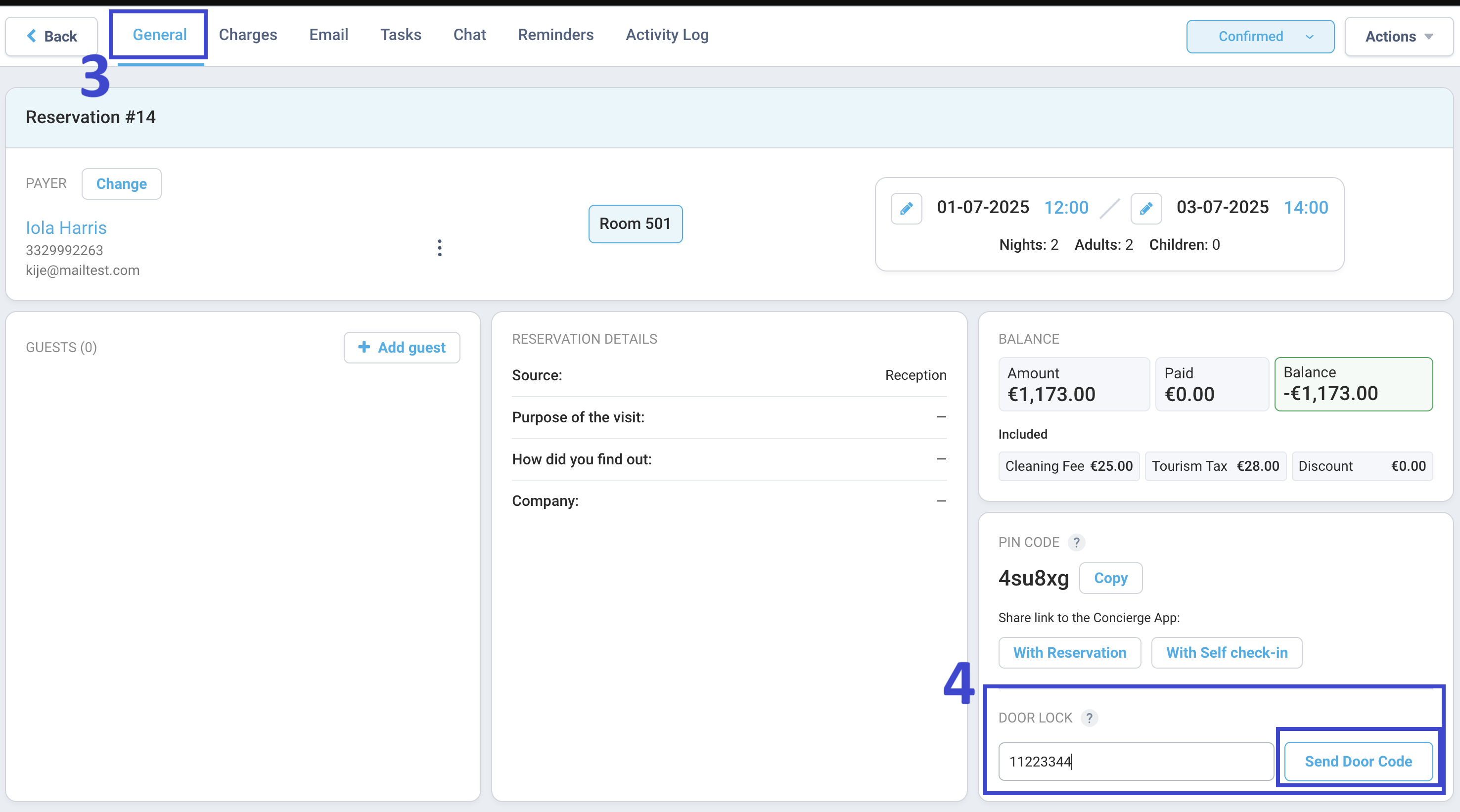
- In the General tab of the reservation card, locate the Door Lock field.
- Enter the door code in the field and click Send Door Code.
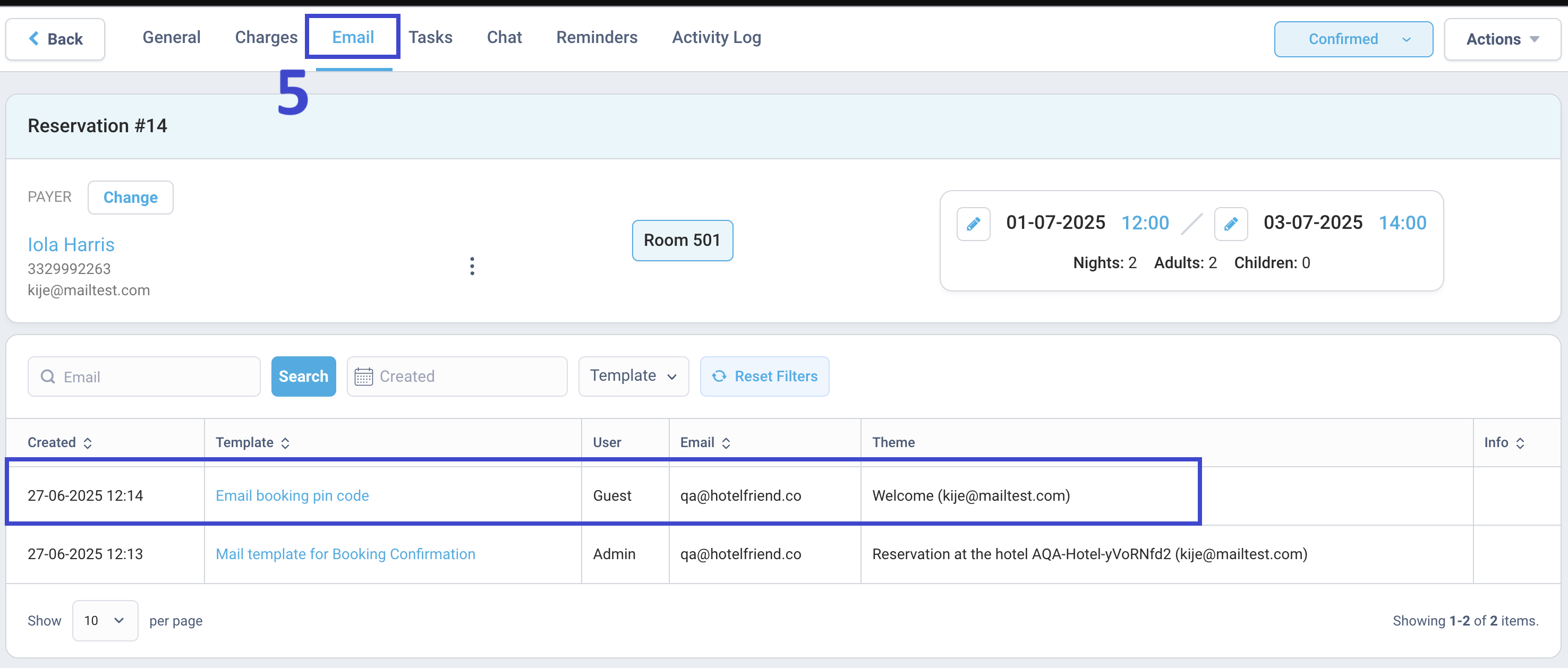
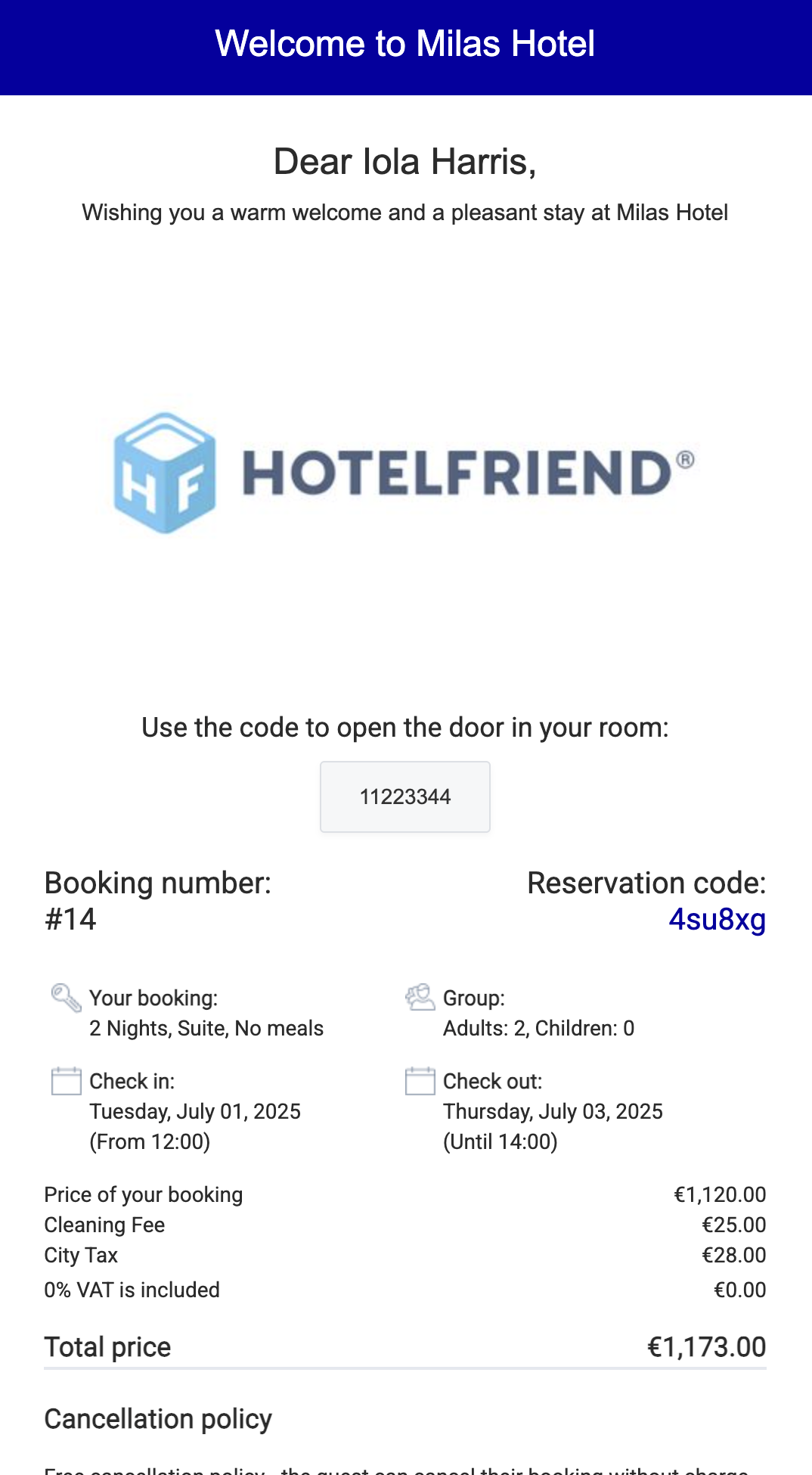
- The email will be sent immediately and will appear in the Email tab of the reservation.
Option 1: Send door codes manually
You can send a door code manually via email from the reservation card.
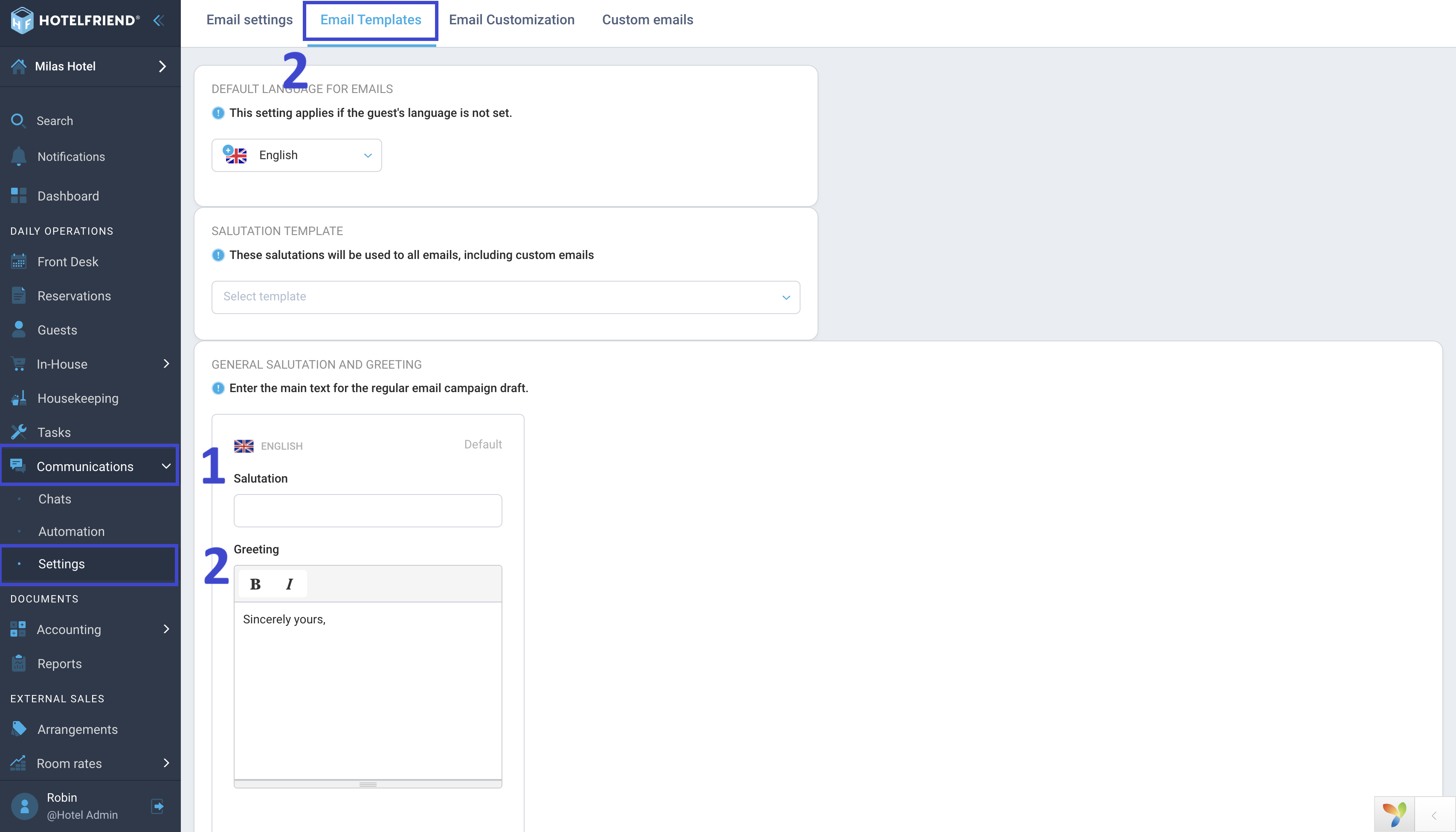
- Open the Communications module in the left-side menu.
- Go to Settings and open the Email templates tab.
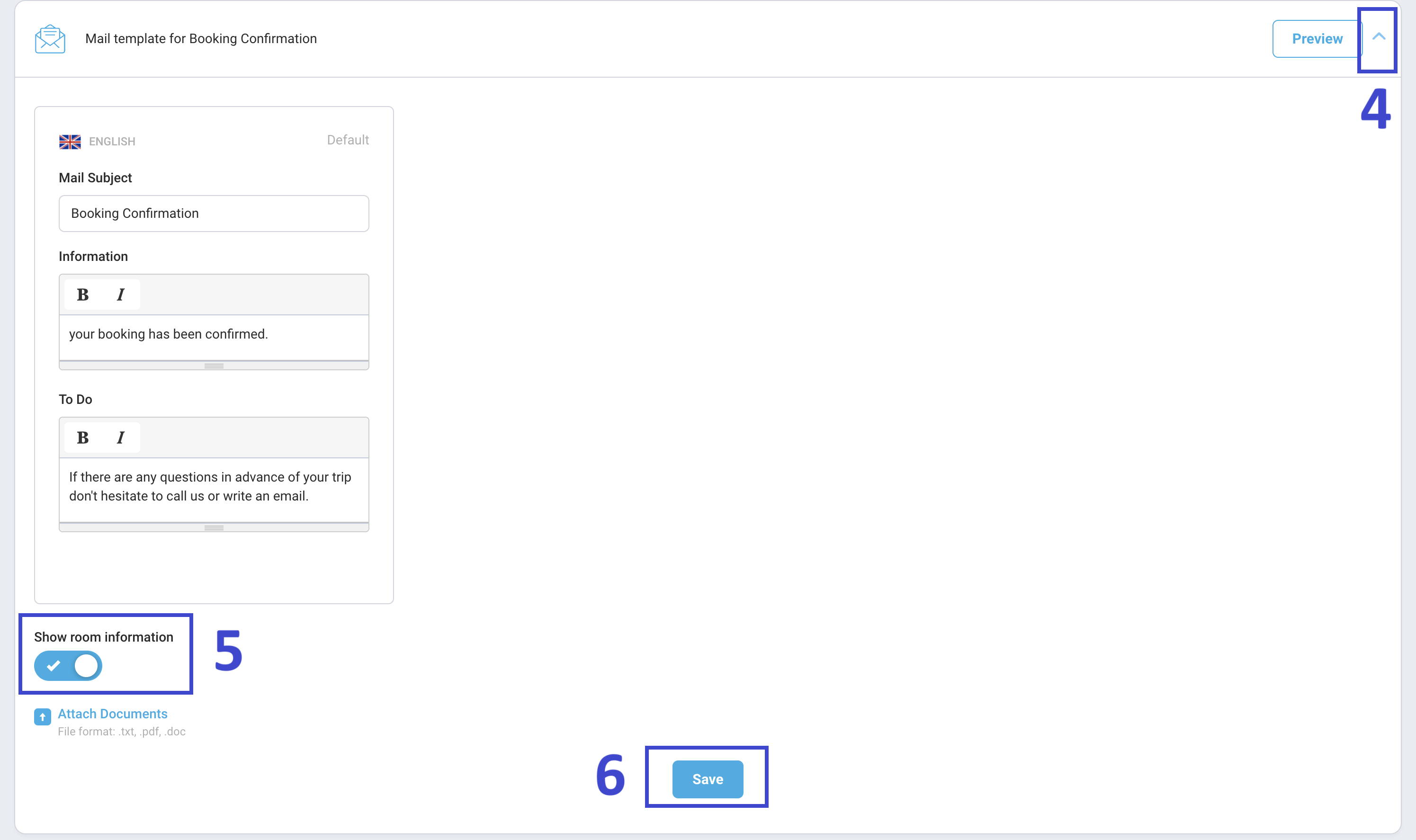
- Find the Mail template for Booking Confirmation and select the Default template.
- Click the arrow to expand Template Settings.
- Enable the Show room information toggle.
- Click Save.
Option 2: Send door codes automatically in Booking Confirmations
Automate the process by including door codes in booking confirmation emails.
Step 1. Enable room information in Booking Emails

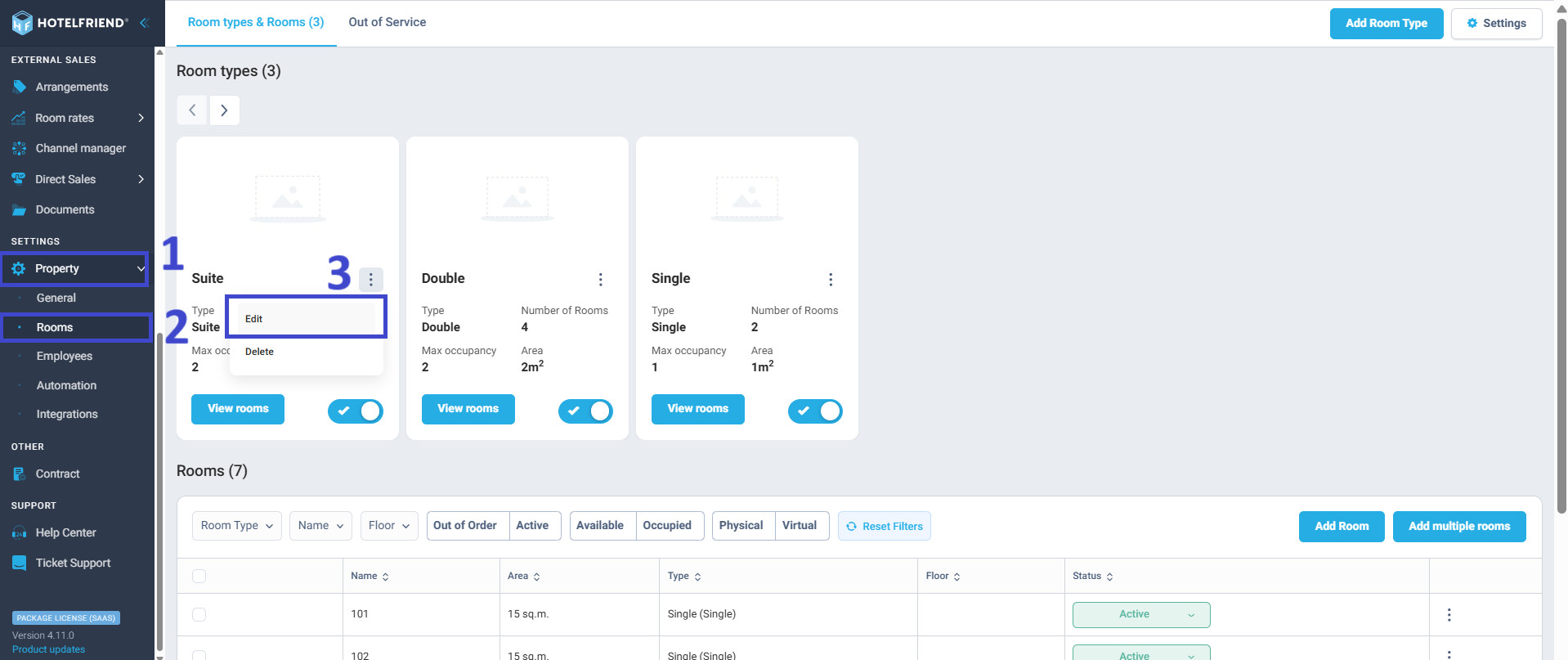
- Navigate to the Property module.
- Go to the Rooms section.
- Start editing a room or room type.
- In the Room Information field, enter the door code.
- Click Save.
- {checkin_year} – year of check-in
- {checkin_month} – month of check-in
- {room_number:numeric} – numeric room number only (e.g., 990)
- {room_number} – full room name (e.g., 990 President Suite)
Step 2: Add door code to room information
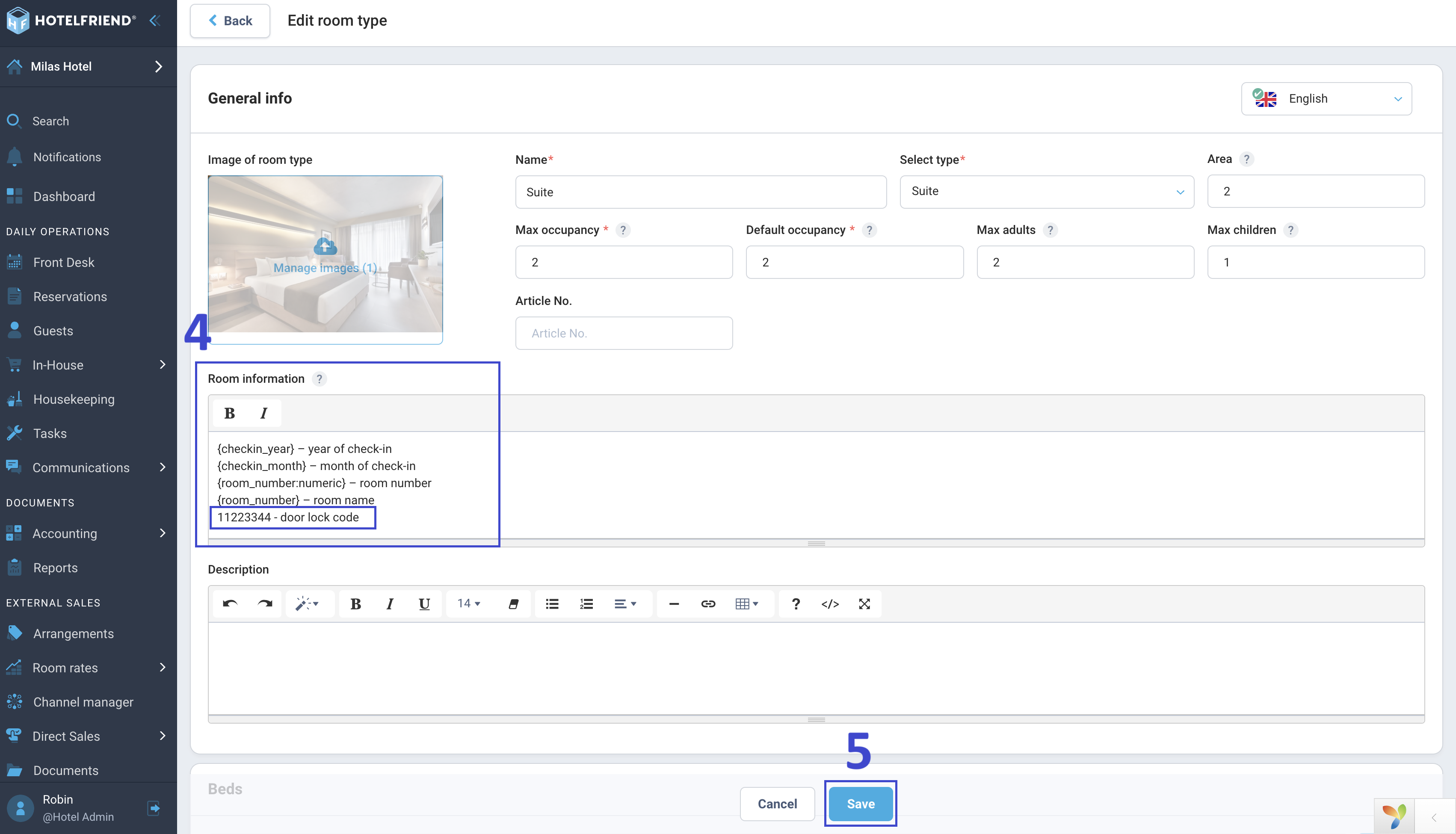
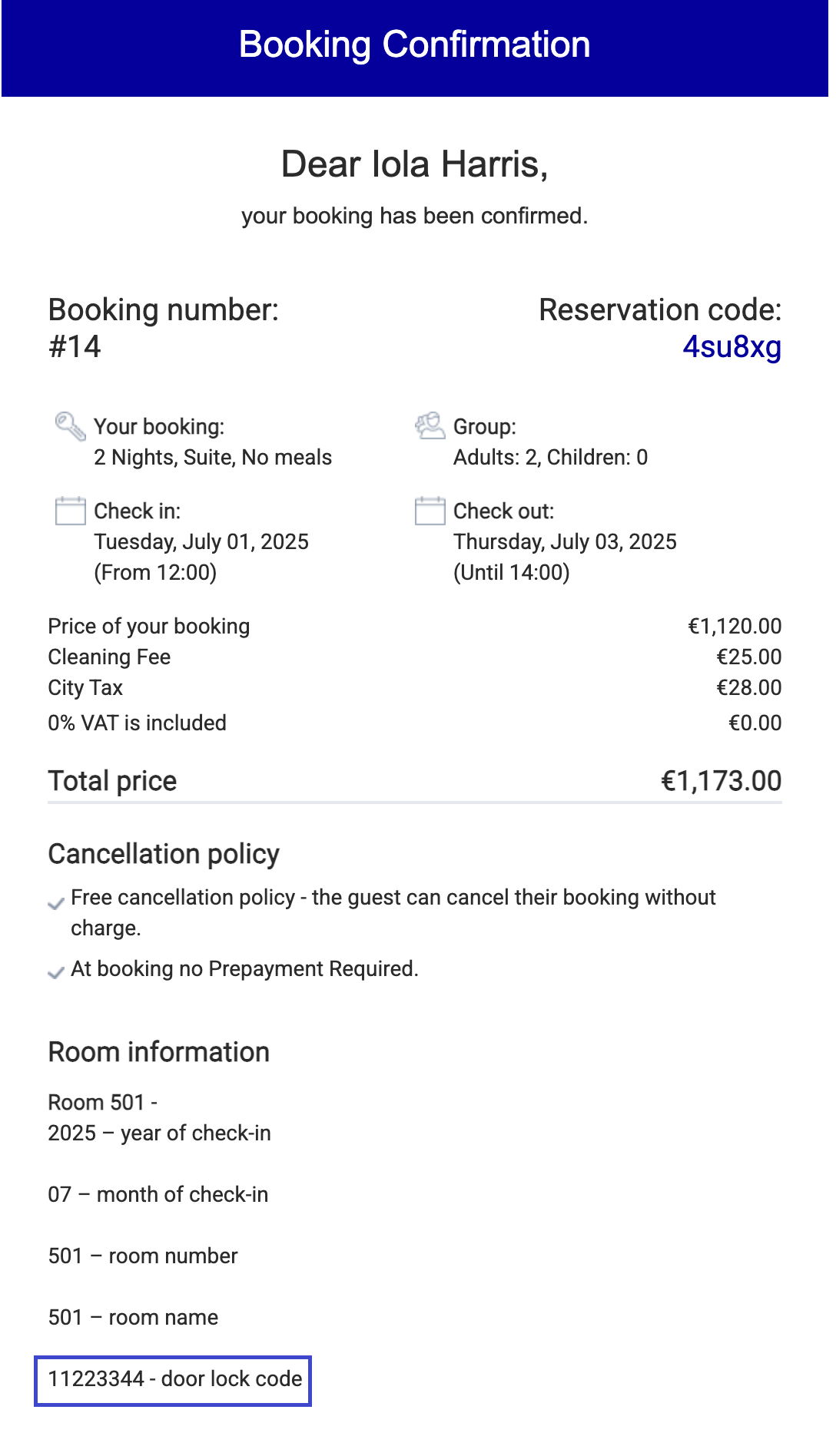
This field supports numbers, letters, and the following dynamic placeholders:
Once saved, every new reservation for that room or room type will automatically include the configured door code in the booking confirmation email.
Author:

