

How to add a Refund
Refunds are sometimes a necessary part of running a hotel, whether a guest has to cancel or a payment needs to be adjusted. HotelFriend PMS allows you to issue full or partial refunds in just a few clicks, ensuring everything stays accurate and organized. Depending on the situation, you can refund an invoiced reservation or a pre-payment.
- In the left menu, go to Reservations.
- Select the reservation you want to refund.
Here is what you need to do to make a refund:
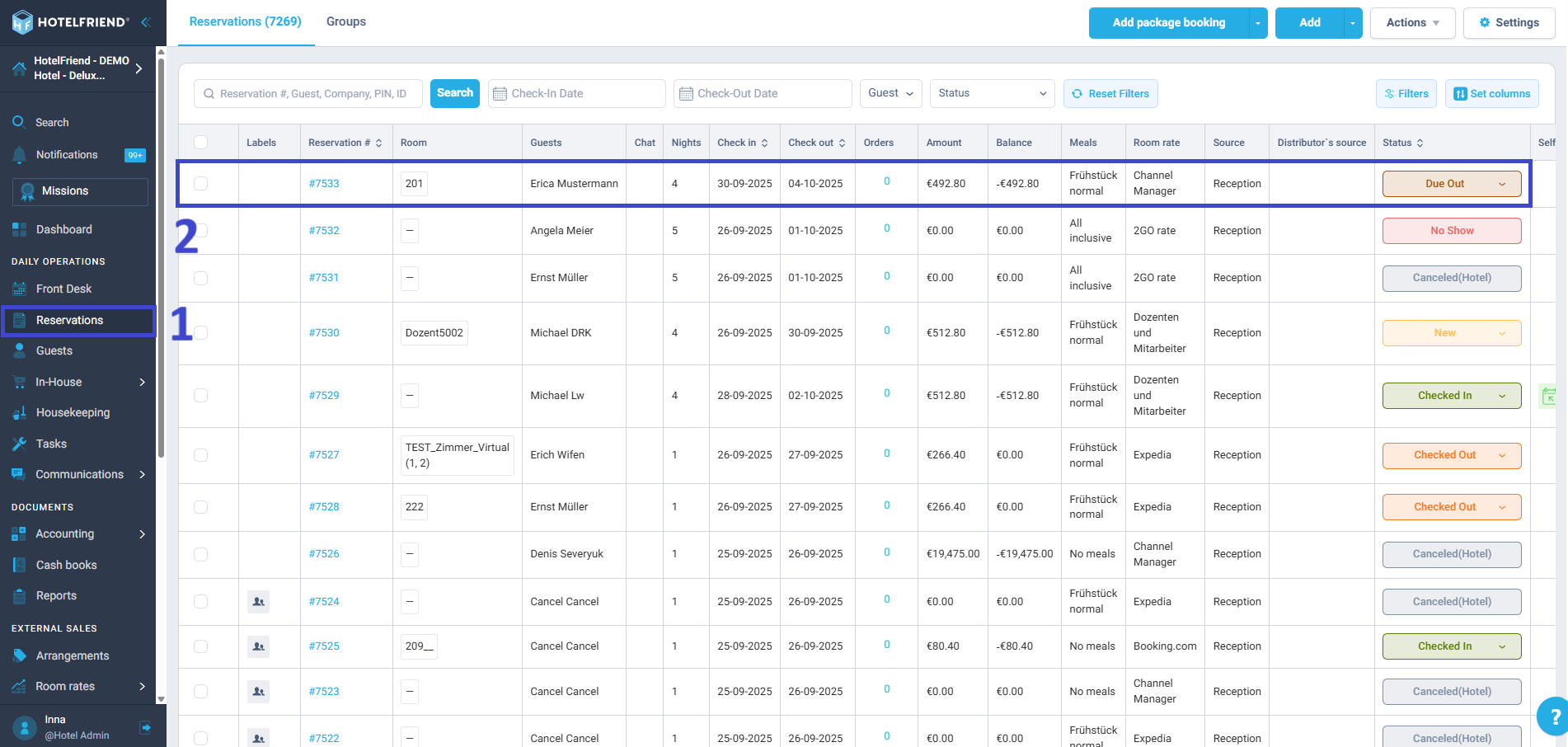
Refunding an invoiced reservation
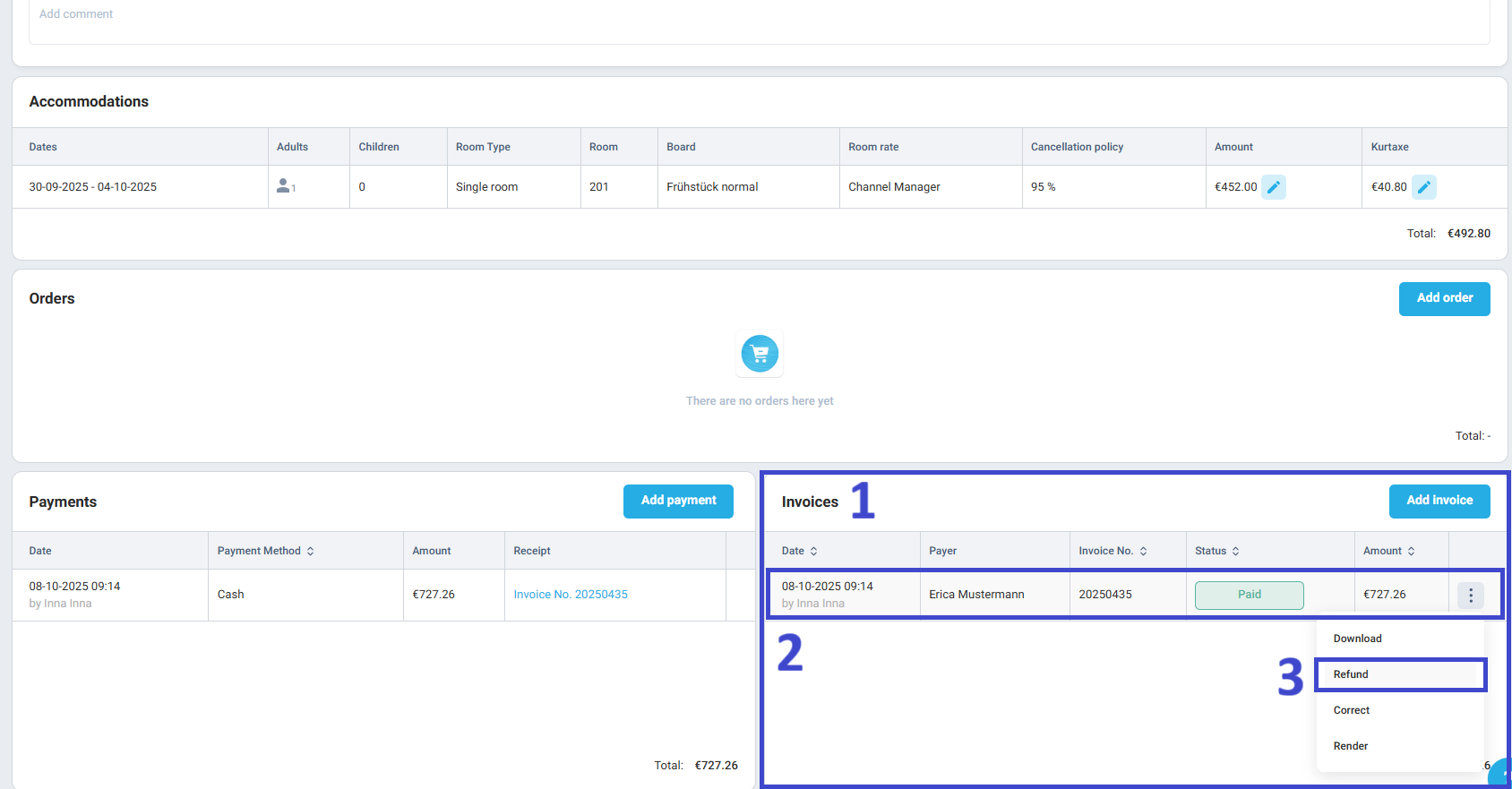
- In the Reservation Card, scroll down to the Invoices section.
- Find the invoice you want to refund.
- Click on the three dots next to the invoice and select Refund.
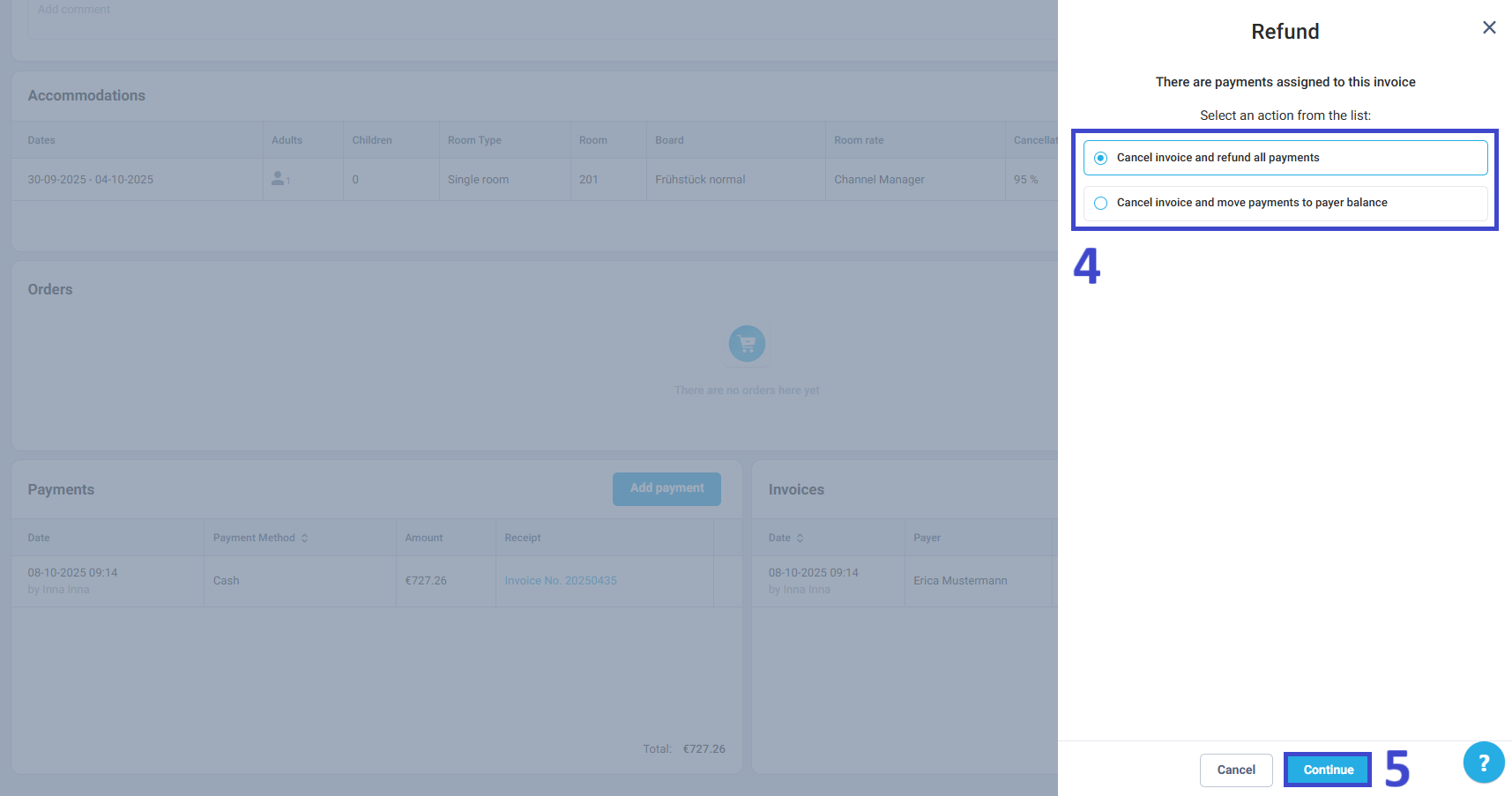
- Choose one of the following options:
- Cancel invoice and refund all payments: All money will be refunded directly to the guest’s account.
- Cancel invoice and move payments to payer balance: The amount will be transferred to the payer’s balance in the system, and can be used for future bookings or services.
- Click Continue.
- Specify the Payment Method, Amount, and add a Comment if needed.
- Click Confirm.
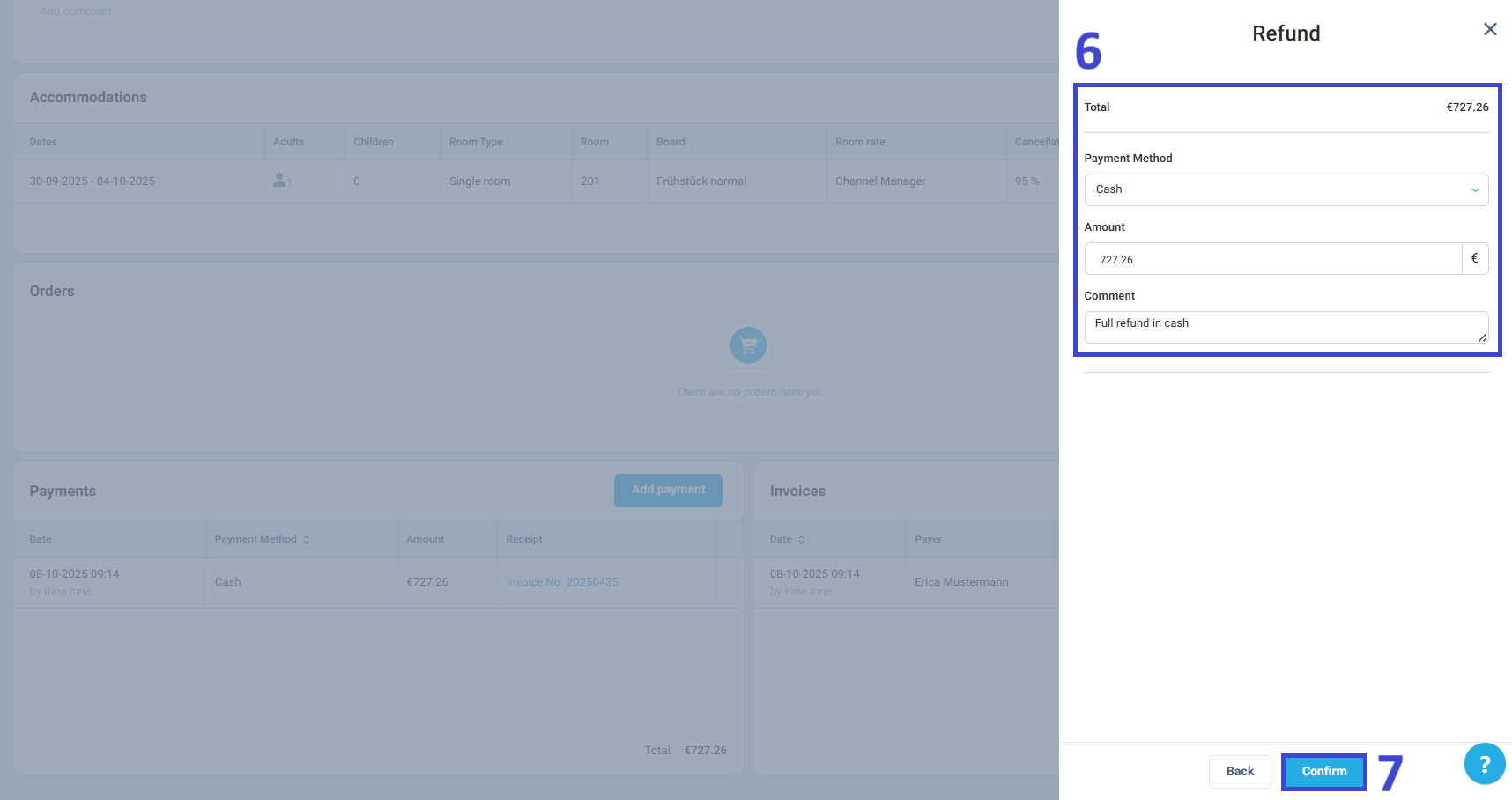
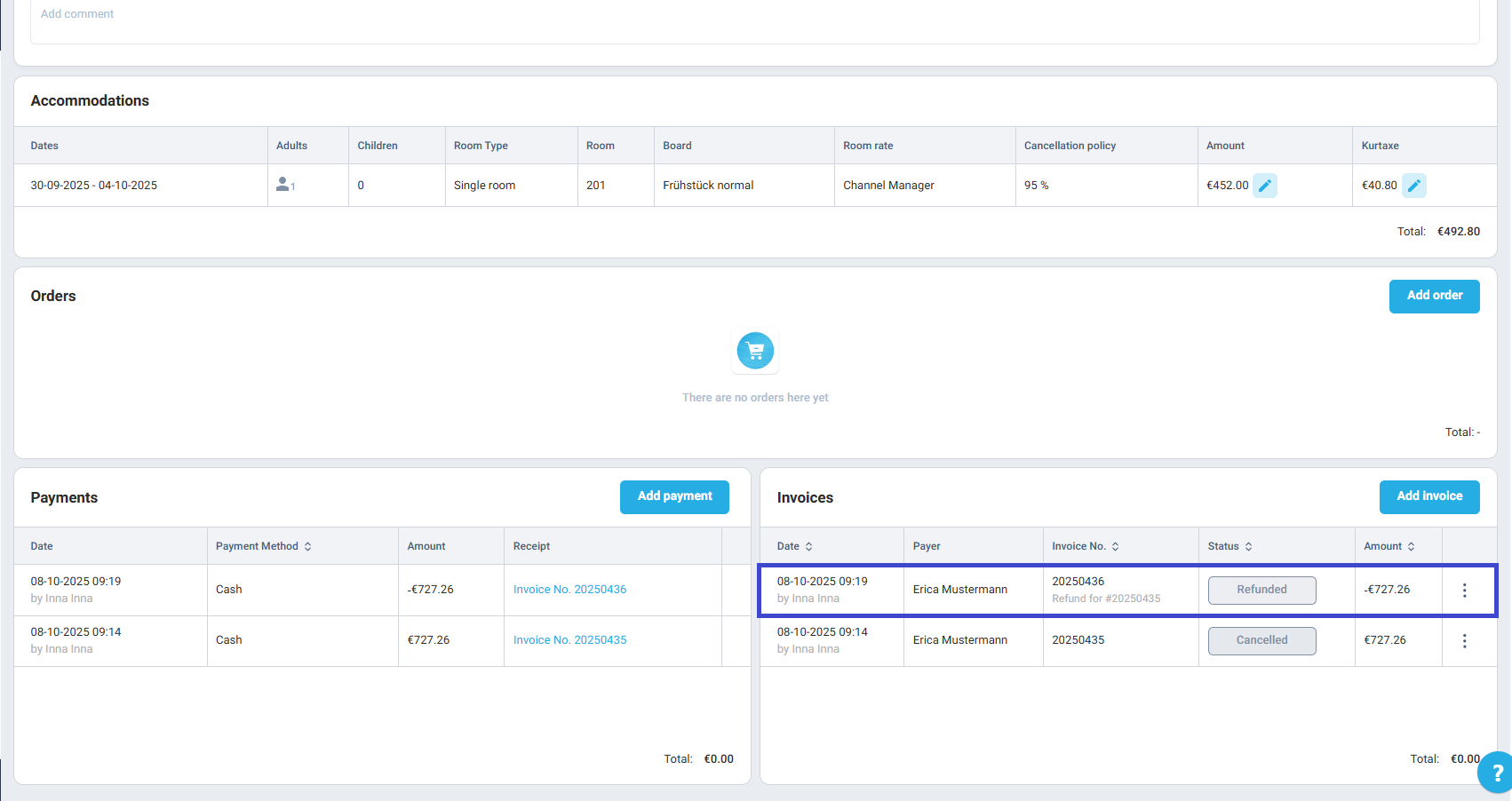
The refunded invoice will appear in the Invoices section with the corresponding status.
Refunding a pre-payment
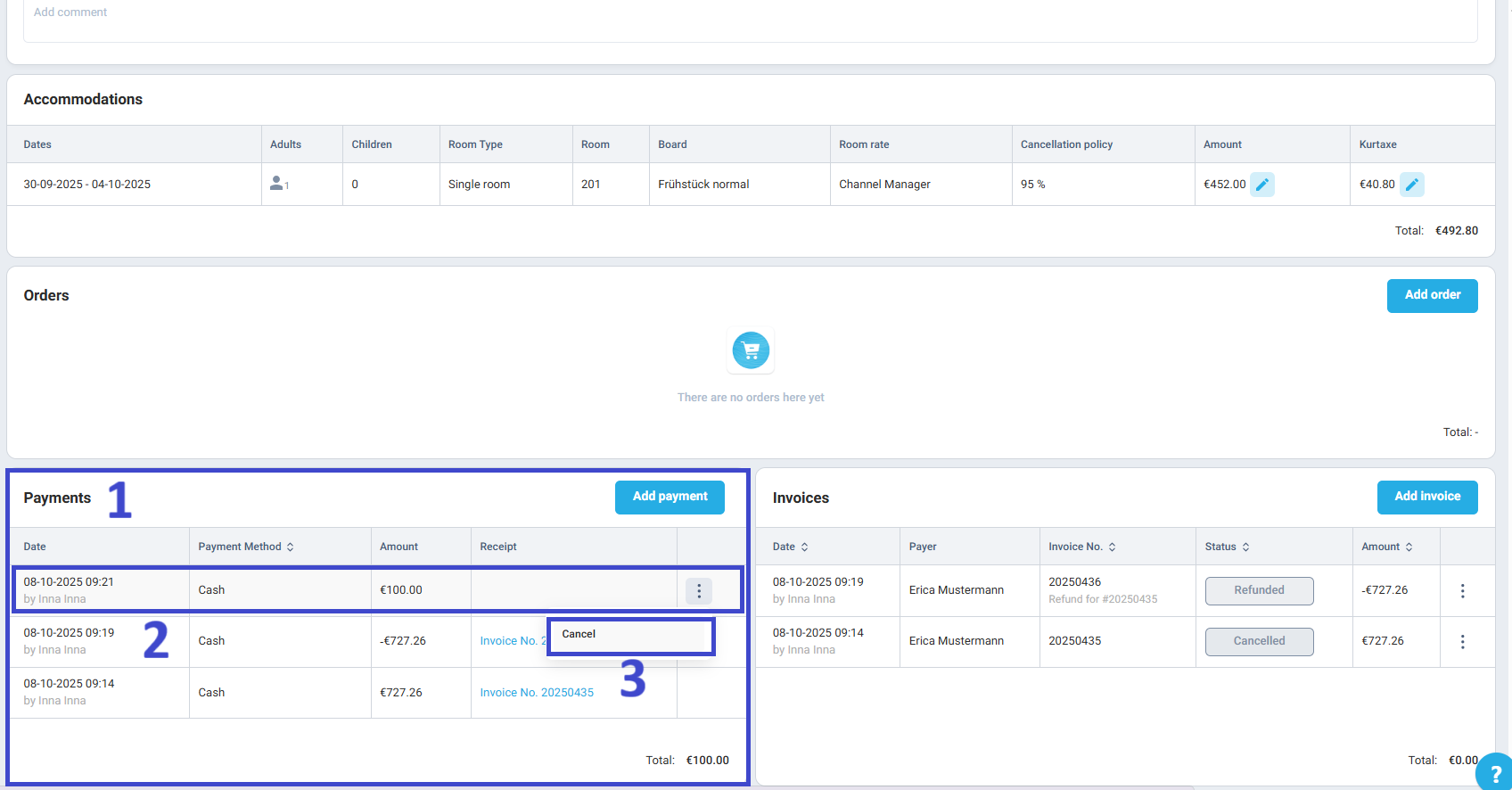
- In the Reservation Card, scroll to the Payments section.
- Locate the payment you want to cancel.
- Click on the three dots next to the payment and select Cancel.
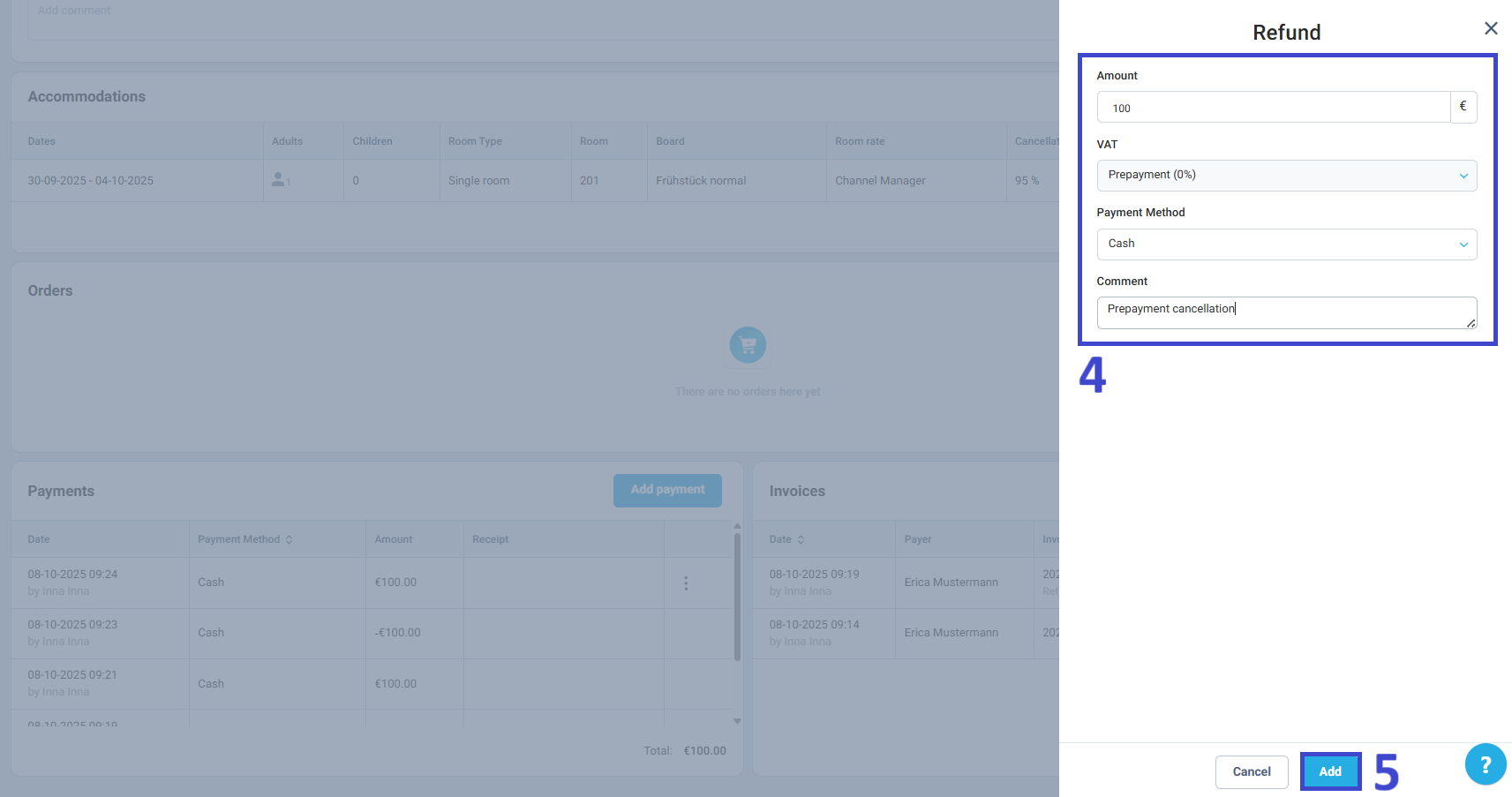
- Specify the Amount, VAT, Payment Method, and add a Comment if needed.
- Click Add.
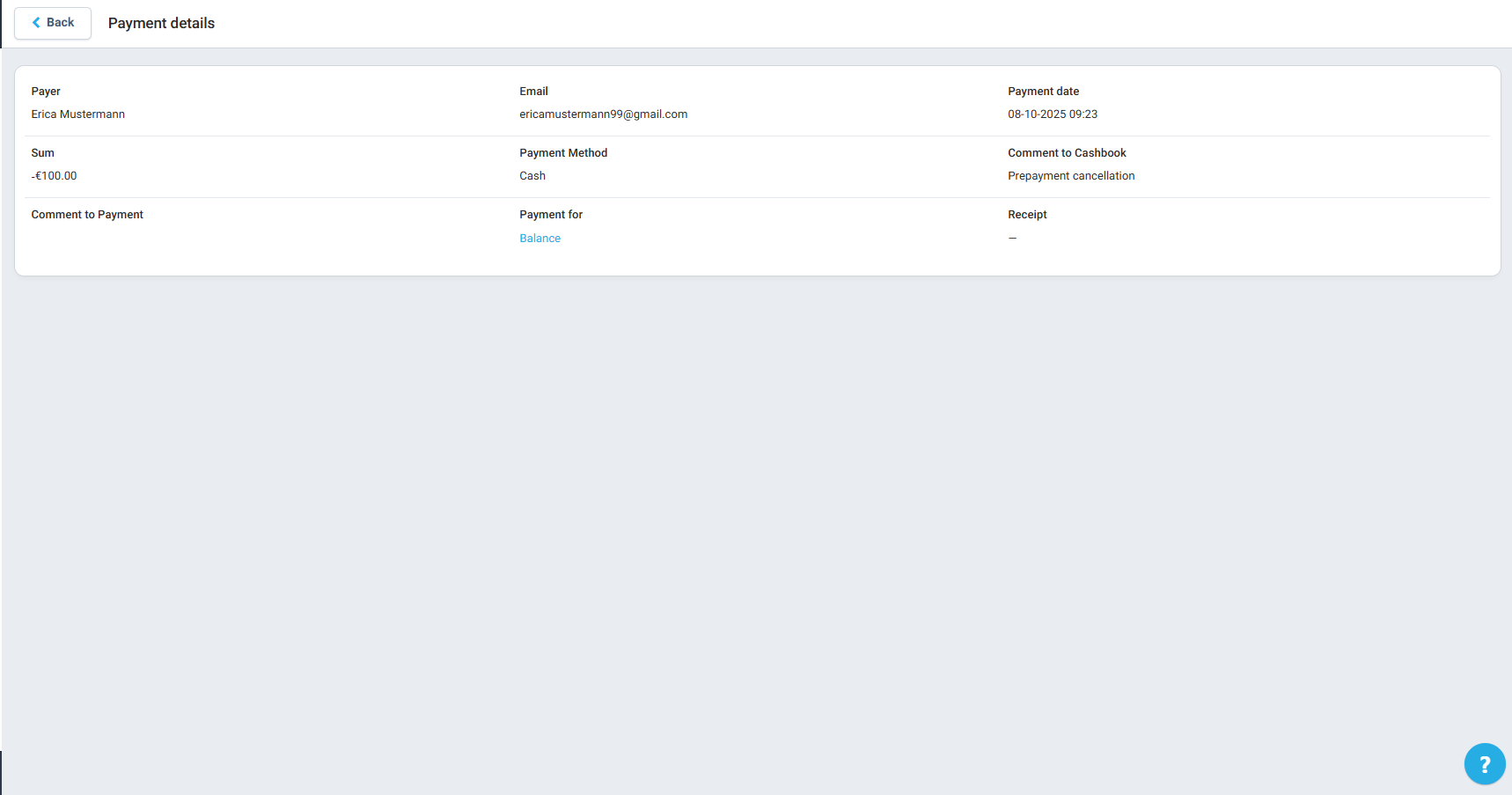
The changes will be reflected in the Payments section.
Author:

