

How to add guests to the HotelFriend system
In this article, you’ll learn how to add and manage guests in the HotelFriend PMS. Follow these simple steps to create guest profiles and enhance your hotel management experience:
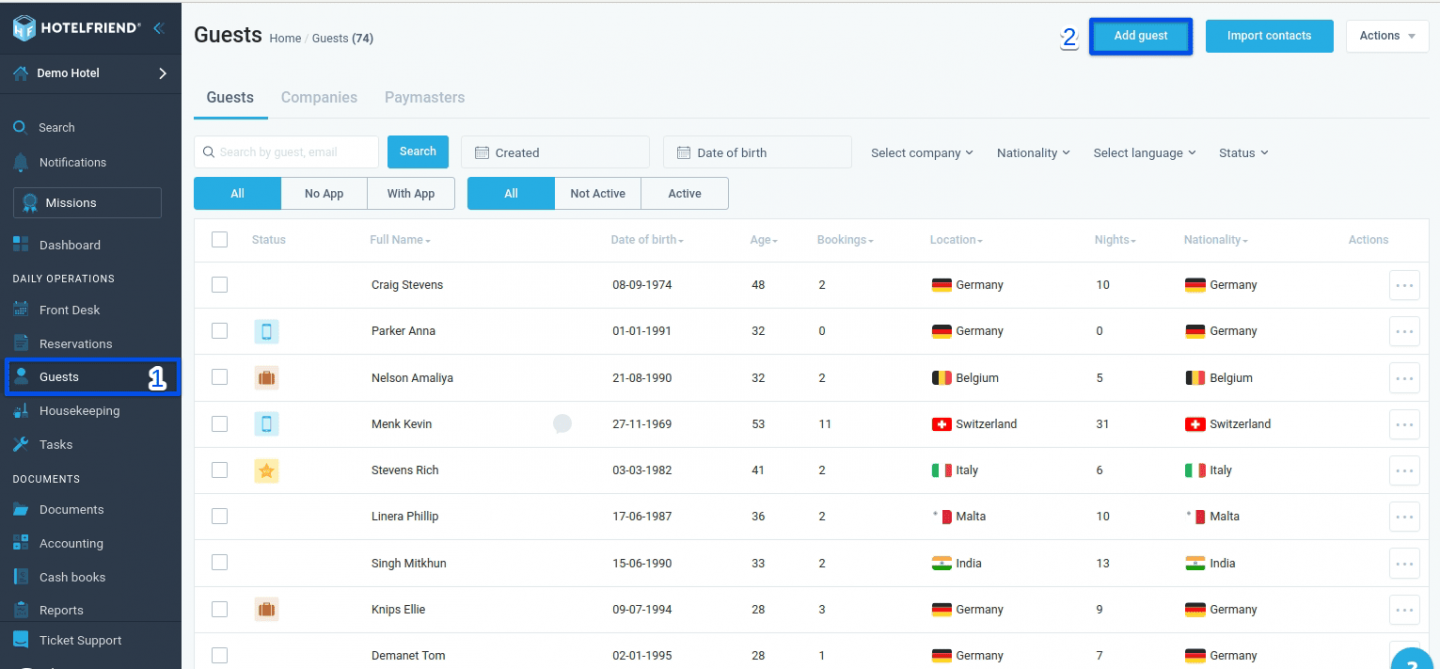
- Navigate to the left menu and select the "Guests" module.
- Click on the "Add guest" button in the top right corner.
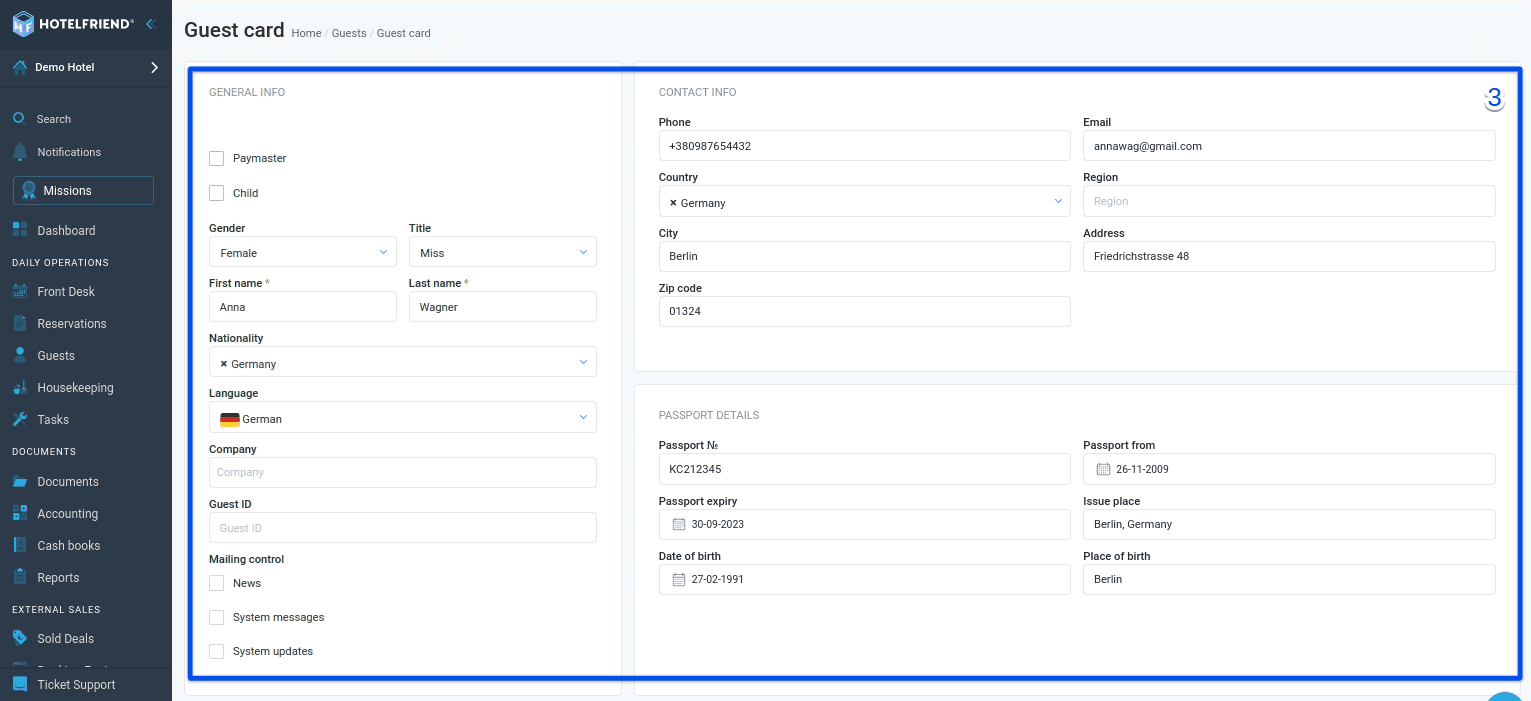
- Fill in the required information about the guest in the opened window. Optionally, leave comments for reference.
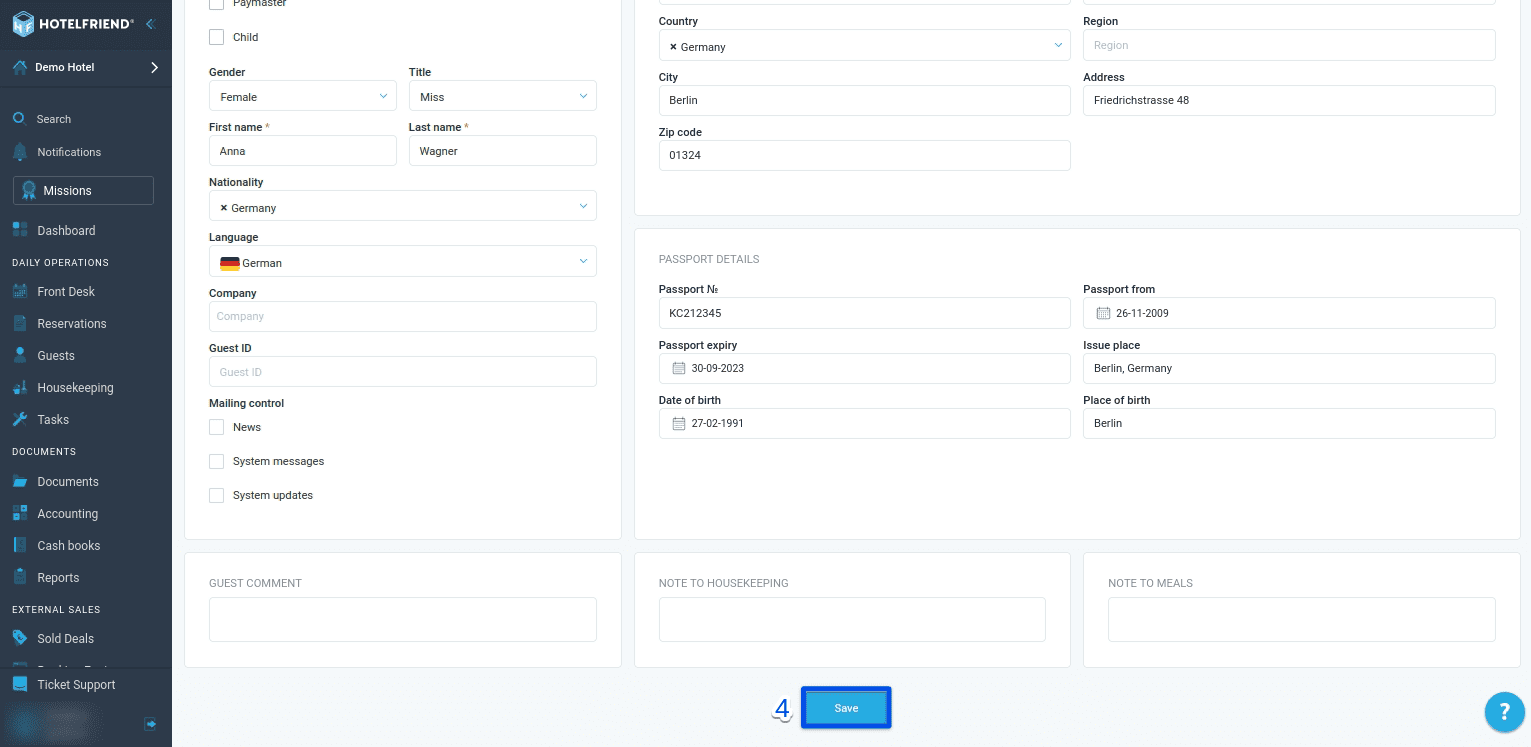
- Save your changes by clicking "Save".
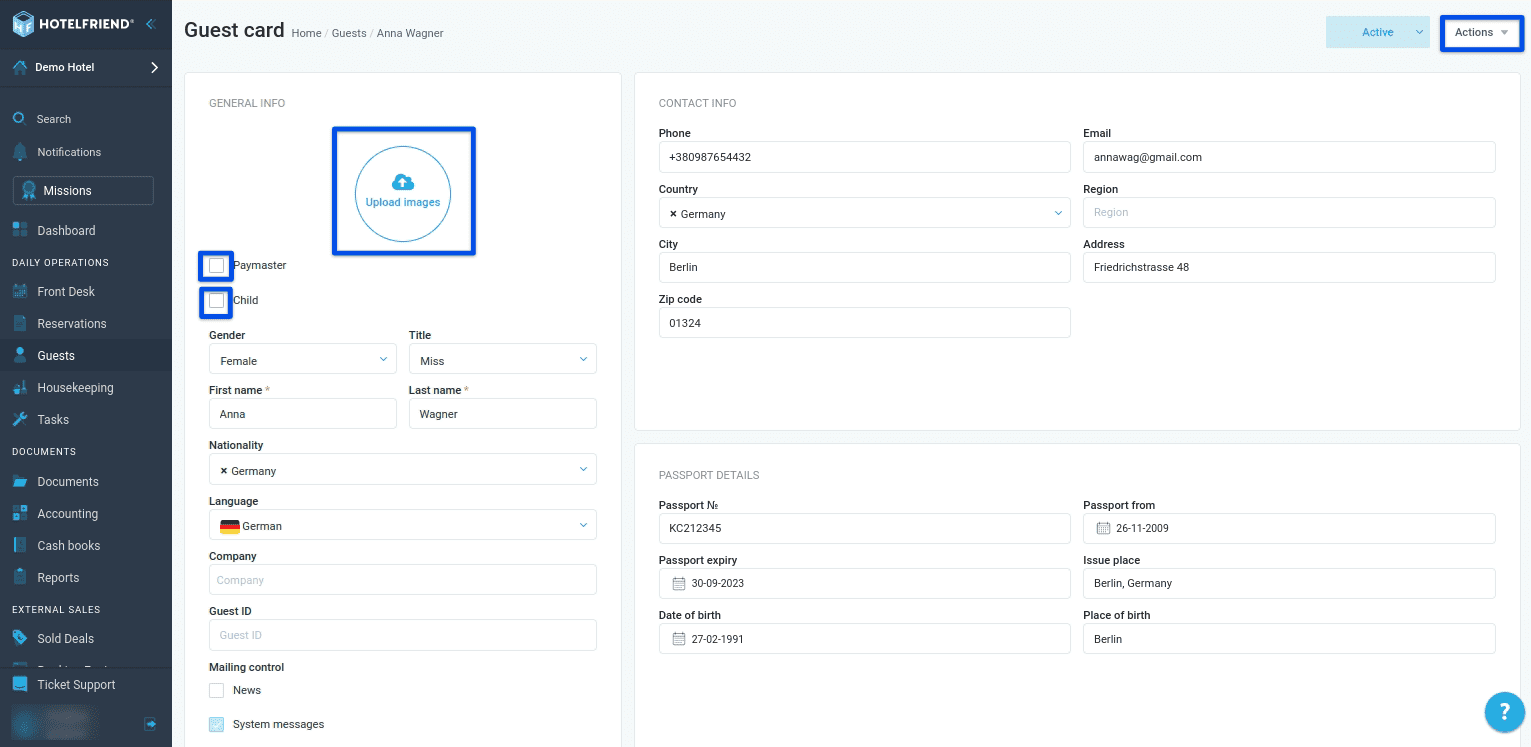
- Upload photos or essential documents related to the guest as needed.
- Use the "Child" and "Paymaster" checkboxes to specify additional details.
- Take advantage of the Actions menu in the top right corner to effortlessly make any necessary adjustments to guest profiles.
- When you create or import reservations, guest cards are automatically generated by the system.
- To export guest data, go to the “Guests” tab, click on the actions menu, and select the “Export CSV” function.
Enhancing guest profiles
Making edits with ease
Important notes
By following these steps, you can efficiently manage guest information and provide a seamless experience for both staff and guests using HotelFriend. If you have any additional questions or need further assistance, feel free to explore our knowledge base or contact our support team.
Author:

Uliana Karakhanian
Head of Customer Support
Uliana is an influential voice behind our blog's informative content. With 5 years of experience, she takes pride in empowering our clients and witnessing their success with our solutions. Beyond her role in customer support, Uliana finds joy in sports and exploring the depths of psychology. Expect insightful articles reflecting her commitment to simplifying your daily workflow.
