

How to add Miscellaneous service and order
To further create quick orders with the ability to rename the name and cost, HotelFriend recommends creating a service with the article “misc”. Here is how to do it:
- On the services page, in front of any service, click on the Action menu and select the Copy function.
- Open the copied service, rename the Name field to Miscellaneous, and enter - misc in the article Number field.
- Click on the “Save and Activate” button.
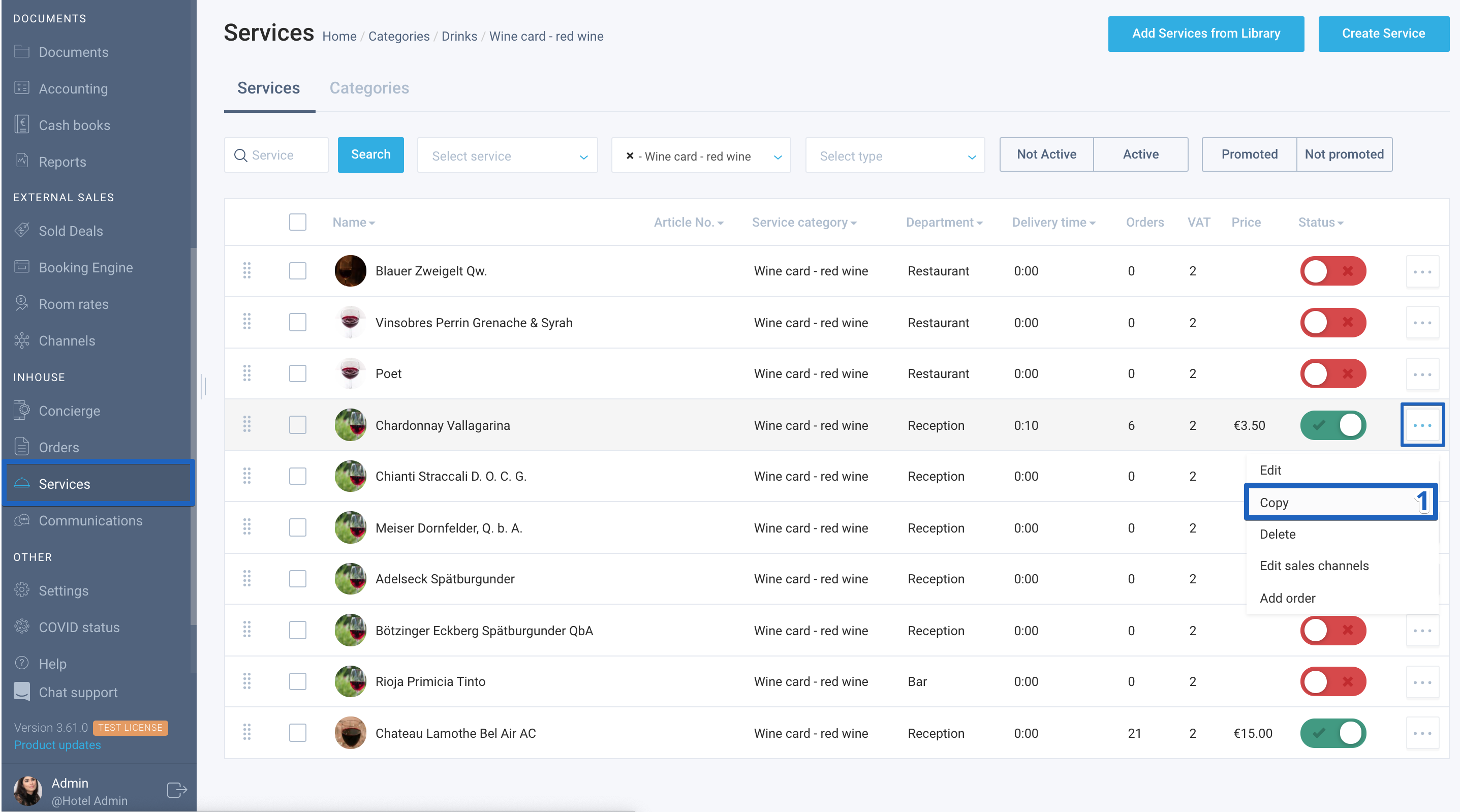
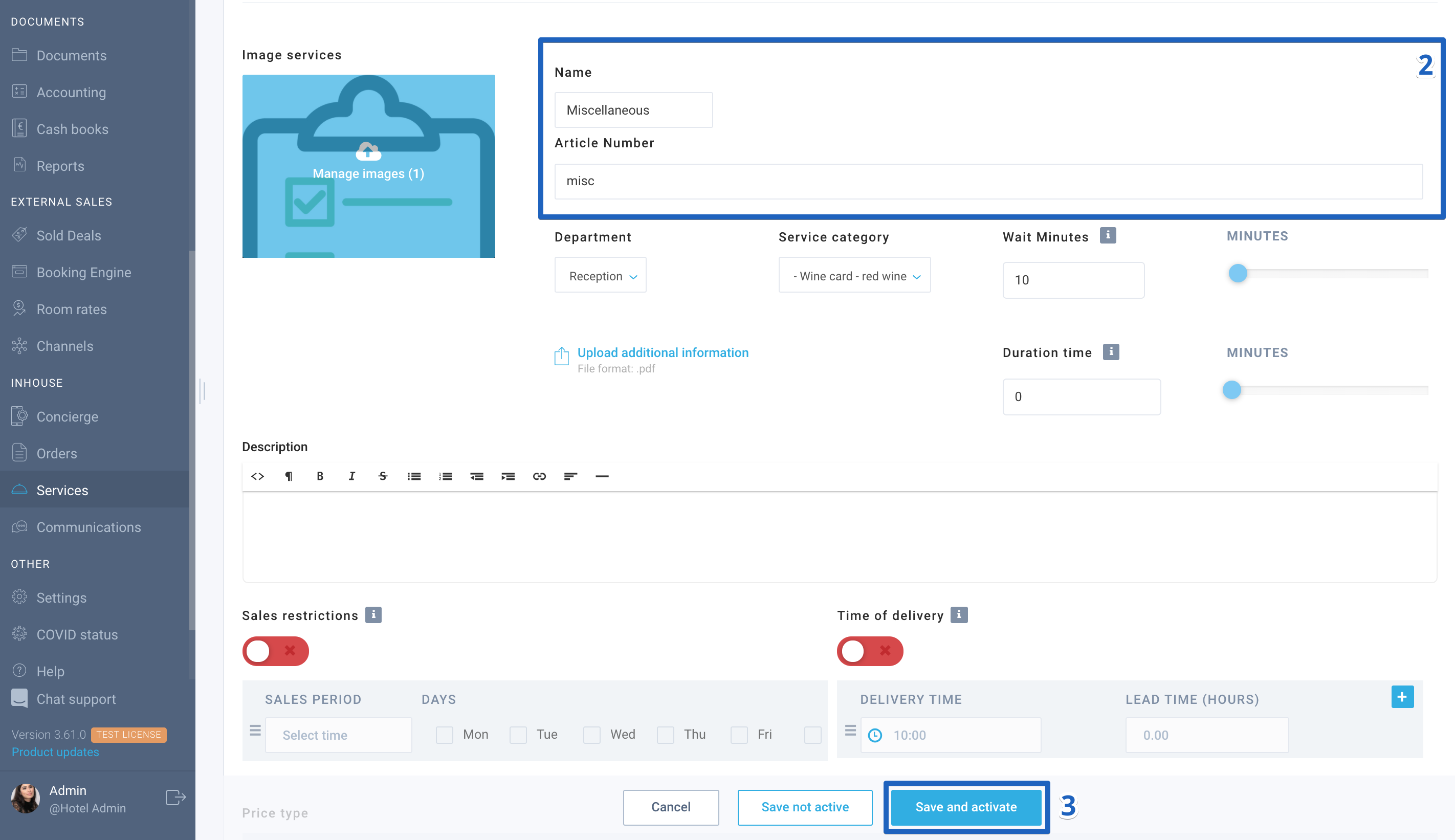
If you wish, you can upload a photo for this service.
How to add Miscellaneous service order
Follow the instructions below to add Miscellaneous service order:
- In the Orders module, click on the “Add order” button.
- Click on the “+” button in the Miscellaneous service.
- Change the name of the service to the desired one and specify a custom cost.
- Click on the “Add items to Order” button.
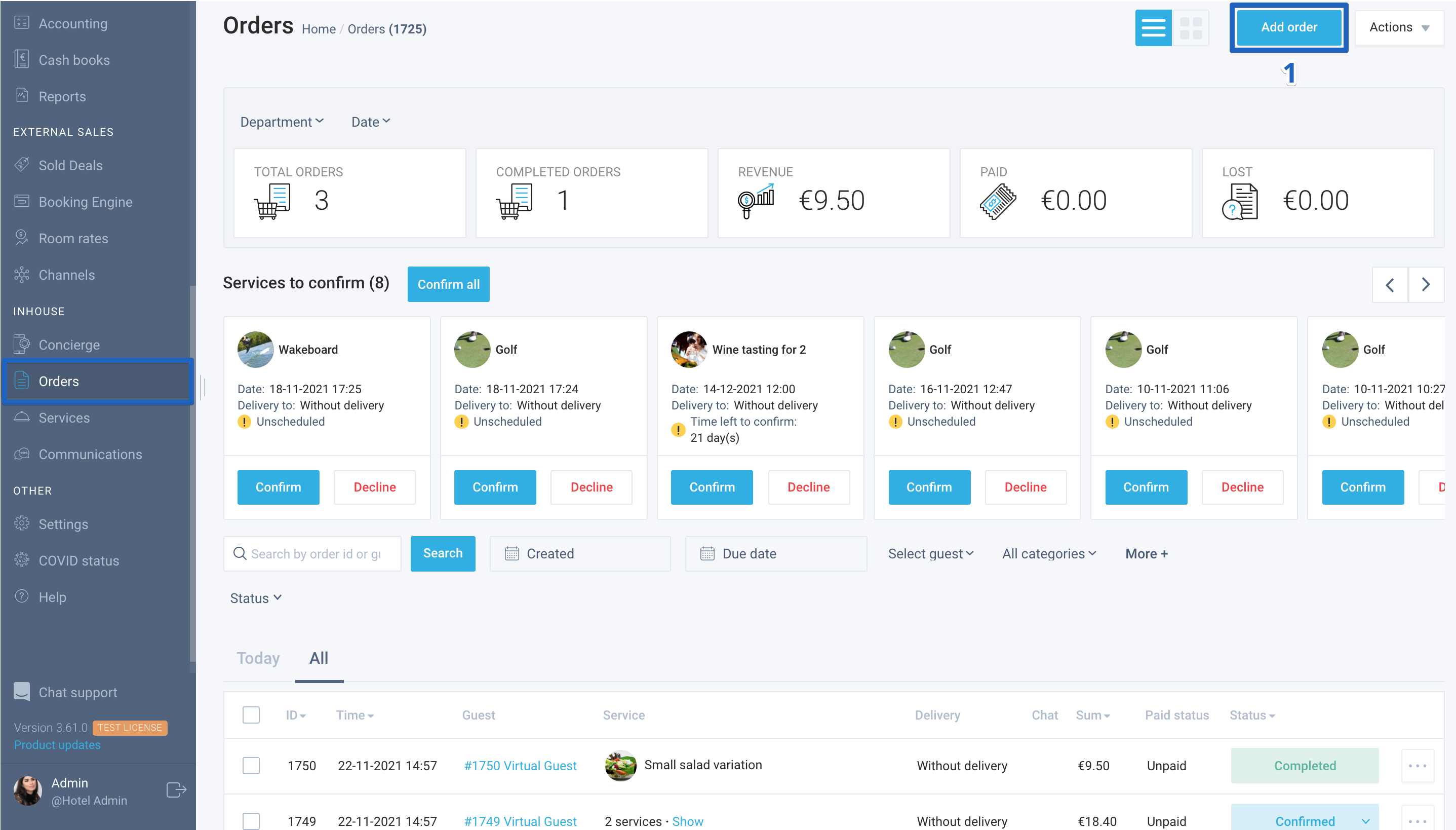
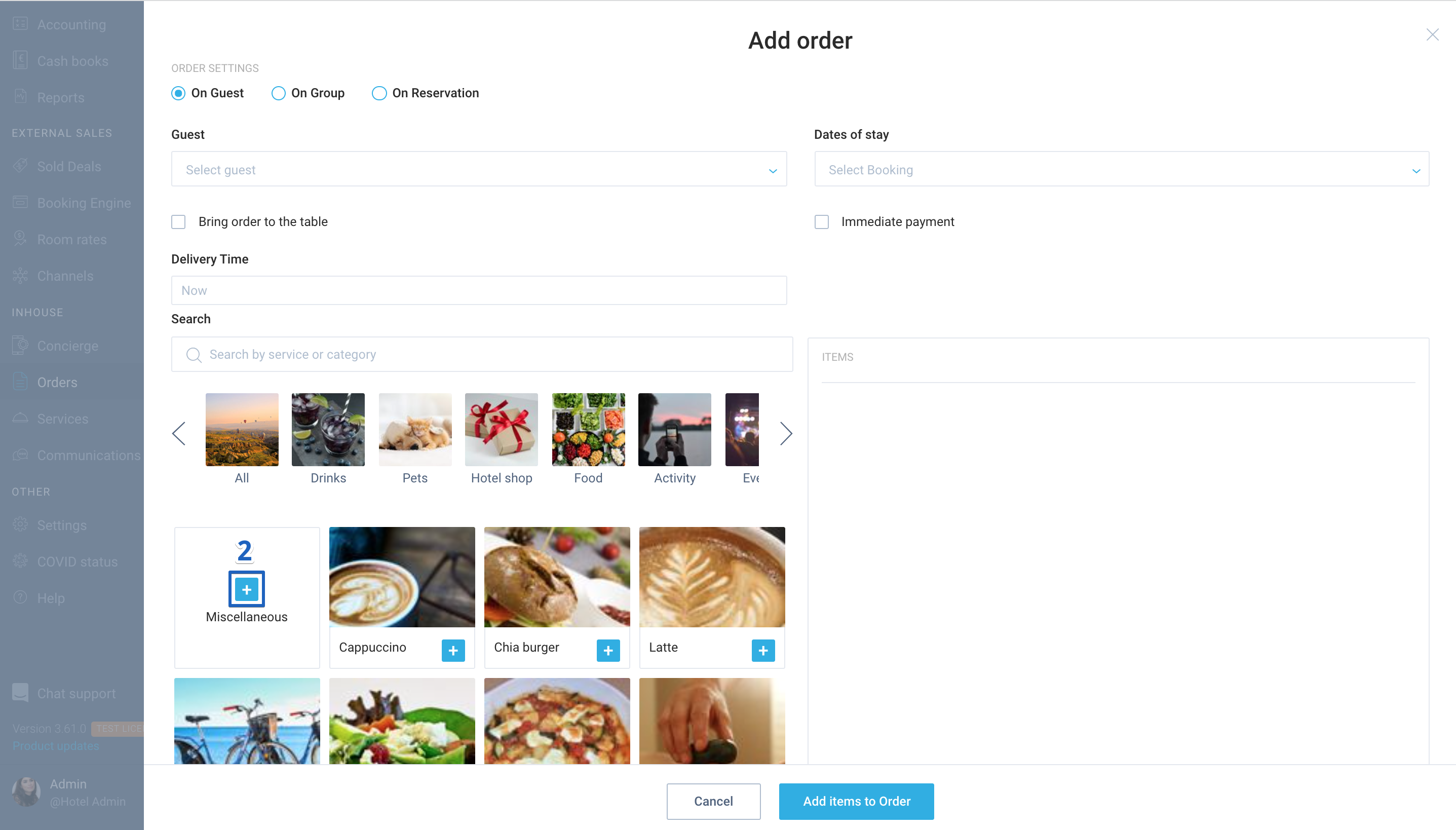
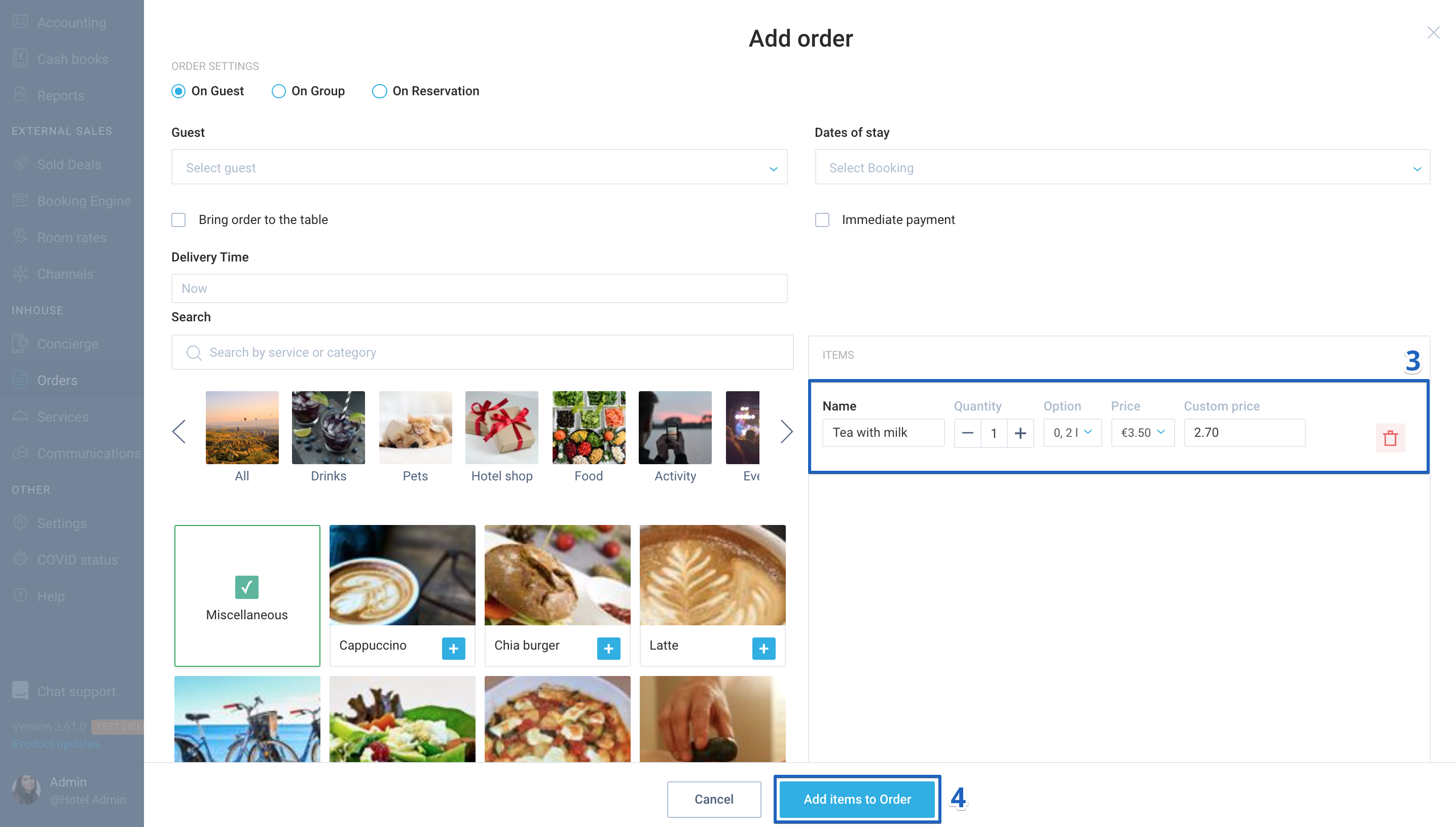
If necessary, you can also select additional delivery and booking options, the same way as when creating standard orders.
If you need any extra explanations, please reach out to our support.
Author:

