

How to set up a custom price when extending a reservation through Front Desk
You can extend a guest’s stay and set a custom price directly through the Front Desk module. Depending on your needs, you can apply the custom price either to the extended nights only or to the entire reservation.
Extending a reservation and setting a custom price
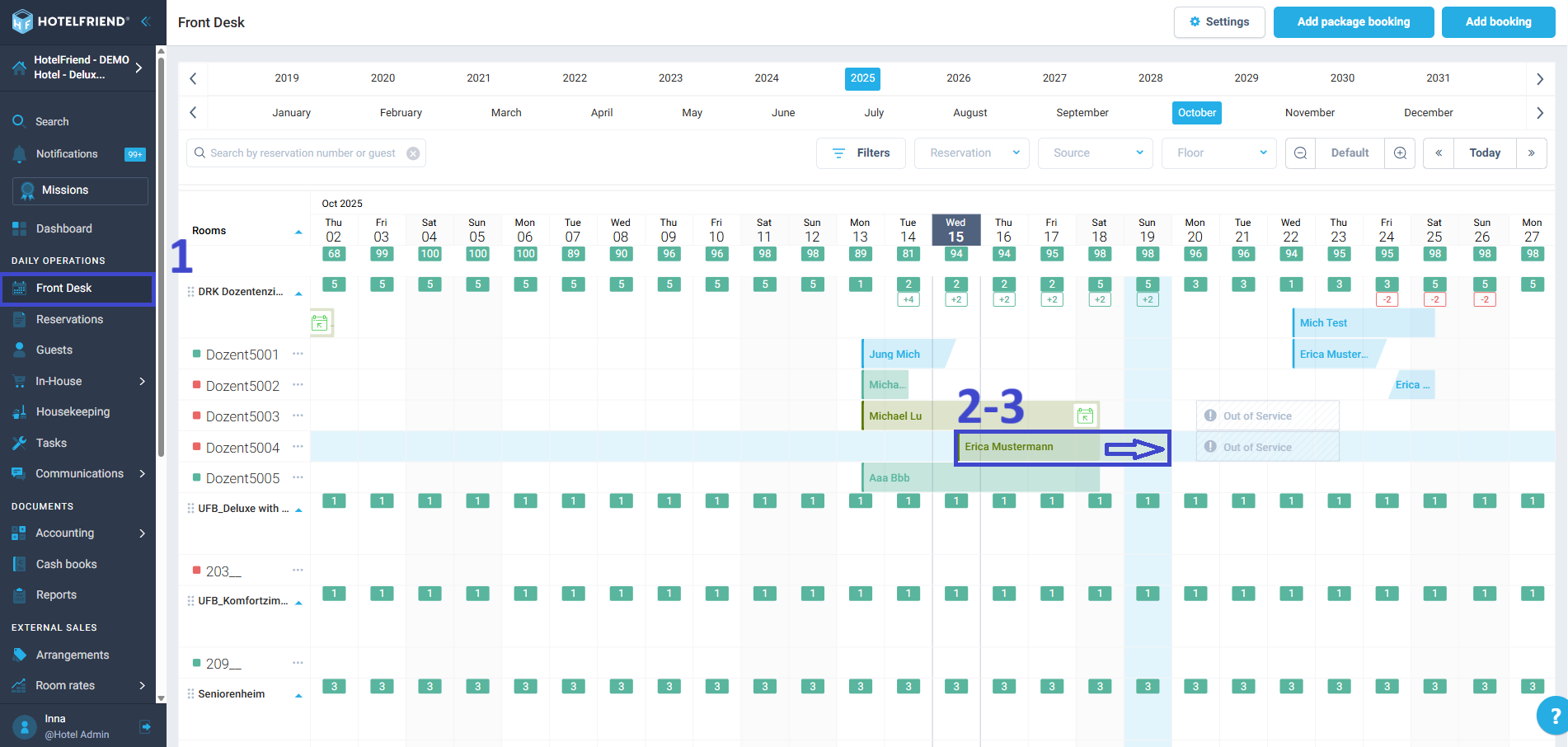
- Go to the Front Desk module.
- Find the reservation you want to extend.
- Move the cursor to the end of the booking line. When the resize cursor appears, drag the line to the right until the required departure date.
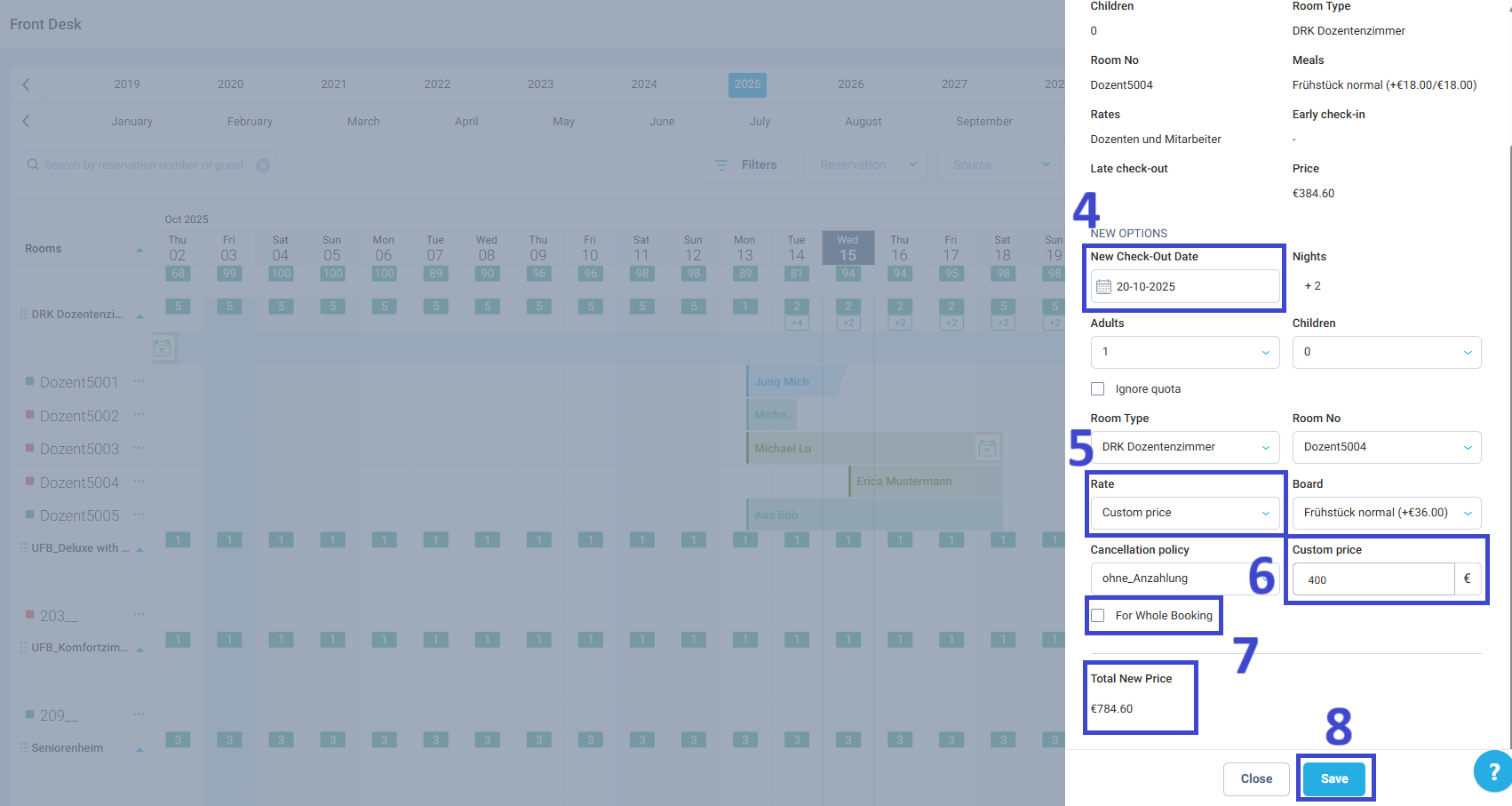
- In the Edit booking window, check or adjust the guest’s departure date.
- In the Rate field, select Custom price.
- In the Custom price field, enter the price you want to apply.
- Choose how to apply the price:
- For the extended period only: Leave the For Whole Booking box unchecked. The system will add the indicated price to the total reservation value.
- For the entire stay: Tick the For Whole Booking box to set a new total price for the whole reservation.
- Check Total New Price and click Save.
Follow the steps below:
Author:

