

How to add company invoices, payments, and refunds
A well-organized process of managing invoices, payments, and refunds is critical to the success of a hotel as it streamlines documentation, reduces errors, enhances the quality of service, and more. Find out how to add company invoices, payments, and refunds below.
Follow these steps to add company invoices
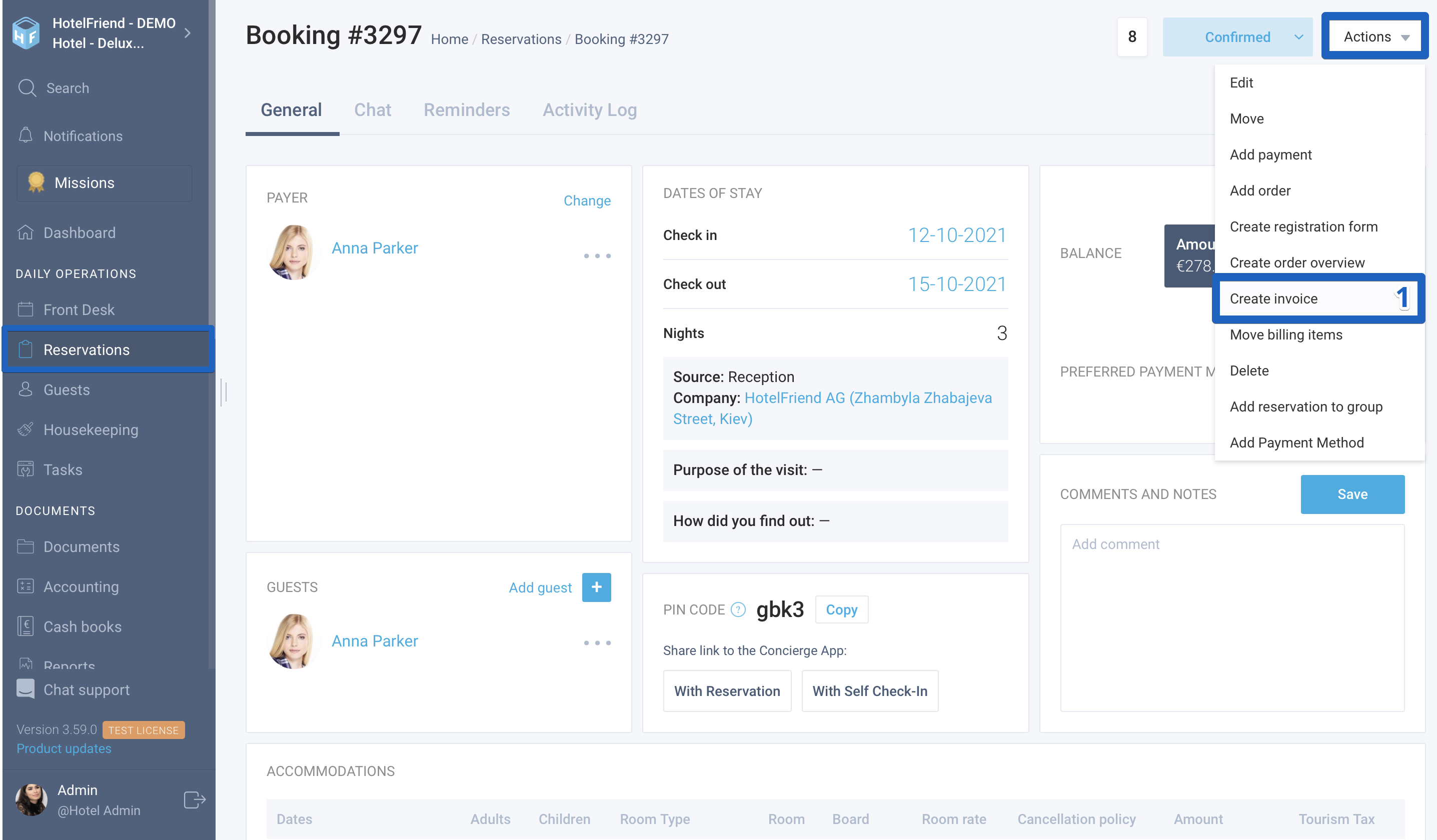
- In the booking card, click on the “Actions” button in the upper right corner, and then select Create invoice.
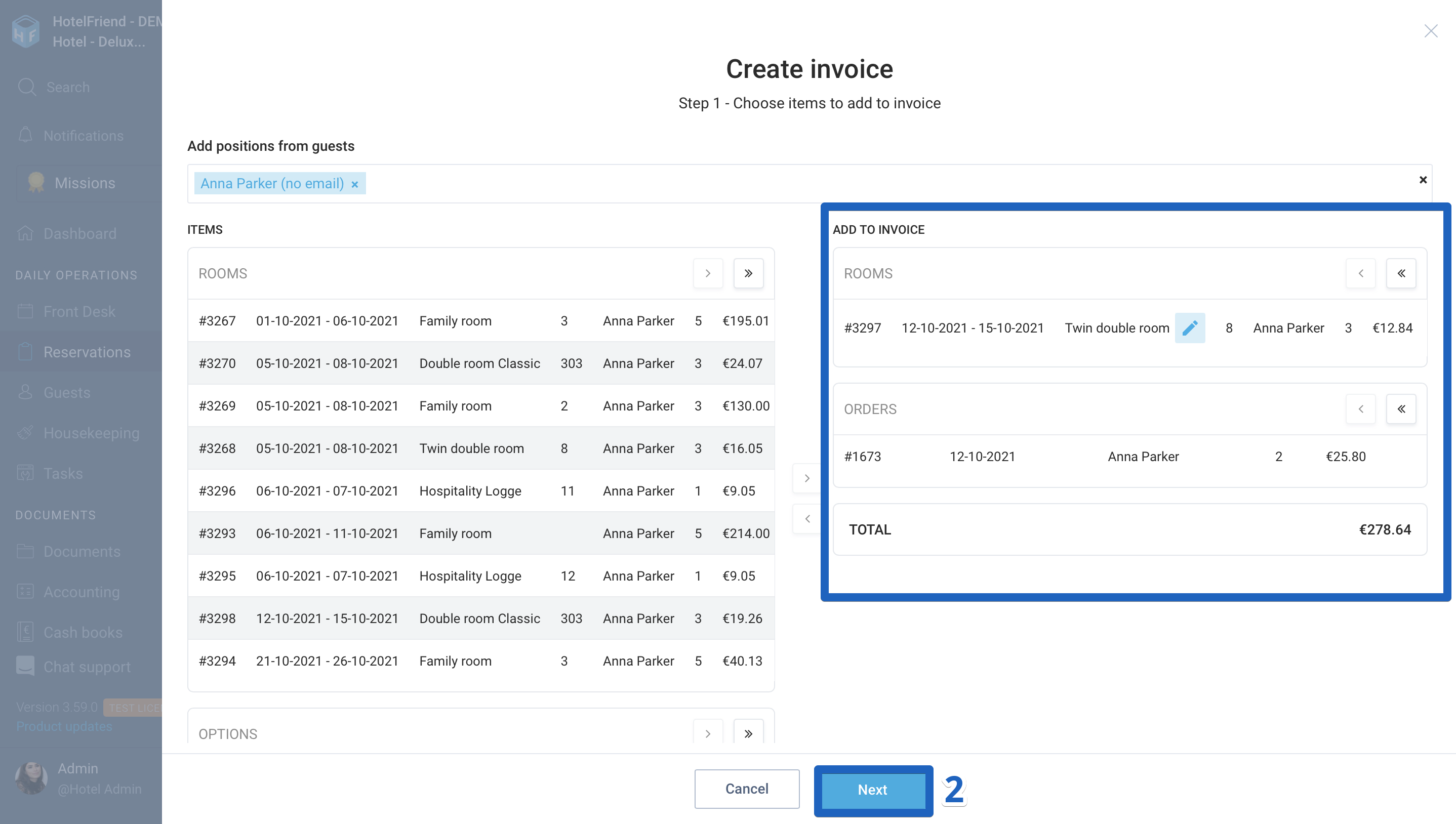
- Select the items you want to add to the invoice and click on the “Next” button.
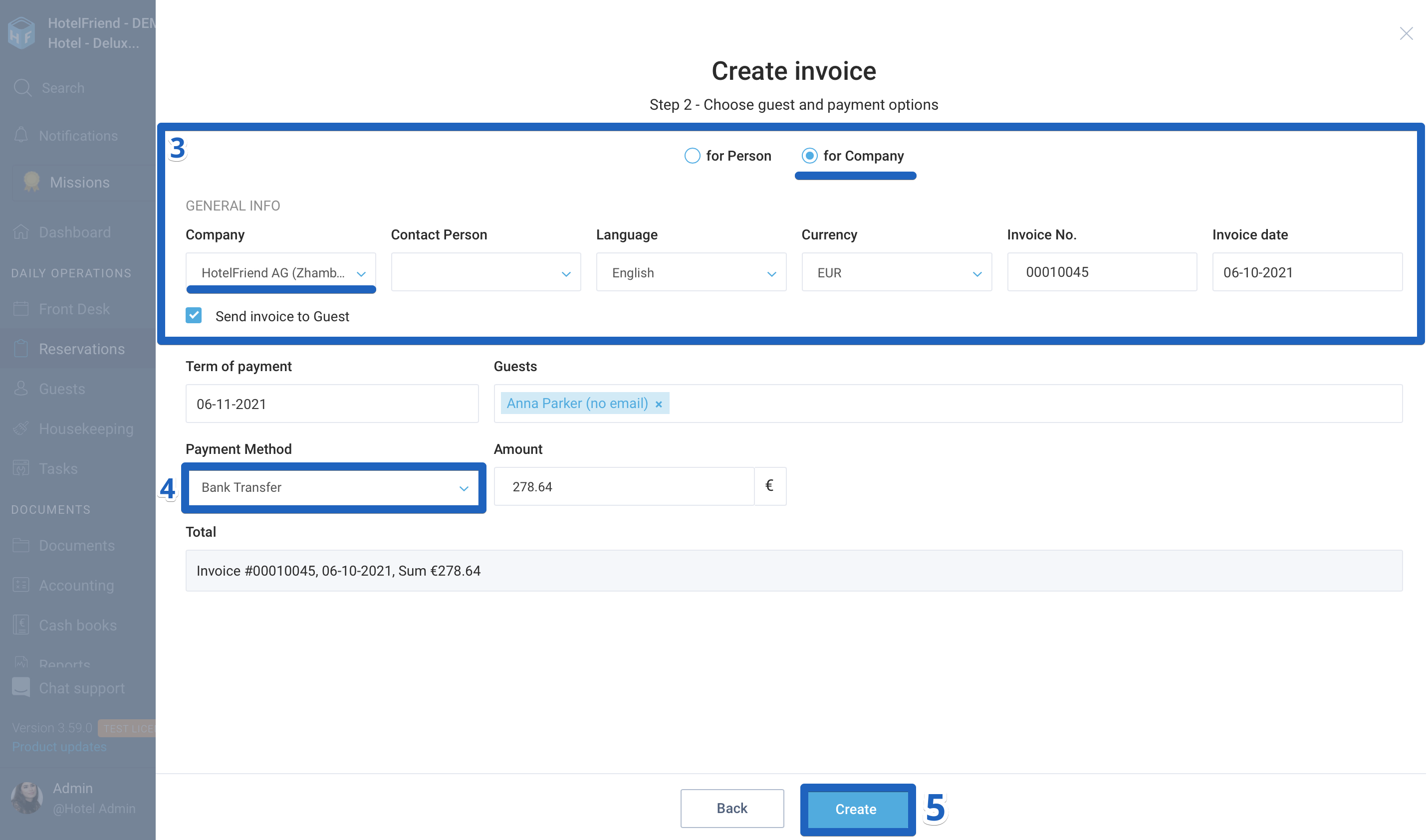
- Make sure that the system has selected the “for Company” invoice type and check which company is displayed in the Company field.
- Select a payment method in the Payment Method field and enter other required details.
- Click on the “Create” button.
If the booking was created for a company, the system automatically selects this type of invoice.
Important: To form and send a company invoice for payment, you should select the Bank Transfer type of payment. When choosing this type of payment, the system will create an invoice without payment. When choosing other types of payment, the system will automatically create not only an invoice but also the payment.
How to Add Company Payment
Here is how to add company payments:
- In the booking card, click on the Action menu in the invoices section opposite the invoice, and then select the Add Payment function.
- In the window that opens, check the data. If necessary, pull the required type of payment and enter additional information.
- Click on the “Add” button.
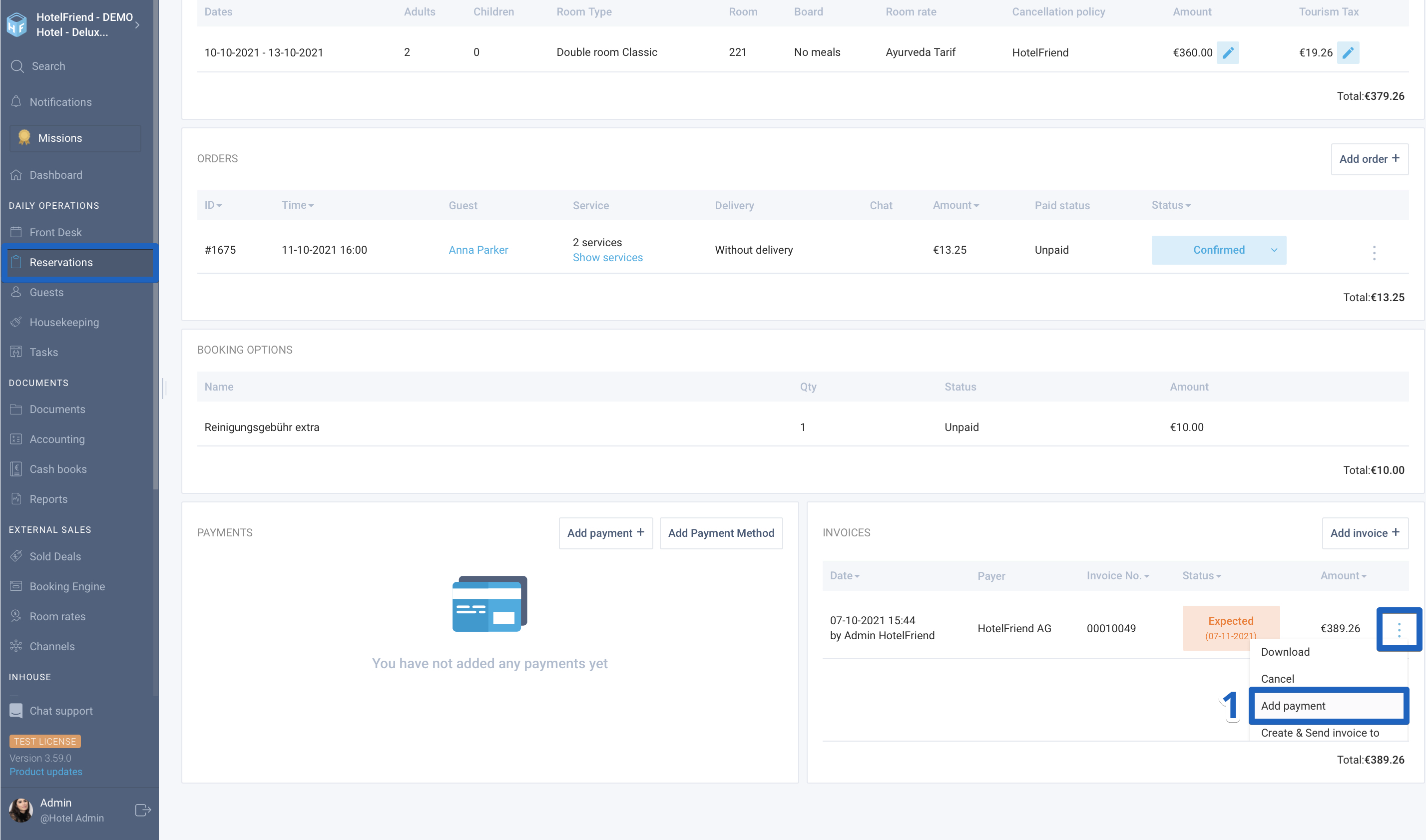
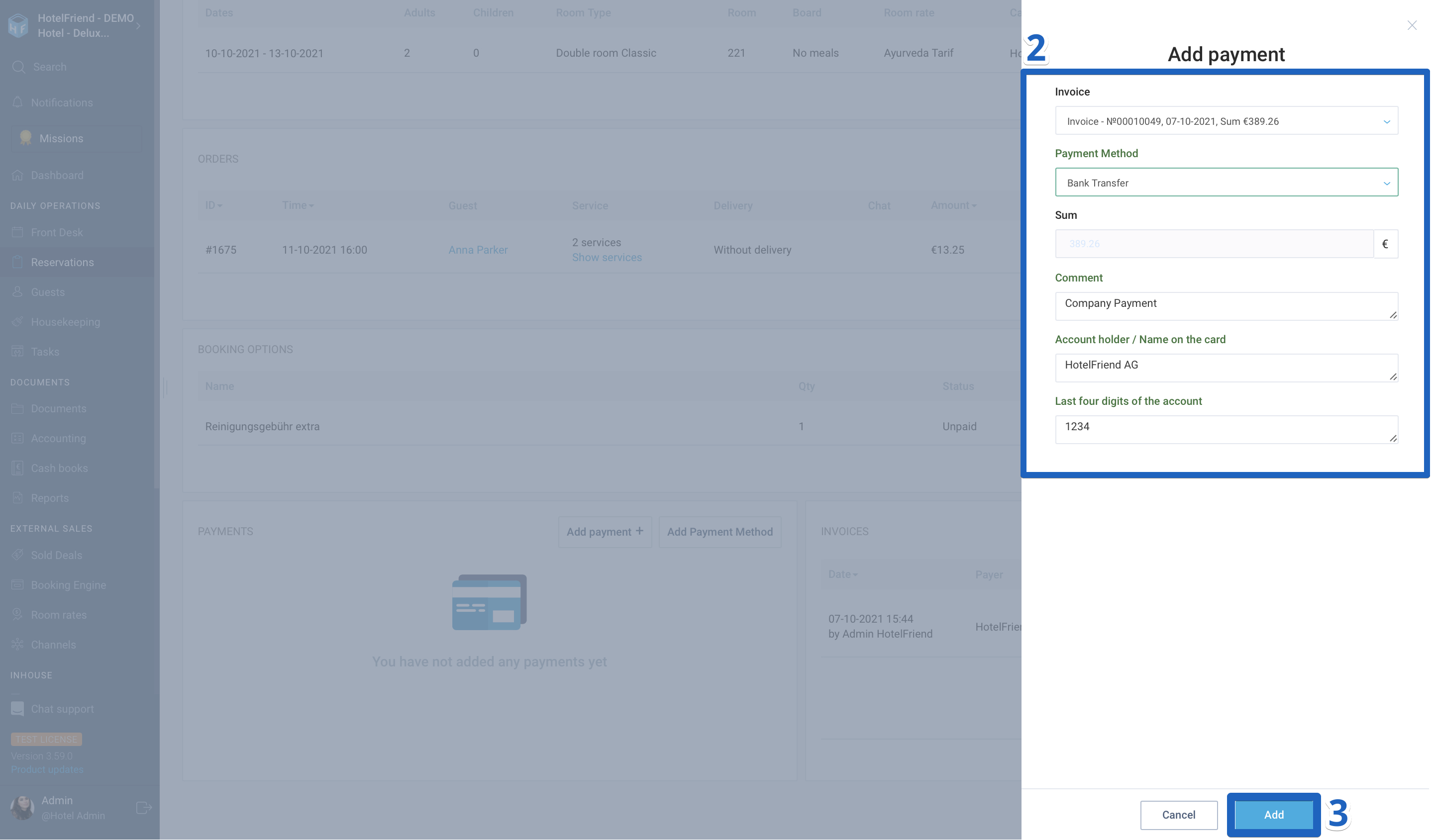
Check if the payment is made as well as the balance of the booking.
How to add Refund for the Company Reservation by the invoice
Here is a step-by-step guide for adding refund for the company reservation by the invoice:
- In the booking card, click on the Action menu in the invoices section opposite the invoice, and then select the Refund function.
- In the window that opens, check the data. If necessary, pull the required type of payment and enter additional information.
- Click on the “Add” button.
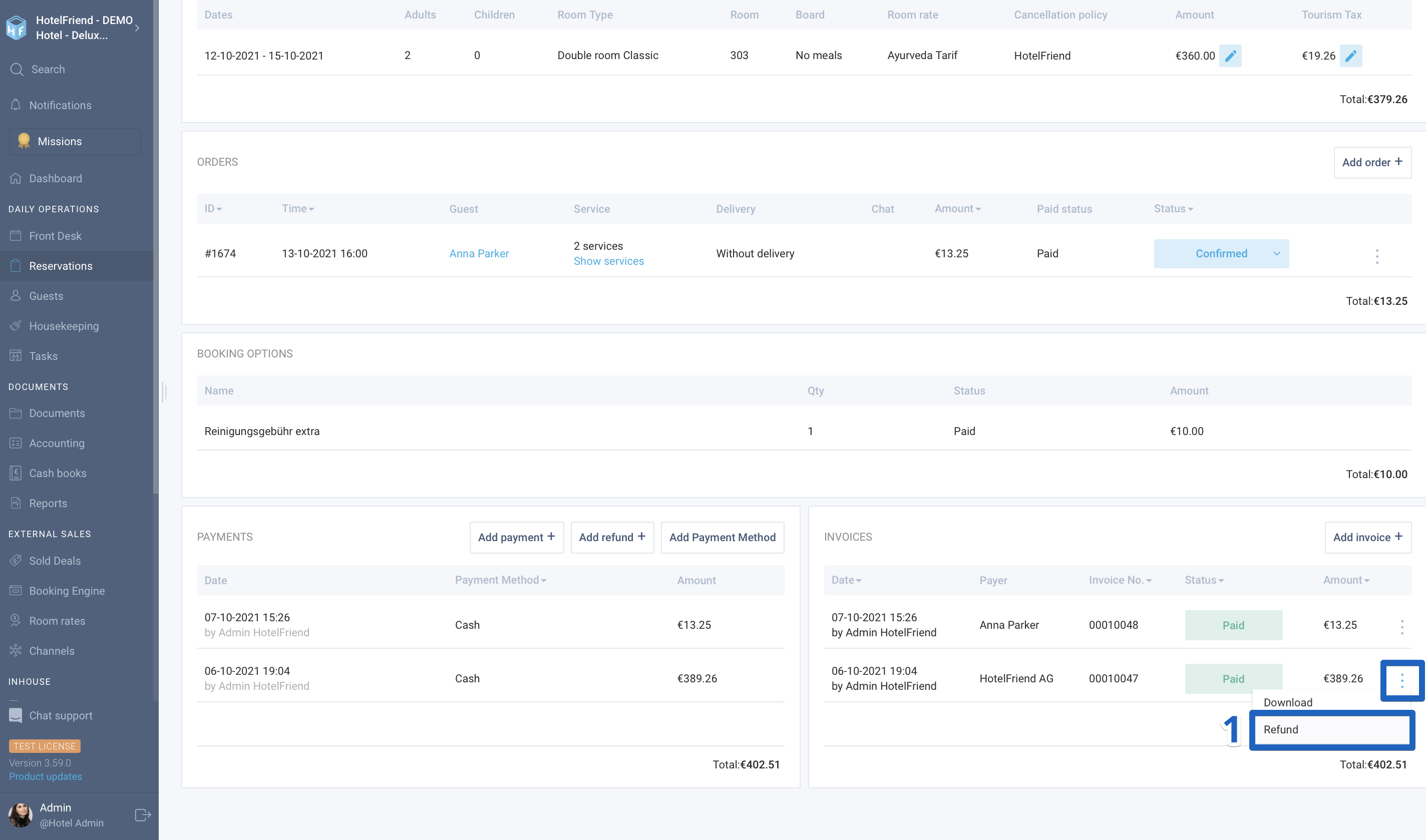
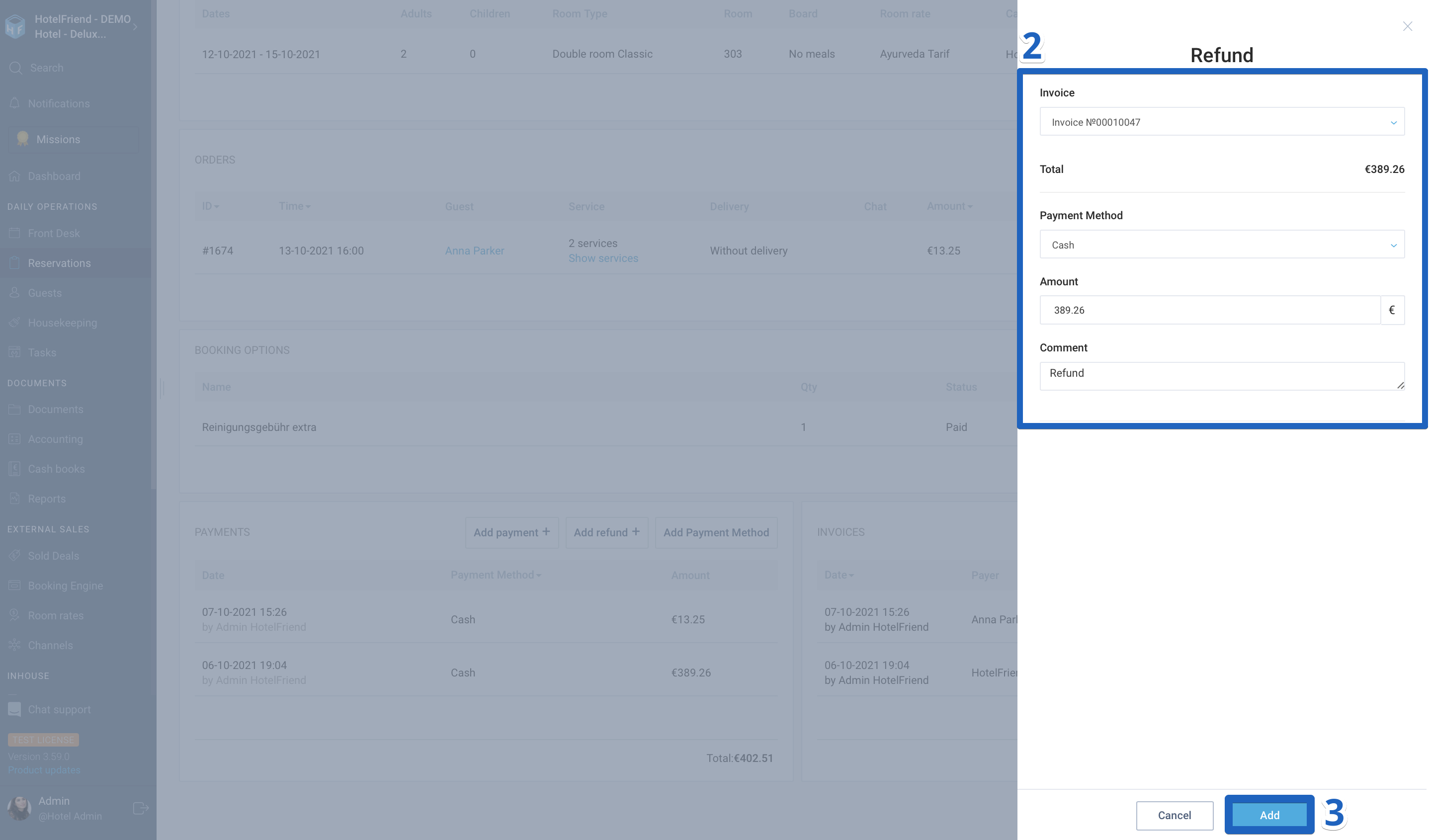
Check if the refund is made as well as the status of the invoice.
If you have any difficulty adding company invoices, payments, or refunds, please contact our support.

