
How to set up Biller in HotelFriend
In the HotelFriend system, a Biller contains the company information that appears on invoices issued to guests. Once you enter your company's details in the Biller tab, this information will automatically be used for all guest invoices. You can set up multiple Billers and select the appropriate one when creating an invoice.
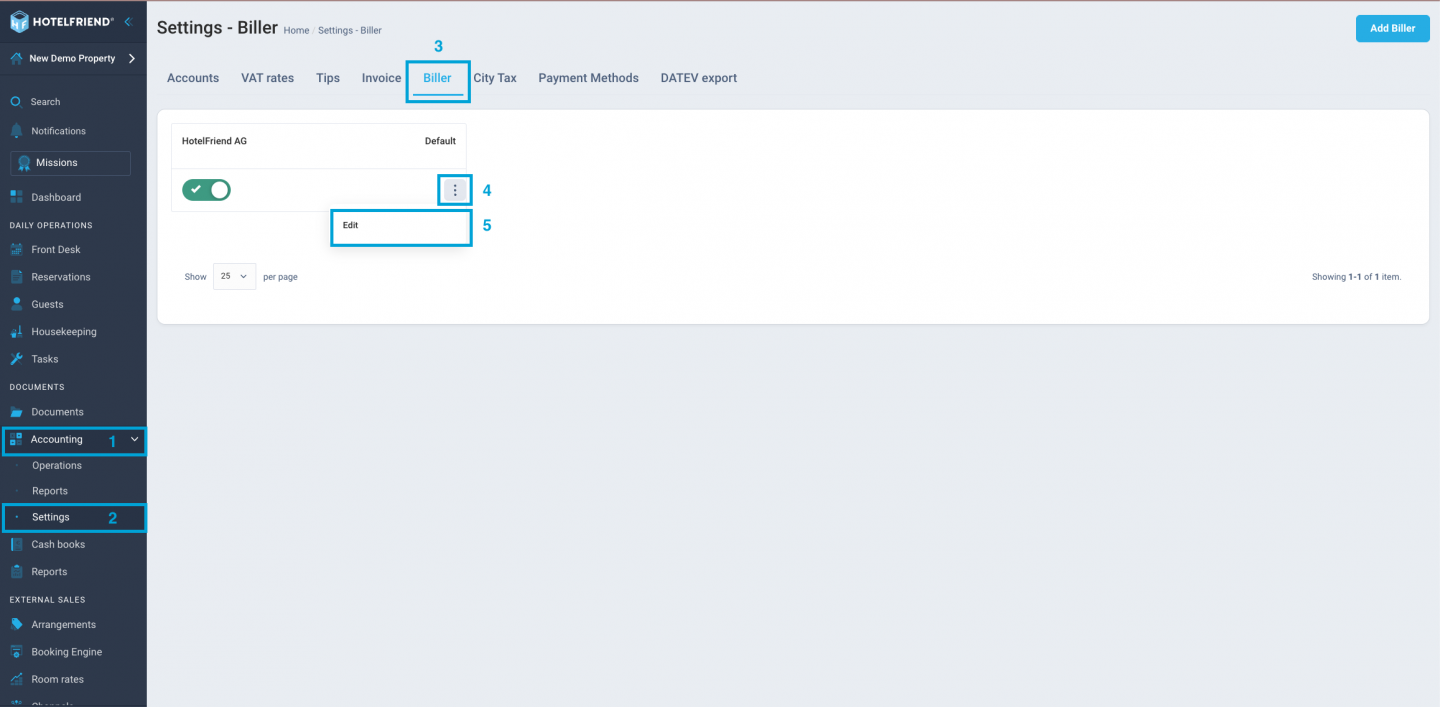
- In the menu on the left side of your HotelFriend dashboard, locate and click on the Accounting module.
- Within the Accounting module, click on Settings.
- Find and select the Biller tab.
- To modify the information of an existing Biller, click on the three dots (options menu) next to the Biller template you wish to edit.
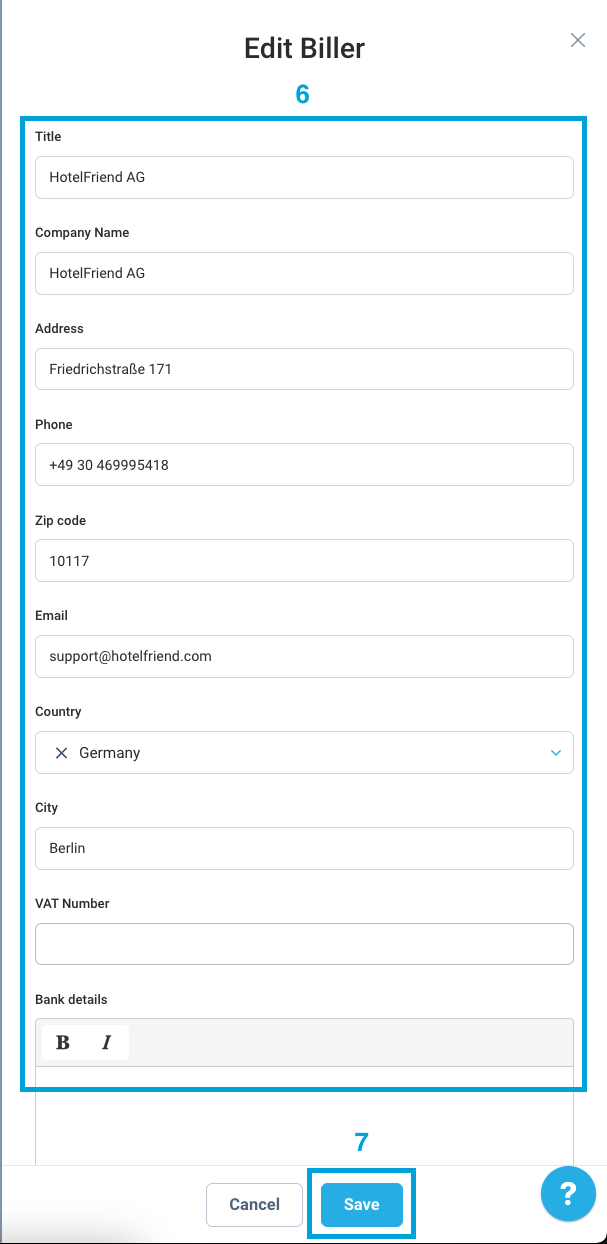
- Here you can now edit the Biller.
- Update all necessary information for the Biller.
- Click Save to apply changes.
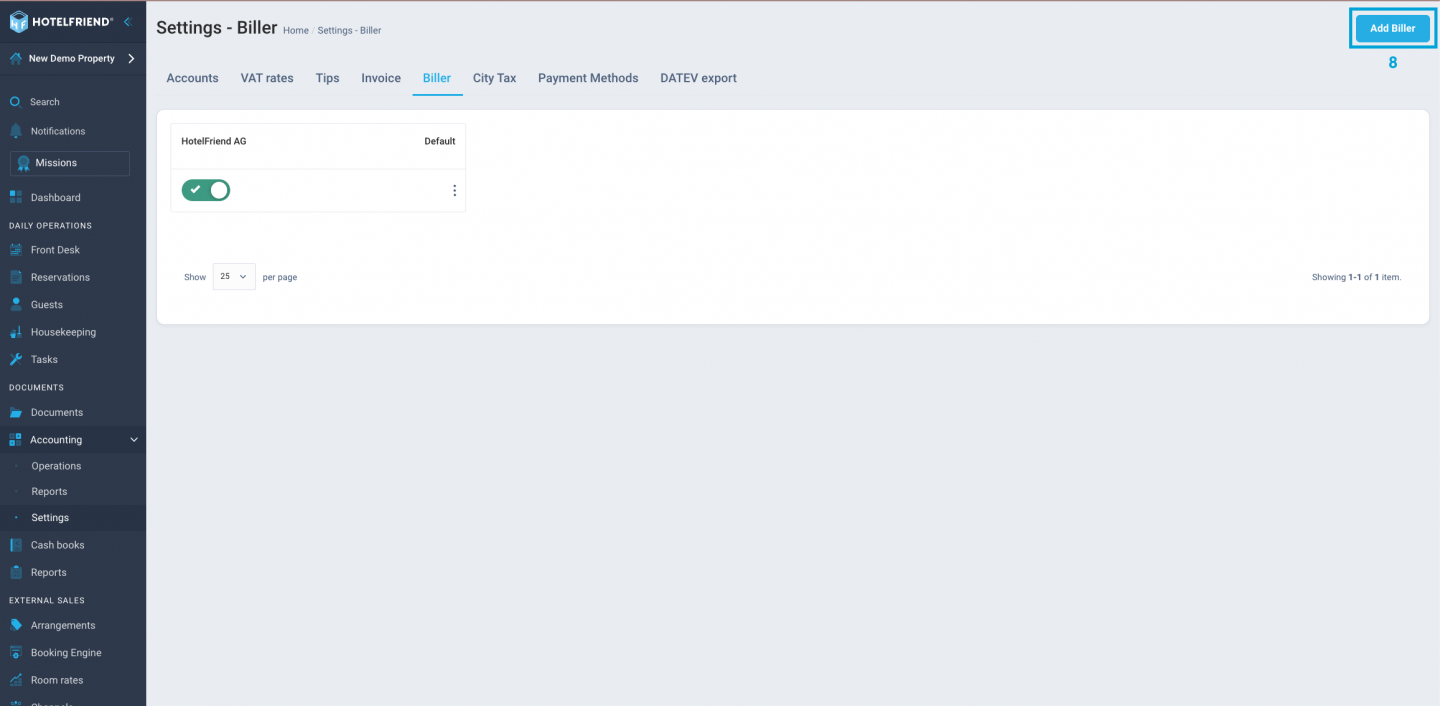
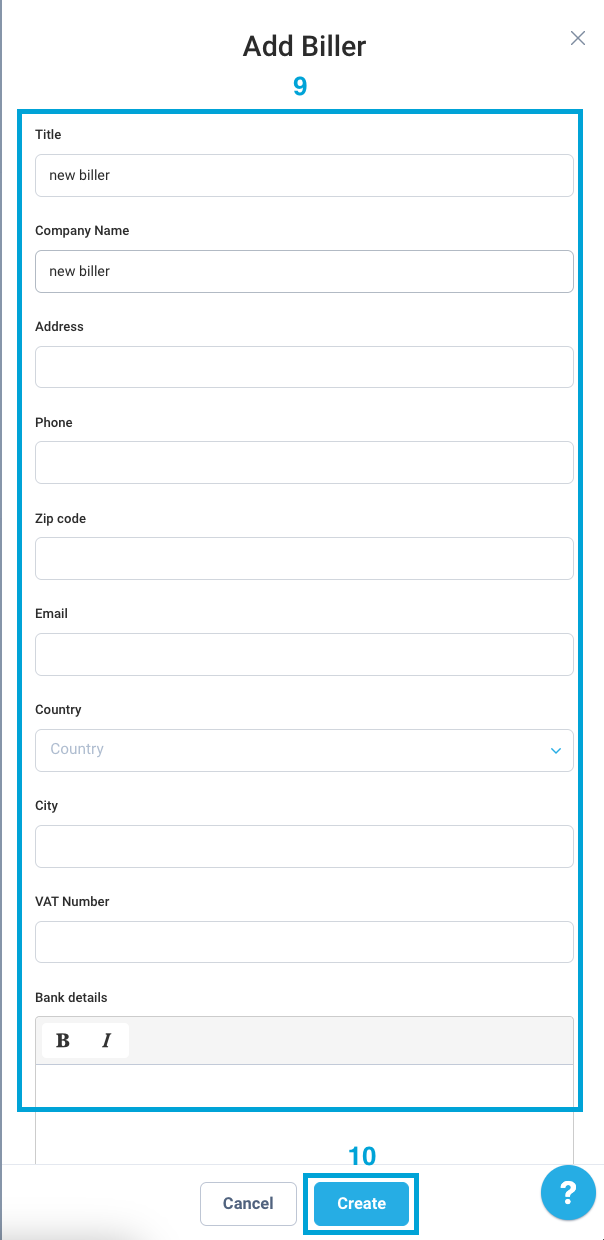
- If you need to add a new Biller, click on the Add Biller button.
- Enter all relevant company information in the provided fields.
- Once completed, click Create to finalize the addition of the new Biller.
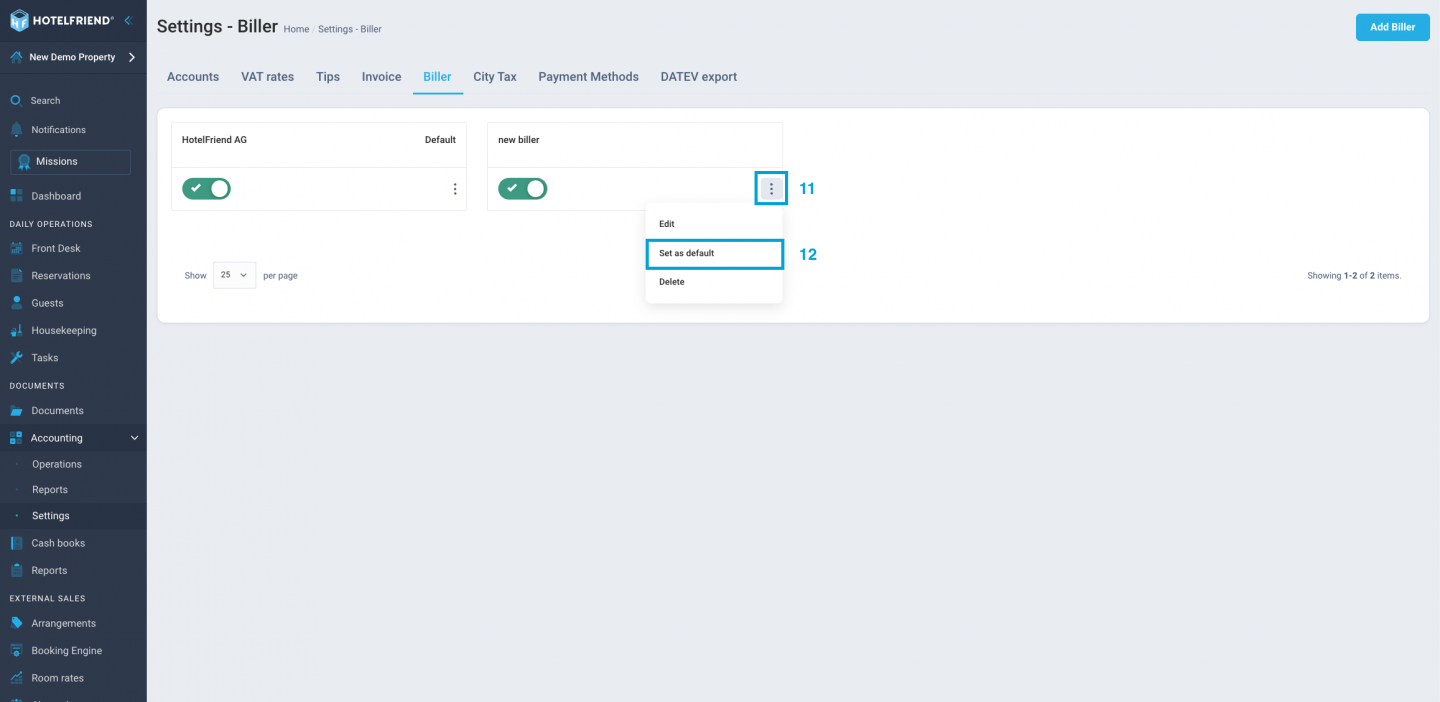
- To set a newly created or existing Biller as the default, click on the three dots next to the desired Biller.
- Select Set as default to make this Biller the primary one used for invoices.
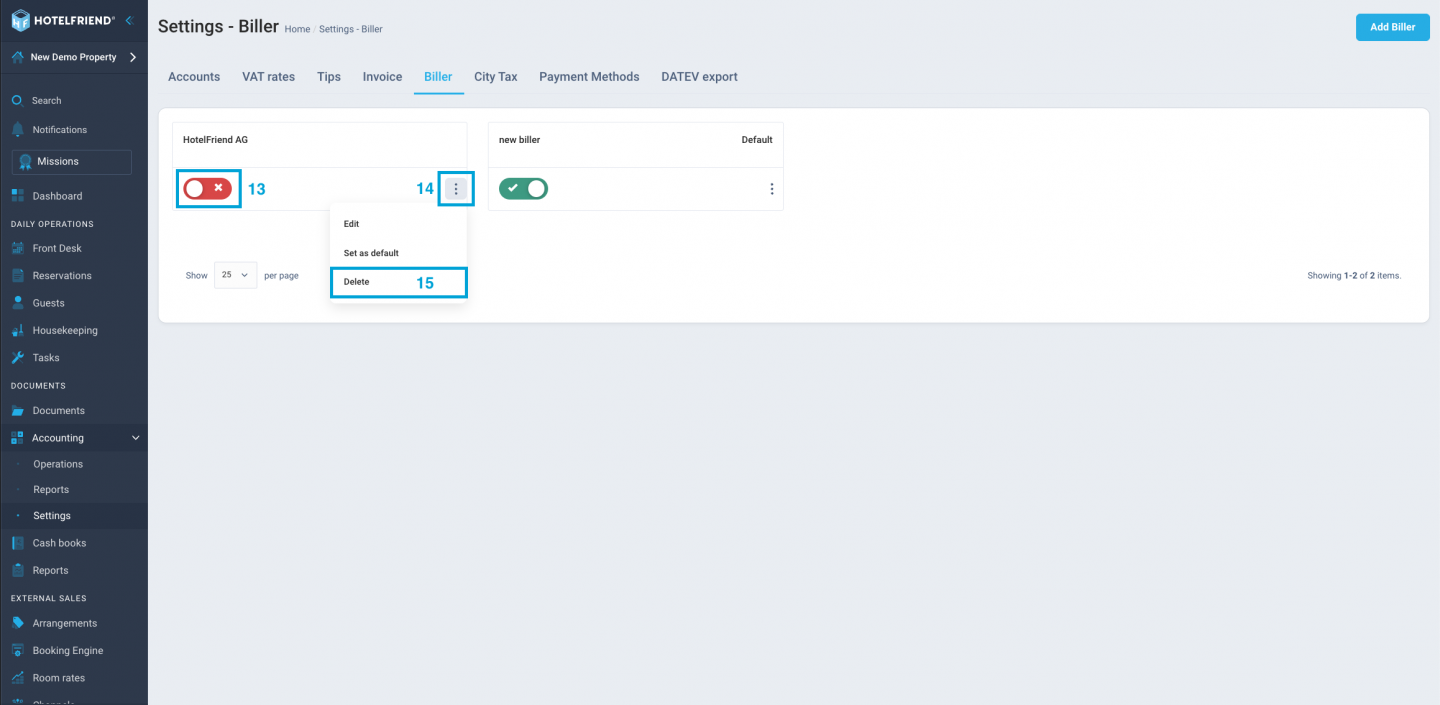
- If you prefer to deactivate the previously set default Biller, toggle the slider next to it.
- Alternatively, you can permanently remove a Biller by clicking on the three dots and selecting Delete.
- Click Delete to remove the preset invoice issuer.
Author:

