

How to set up the Guest Facing module
The Guest Facing module allows you to transform your touchscreen devices into self-check-in or ordering kiosks. With this module, you can choose which features to display on your kiosk or remote reception tablet and configure various tabs and options. Once set up, HotelFriend PMS generates a link that you open on your selected guest-facing devices. Guests can then use these devices to interact with the program, completing tasks like self-check-ins, extending their stays, or making payments for orders.
Setting up the Guest Facing module
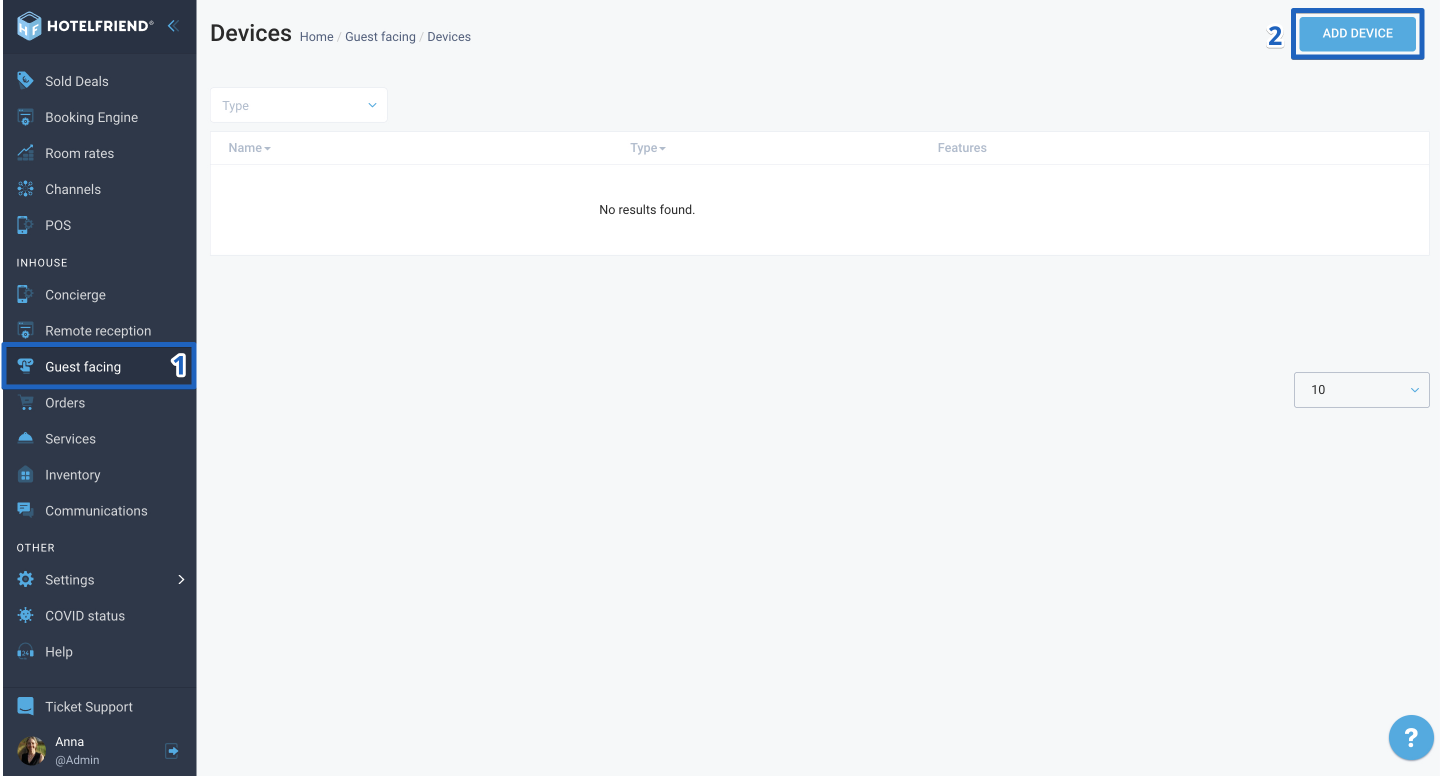
- Navigate to the menu on the left side of the screen and select the Guest Facing module under the Inhouse category.
- In the upper right corner, click on the “Add device” button.
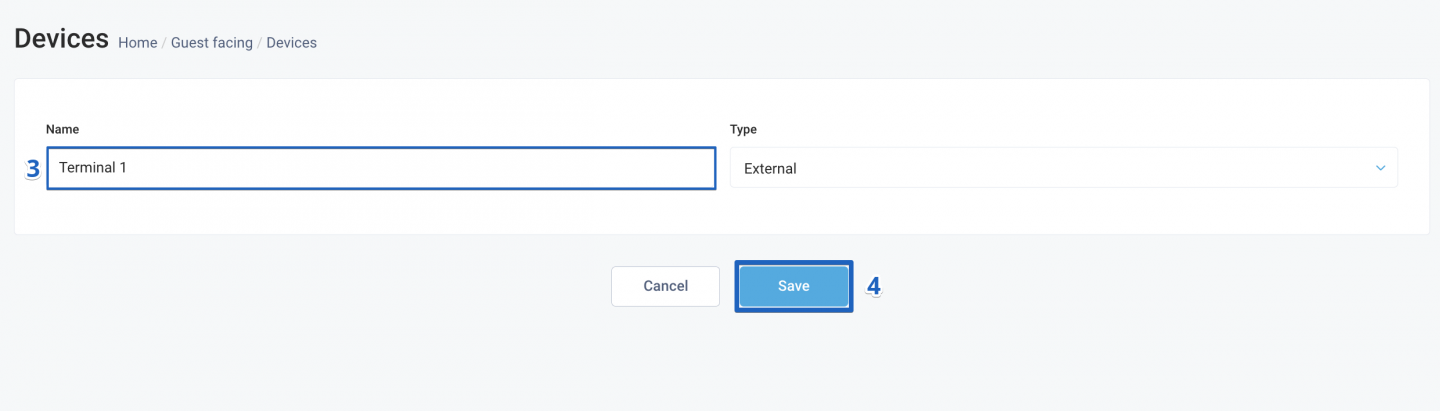
- Enter a name for your device.
- Click the "Save" button.
STEP 1: Adding a device
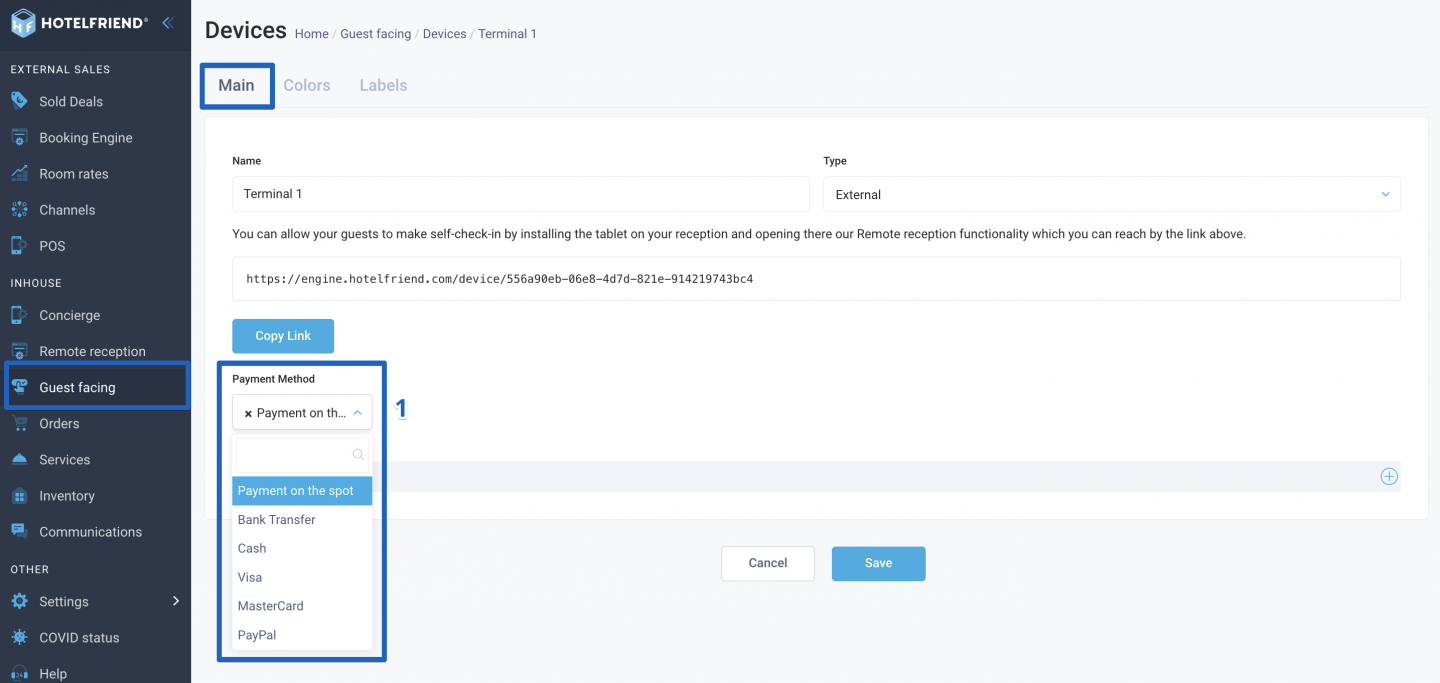
- In the Main settings of the device select Payment Method from the drop-down list.
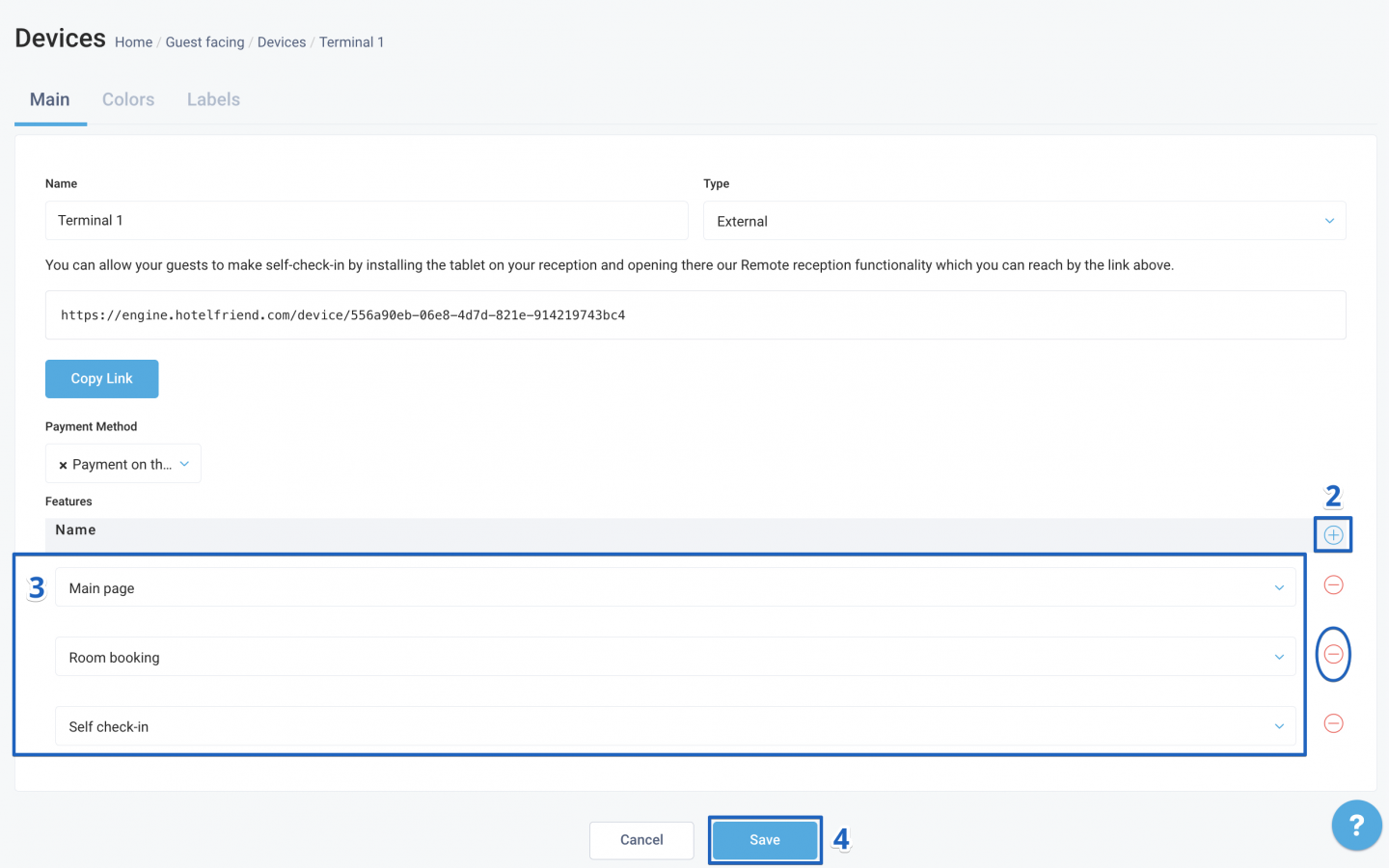
- Click on the “+” button to add features of interest.
- Choose the feature block name from the drop-down list to display on the device.
- Click the "Save" button to confirm your selections.
STEP 2: Configuring device settings
In the main settings of the device:
Tip: To remove a feature, click the “-” button and then save the changes.
STEP 3: Configuring tabs
● Configure each tab, that was added on the Main page.
Author:

