Booking Engine, BE Pro & Guest Facing Updates v3.38 &v3.39 & v3.40: Event Offers, Booking Cut-offs, and Live Meeting-Room Status
Discover the latest Booking Engine, BE Pro & Guest Facing updates: online Event Offers for event payers, booking cut-off rules, larger group limits, and a live Resource display for meeting-room tablets.
Nov 19, 2026 9:12 AM
We’re back with a new release for hoteliers. You can now send event proposals that payers confirm and pay online, control how late guests can book, welcome larger groups, and show live room status on a tablet at your meeting-room door.
Here’s what’s new:
Events Management with Booking Engine
1. Event Offer for the event payer
Stop agreeing event details by e-mail and phone. You can now send a complete event proposal to the person paying for the event and let them confirm it online.
How it works for your team
Once an event is prepared in the Portal and a payer is assigned, the event (in status Draft) gets a Send Event Offer action. Before sending, choose the prepayment policy for the event:
- Full prepayment
- Partial payment as a percentage
- Partial payment as a fixed amount
- No prepayment
This policy also applies to every reservation linked to the event, regardless of the reservations’ own settings.
You can re-send the offer while the event is in status Offer. Every send, resend, acceptance and decline is written to the event log with the timestamp, the recipient’s name and e-mail, the event total at that moment, and a link to the e-mail that was actually sent.
What your payer sees
The payer receives an e-mail with a link to a public Event Offer page on the Booking Engine, with no login required. The page presents:
- Event name, dates, location, description and number of guests
- The day-by-day schedule
- The list of booked services and orders
- The accommodation summary, if rooms are part of the event
- The full price breakdown
- The cancellation policy, shown under each room
Confirming or declining
The payer chooses Confirm and pay or Decline.
- Confirm and pay opens a dedicated payment page, followed by a success confirmation once the payment is complete. The event moves to status Live. If you have the corresponding automation enabled, the invoice is generated and e-mailed to the payer automatically.
- Decline moves the event to the new status Offer Decline. The event is locked from further changes until your staff move it to another status manually.
If the link is opened after the offer has already been accepted, declined or is no longer valid, the page shows a clear non-actionable message instead of the buttons.
2. Simpler success page after paying an Event Offer
The “My Trips” button no longer appears after an Event Offer payment, because it asked event payers for a PIN or login they don’t have. The button will return when My Trips supports events.
Booking Engine Pro
3. Background image coverage on the Main Page
Choose how your main page background image looks. It can stay below the header and footer (the default), or cover the header, the footer, or both. Set it in Main Page Setup & Customization. The option applies to the Main Page only.
4. Service display: List or Cards
Services on your BE Pro website are now shown in the layout selected in the source settings, either as a list or as cards.
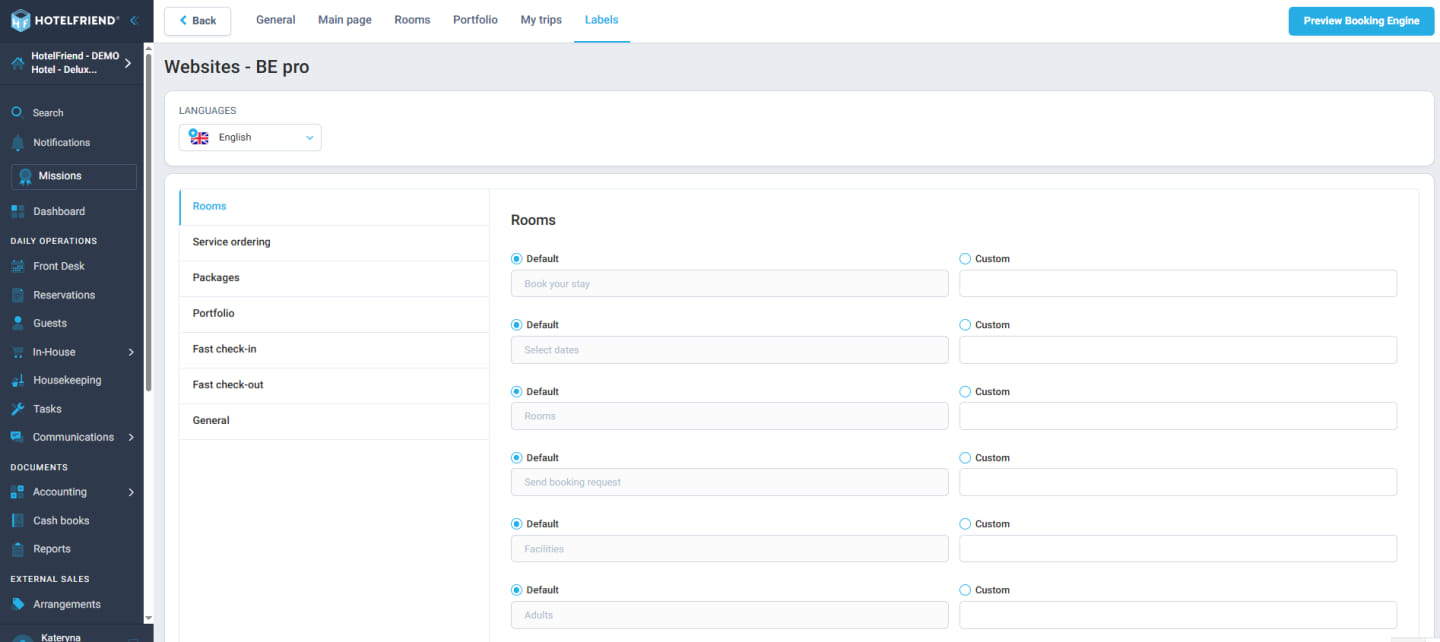
5. Labels for BE Pro websites
Label values managed in the Portal can now be applied to BE Pro websites. Hotel chains can use them to organize and identify their BE Pro sites consistently.
Booking Engine, BE Pro & Guest Facing
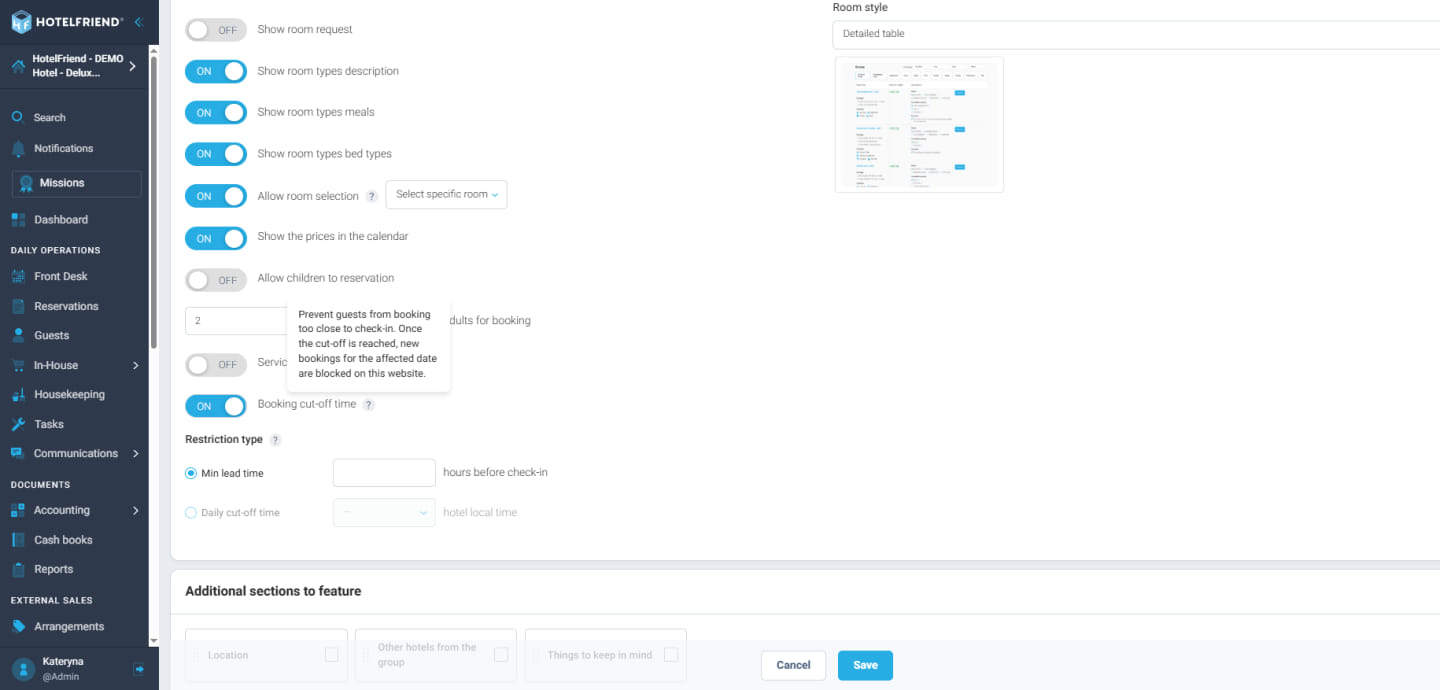
6. Booking cut-off restrictions (BE, BE Pro)
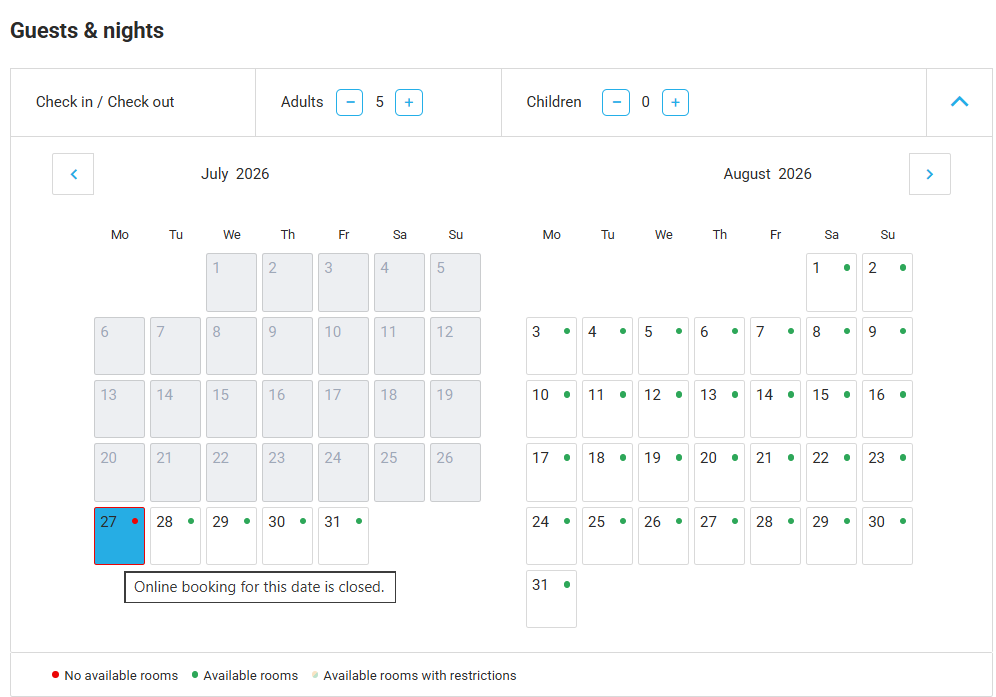
The Booking Engine now enforces your configured booking cut-off, either a minimum lead time or a daily cut-off hour.
- Check-in dates that can no longer be booked are blocked in the date picker.
- Cut-offs are calculated in your hotel’s local time, not the guest’s.
- If a booking still arrives too late, the guest sees a clear error instead of a silent failure.
7. Higher guest limits for large groups (BE, BE Pro)
The Booking Engine now accepts the same guest limits as your reception, up to 200 adults and 80 children. The children-age selection in the calendar was adapted to handle big groups comfortably. Searches with large groups no longer overload the price calculation on every click.
8. All room cards shown without dates
Rooms are now displayed even before the guest selects dates, and the “Select dates” button opens the calendar. When nothing matches the search, a clearer message (in English and German) suggests changing dates, accommodation or filters.
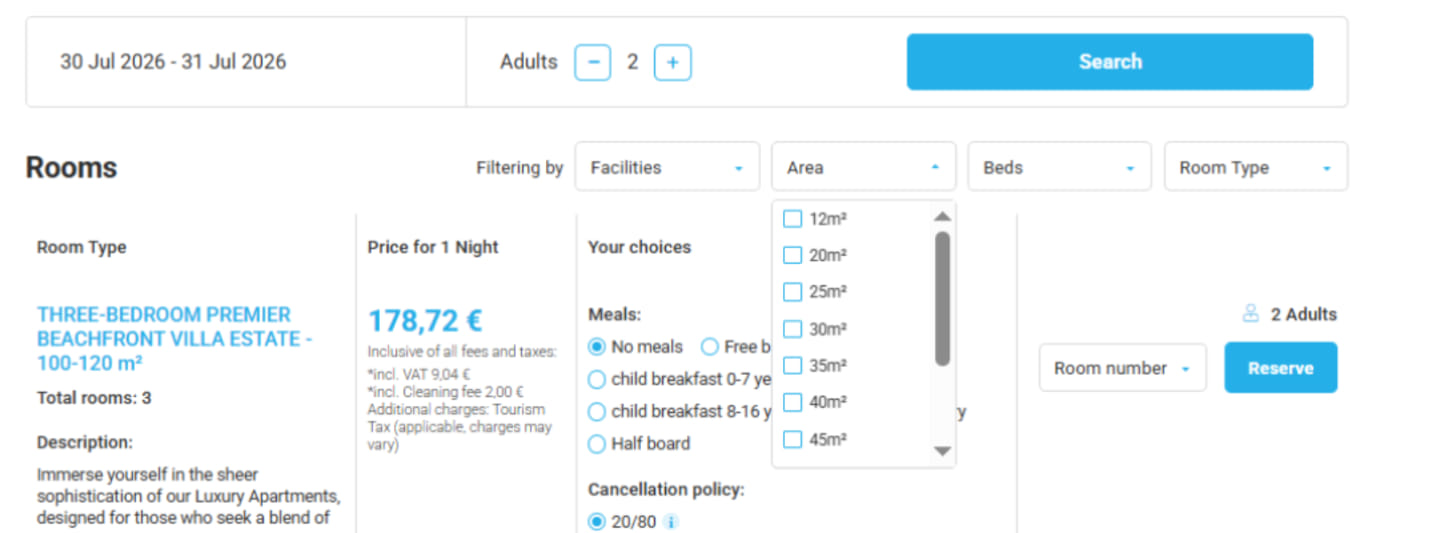
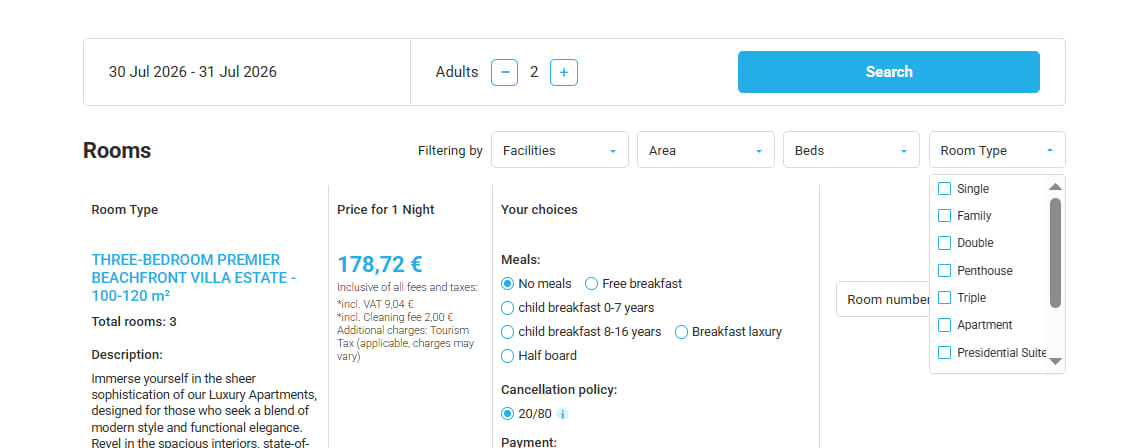
9. Multi-select for Area and Room Type filters (BE, BE Pro, GF)
Guests can now tick several Areas and several Room Types at once when filtering rooms, the same way the Beds and Facilities filters already work.
10. Accurate group search in detailed view
Group searches in the detailed room view now use the full advanced search instead of the old single-adult request, so the rooms and prices match the actual guest group.
11. Pagination in deals after filtering
Sorting deals by nights or guests no longer produces empty pagination pages. Adults and children are now separated in deal filtering, consistent with room search and easier for families.
Guest Facing
12. “Resource display” screen for meeting-room tablets
Where: Guest Facing → Devices → mode “Resource display”
A tablet at the door of a seminar room or hall now shows that room’s live status full screen, in your hotel’s colors and logo. The status can be:
- Occupied
- Starts soon
- Free until HH:MM
- Free all day
- Unavailable
The screen also shows the running booking and today’s next bookings, and it refreshes itself every minute.
If Resource display is the device’s only module, the kiosk opens straight on the display. Next to other modules, it appears as a tile on the main page and a menu item.
Learn more about the System Explore Pricing