
Product Updates v4.38: Resend Automation Email, Swiss QR-bill, Payment Date & Email Constructor
Discover HotelFriend v4.38 with Swiss QR-bill invoices, real payment dates, resendable guest emails, card validation status, improved reports, and a new visual Email Constructor.
Oct 30, 2026 2:19 PM
What’s new in v4.38: resend any guest email, see card validation status at a glance, add the Swiss QR-bill to invoices, record real payment dates, and build custom emails in the new Email Template Constructor.
Product Updates v4.38 brings ten improvements across the front desk, invoicing, reporting and guest communication. Each one is designed to save staff time, remove manual workarounds and make the numbers more accurate.
Reservations & Front Desk
1. Resend Automation Email: send any reservation email again, to the guests you choose
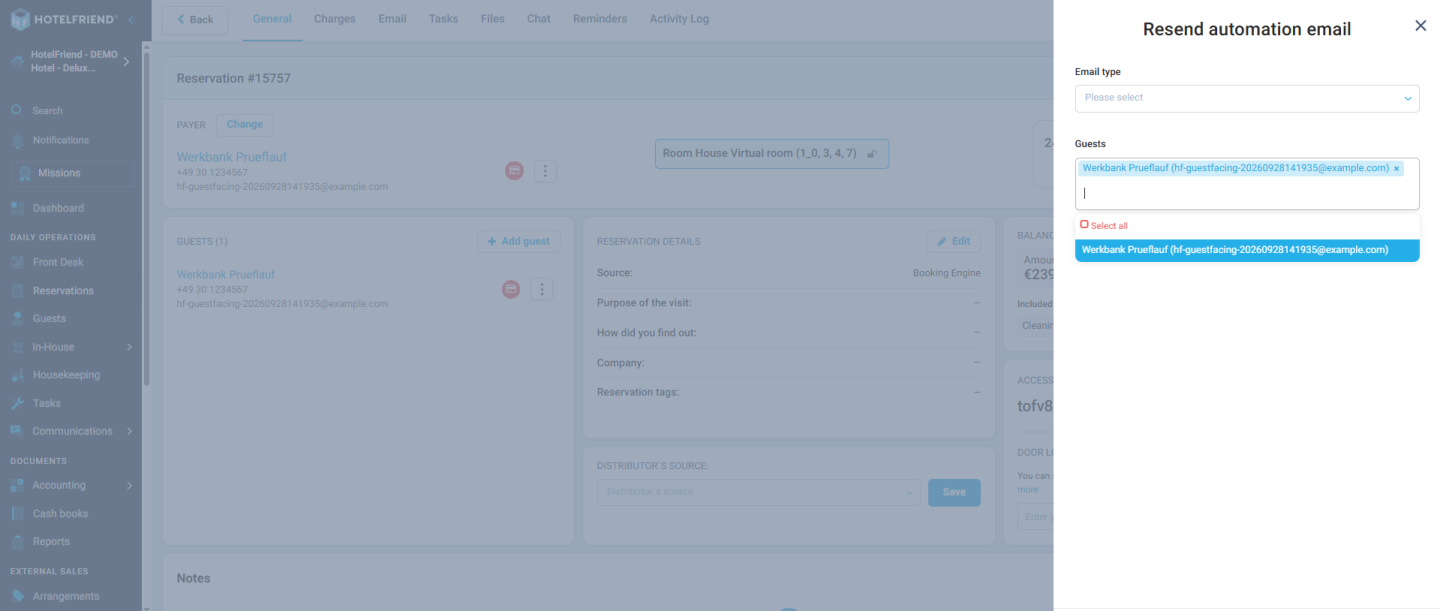
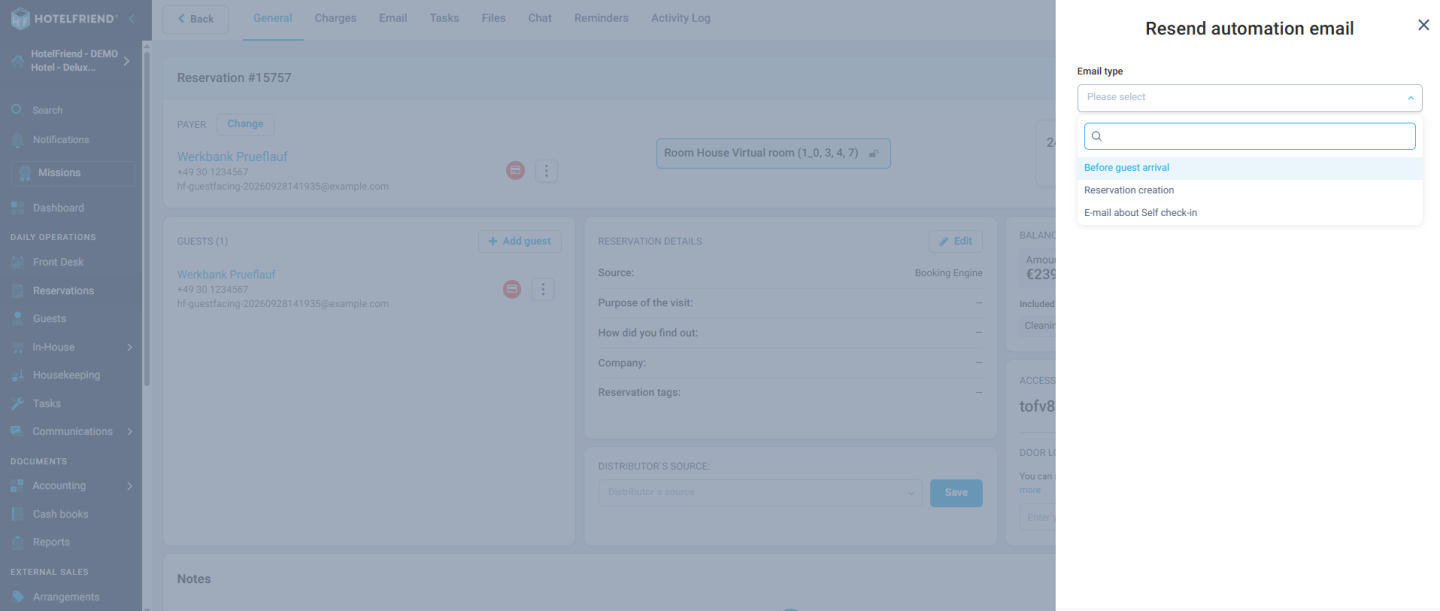
The single “Resend confirmation email” action is replaced by Resend Automation Email, available in Reservation → Actions → Resend Automation Email:
- Choose the email type: Welcome email (before guest arrival), booking confirmation, reservation creation / confirmation / cancellation, “Thank you” after departure, self check-in / self check-out emails, After Self check-in, or login credentials for an additional guest
- Send to one, several or all guests of the reservation
- Only emails the reservation already has data for are offered
- Guests receive exactly the content sent the first time, for example the same door PIN
- A manual resend is delivered even if notification emails are switched off in the guest profile, and the modal says so
- Every resend is written to the reservation’s activity log
Until now, staff could only resend a confirmation email. If a guest lost their Welcome email with the door PIN, or an additional guest never received their login credentials, there was no simple way to fix it. Resend Automation Email gives the front desk one place to send any email again, to exactly the right people, with a full record of what was sent.
This matters most for self check-in properties, where the Welcome email carries the door PIN. It was requested by Hotel Sedes, Hotel Wolbeck and Hotel Everswinkel. Bulk resend actions in the reservation list stay as they are.
2. Card validation status: see at a glance which guests still need a card
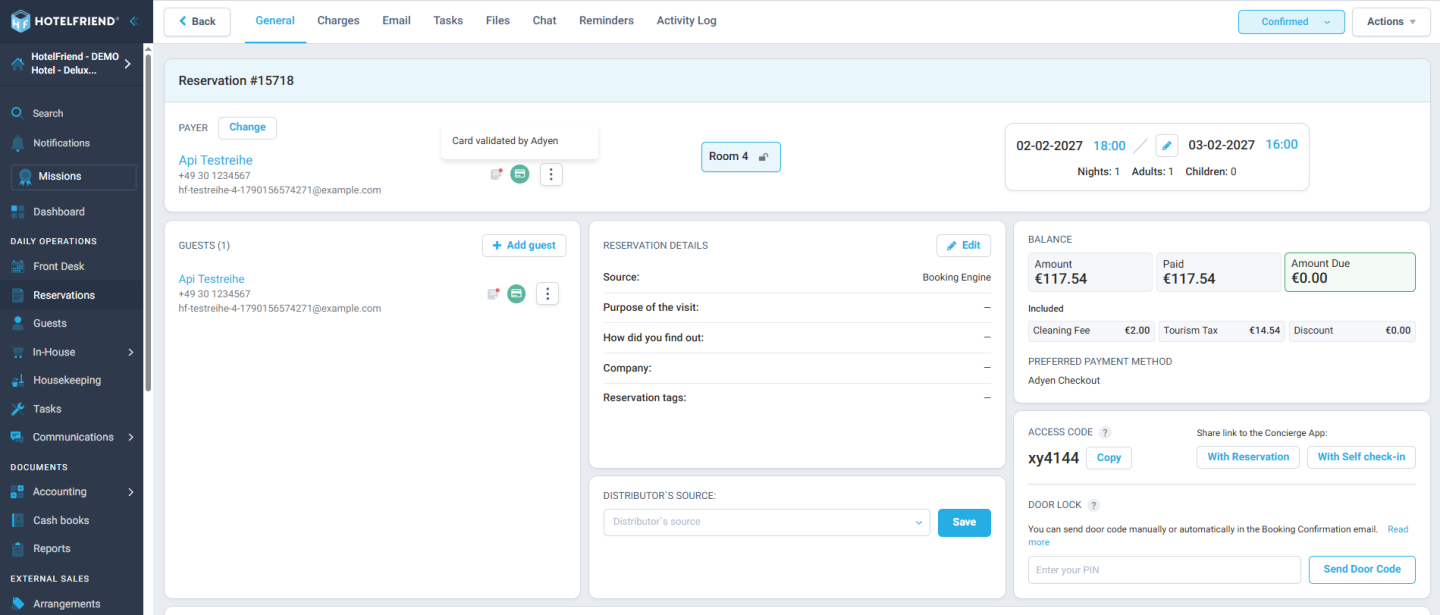
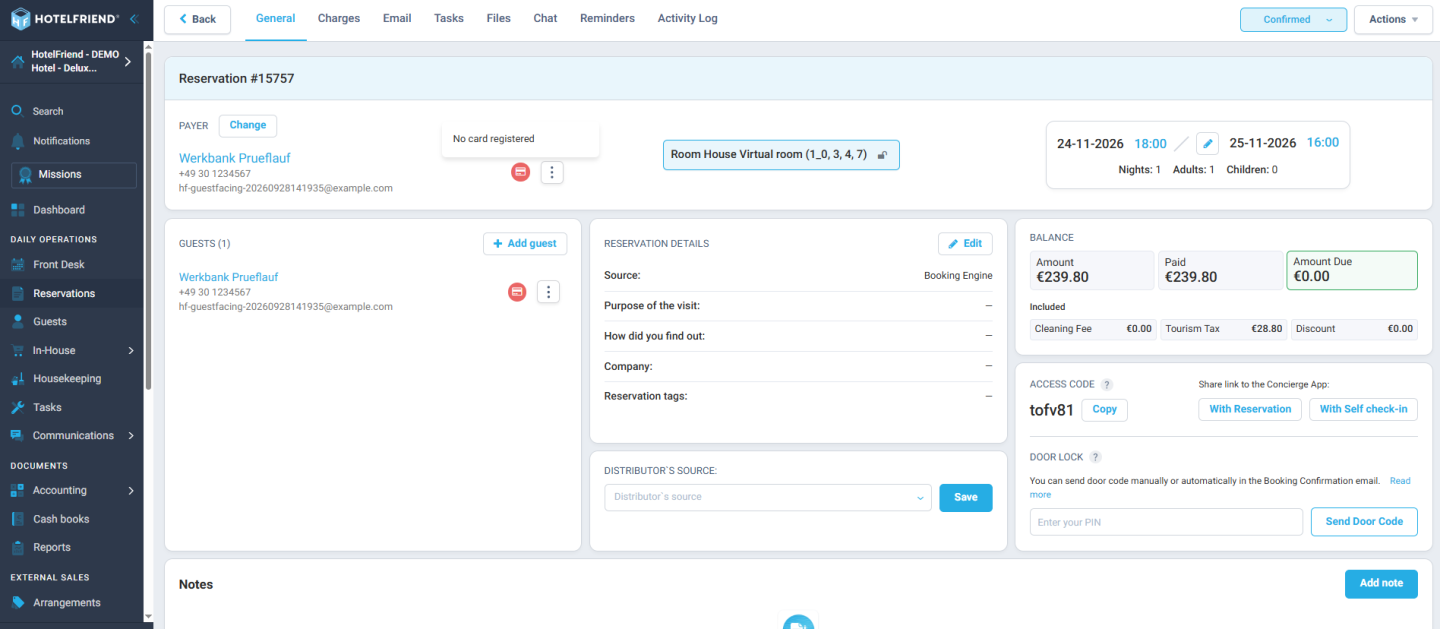
In Reservation card → guest list, each staying guest now shows a coloured indicator:
- Red: no card registered
- Yellow: a card is registered, but Adyen has not yet confirmed it
- Green: the card is validated by Adyen
- The “Tokenize Credit Card” action stays unchanged
Before, checking whether every guest in a reservation had a usable card meant opening each guest and looking for it. This was slow, especially for reservations with several guests.
The new indicators show the status of every guest directly in the reservation card, so reception immediately sees who still needs to register a card or whose card needs a re-check, before it becomes a problem at check-out.
Invoicing, Payments & Accounting
3. Swiss QR-bill: payment part on the guest invoice
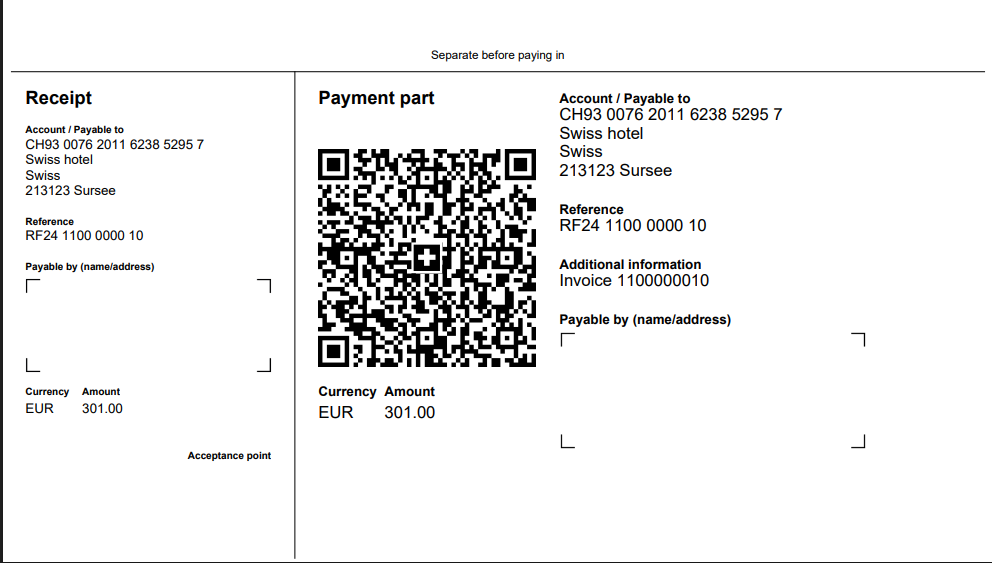
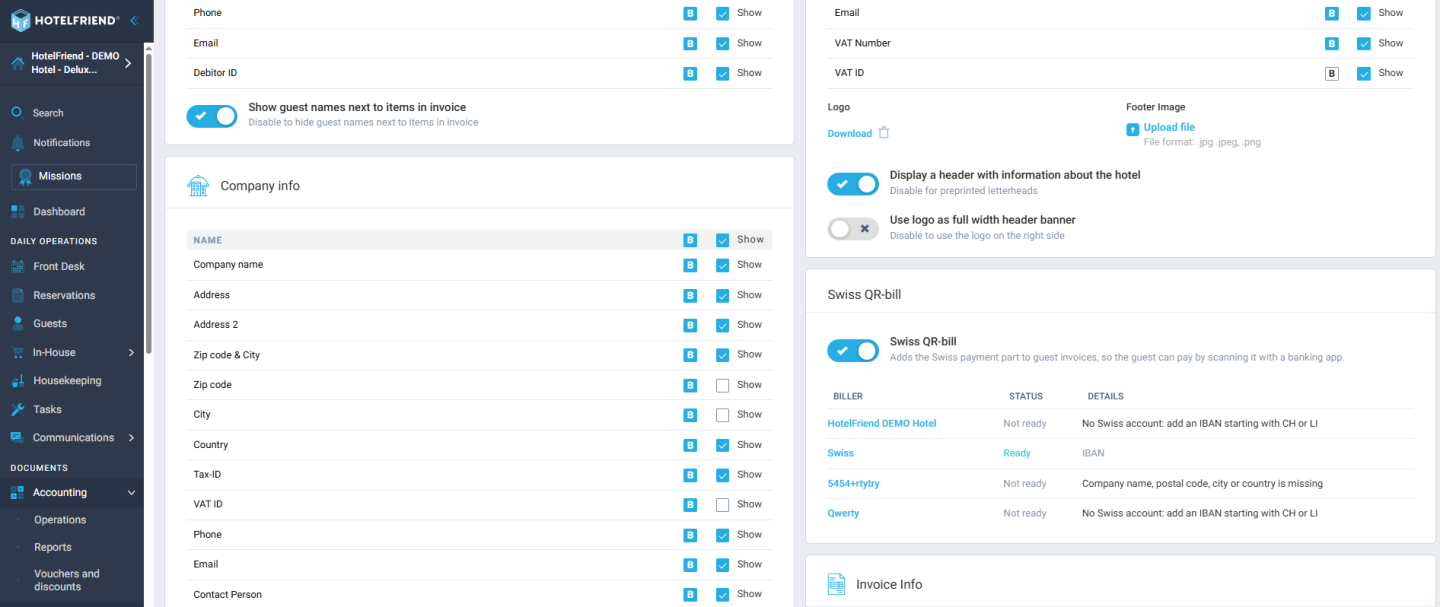
For properties in Switzerland and Liechtenstein, the guest invoice PDF now includes the standard Swiss QR payment part on its own page. Setup is in Biller bank details → QR-IBAN (optional) and Invoice settings → Swiss QR-bill switch:
- Guests scan the QR code with their banking app, which fills in payee, account, amount and reference
- One-time setup with a readiness list showing per biller what is still missing
- Works with an ordinary IBAN or a QR-IBAN, set per biller, so several business units under one roof are supported
- Printed in the invoice’s language
- Available on download, email and Guest Journey
- If the data does not fit (non-Swiss account, unsupported currency, nothing left to pay), the invoice is produced without the QR code
Swiss guests expect to pay by scanning a QR-bill. Typing in bank details by hand is slow and leads to mistakes in references and amounts.
With the QR payment part on the invoice, guests pay in a few taps and incoming payments are easier to match. Because the invoice simply falls back to the usual layout when the data does not fit, nothing breaks for other cases.
4. Payment date: record when a manual payment was actually received
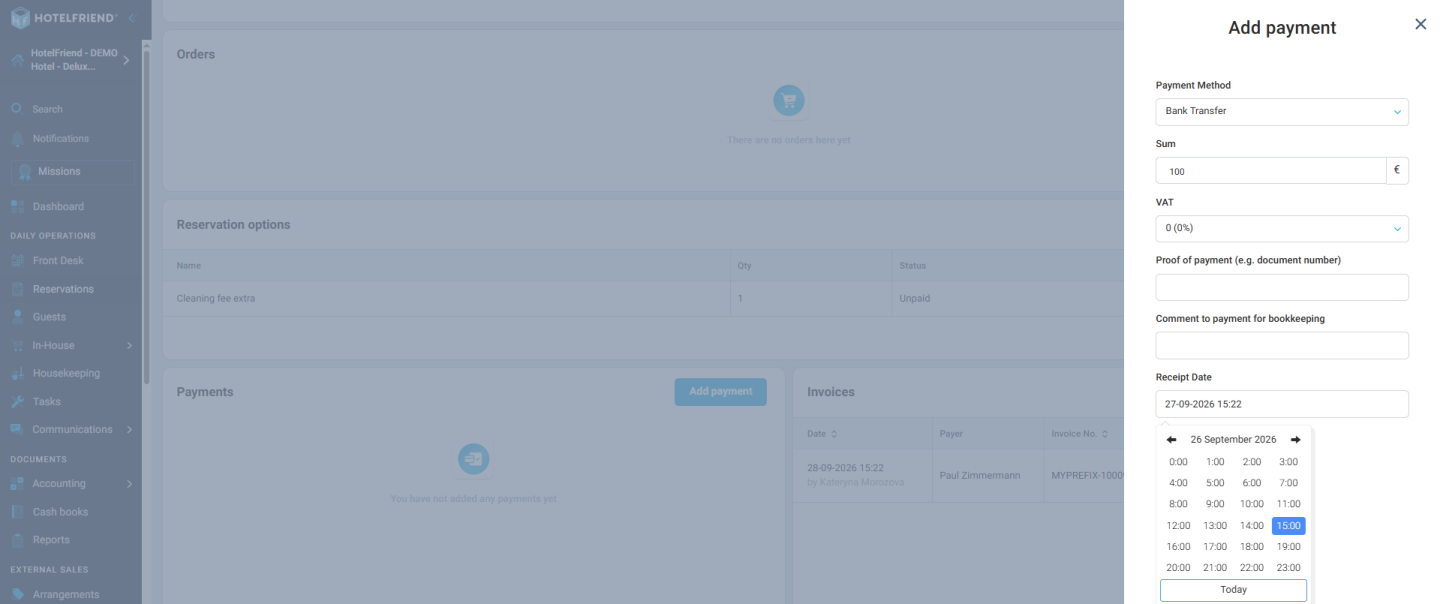
In Reservation / invoice → Add payment → Payment date, manually entered payments now have an editable date and time:
- Pre-filled with today and editable, also later
- Used by reports, the payments search filter and accounting exports (DATEV, GoBD, DSFinV-K)
- The entry time stays recorded on the payment
- Automatic payments (card, Adyen, Stripe, POS terminal) keep the system date
Previously, a manual payment was dated by the moment it was entered, not by when the money arrived. A payment received on 31.08 but entered on 01.09 was counted in September.
With the new field, it is counted in August where it belongs, so monthly reports and accounting exports match what really happened. The original entry time is still stored for a clear audit trail.
5. Prepayment invoices: the default for every new hotel
Starting from the release date, every newly created hotel uses the Invoice strategy for prepayments by default. This applies to hotels created:
- From a signed sales offer or free trial
- In the Portal
- Via a travel-broker deal
- By hotel import
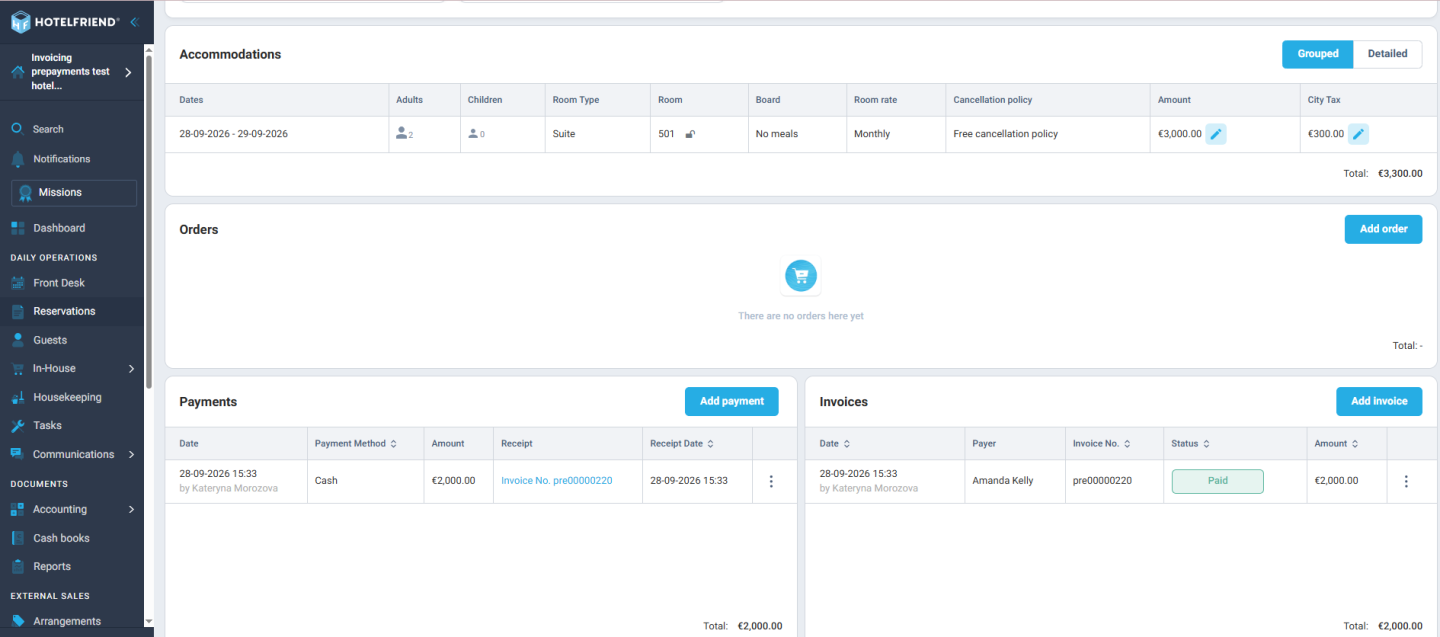
With this setting, a prepayment on a reservation creates a prepayment invoice instead of a receipt, with no manual switch needed.
New hotels used to start with a different default and had to change it themselves to get proper prepayment invoices. Now they have the right setup from day one. Existing hotels keep their current setting.
Reports
6. Financial report: deleted and cancelled order items no longer counted
In Reports → Online Reports → Financial → Financial report, items that were removed or cancelled inside an otherwise active order are now excluded:
- Previously they were still counted as “Booked” in Services revenue
- They were also printed as separate lines
- This overstated both Services and the report total (CHF 1,969.64 too much in the reported case)
- The report is now consistent with the Service revenue report
A financial report is only useful if the totals can be trusted. When removed items still counted as revenue, the Financial report and the Service revenue report showed different numbers, which led to avoidable questions in accounting.
Both now agree. The issue was found during testing at CAMPUS SURSEE.
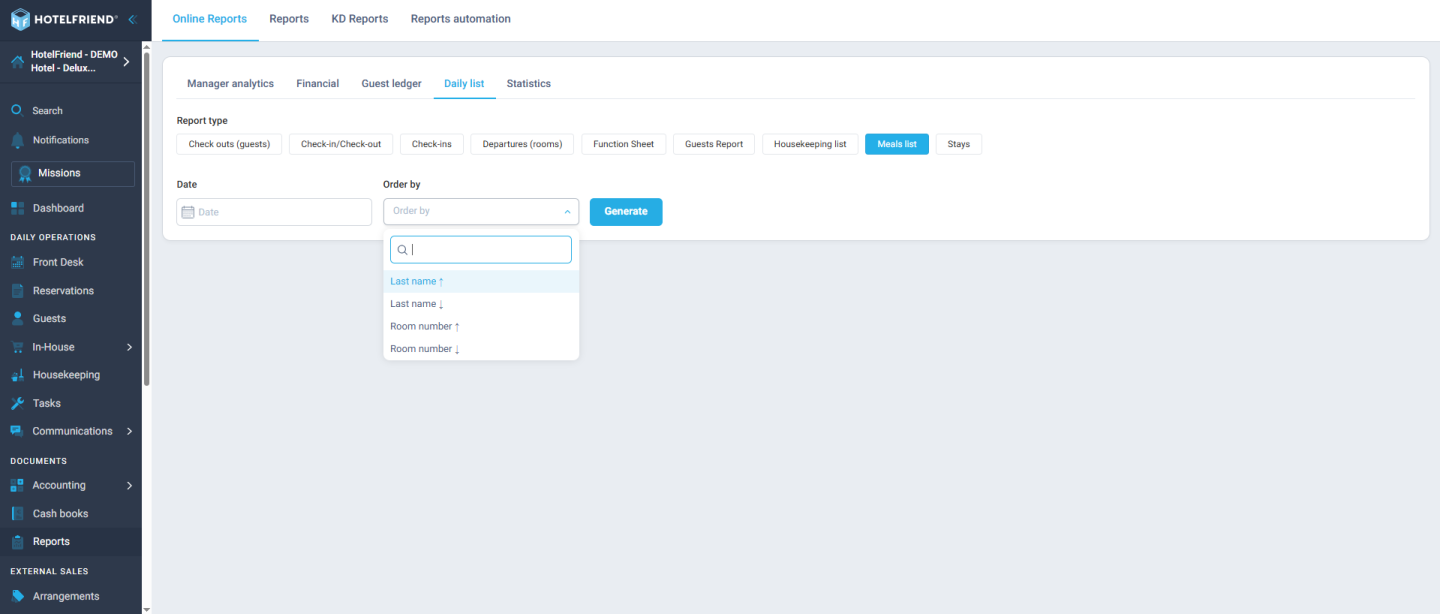
7. Meals list: sort by room number within each meal type
In Reports → Meals list → generation dialog, there is a new Sort by option:
- Room number ↑ / ↓
- Guests are ordered inside each meal-type group in natural room order (2 before 10)
- Entries without a room come last
- Without a choice, the list looks as before
- PDF export and Reports Automation keep the order
Kitchen and breakfast teams work through the list room by room. With the old order, they had to jump around the page to find the next room.
Sorting by room number lets them follow the physical sequence of the building, which saves time and reduces missed guests during busy breakfast service.
8. Check-outs report: sort by last name or room number
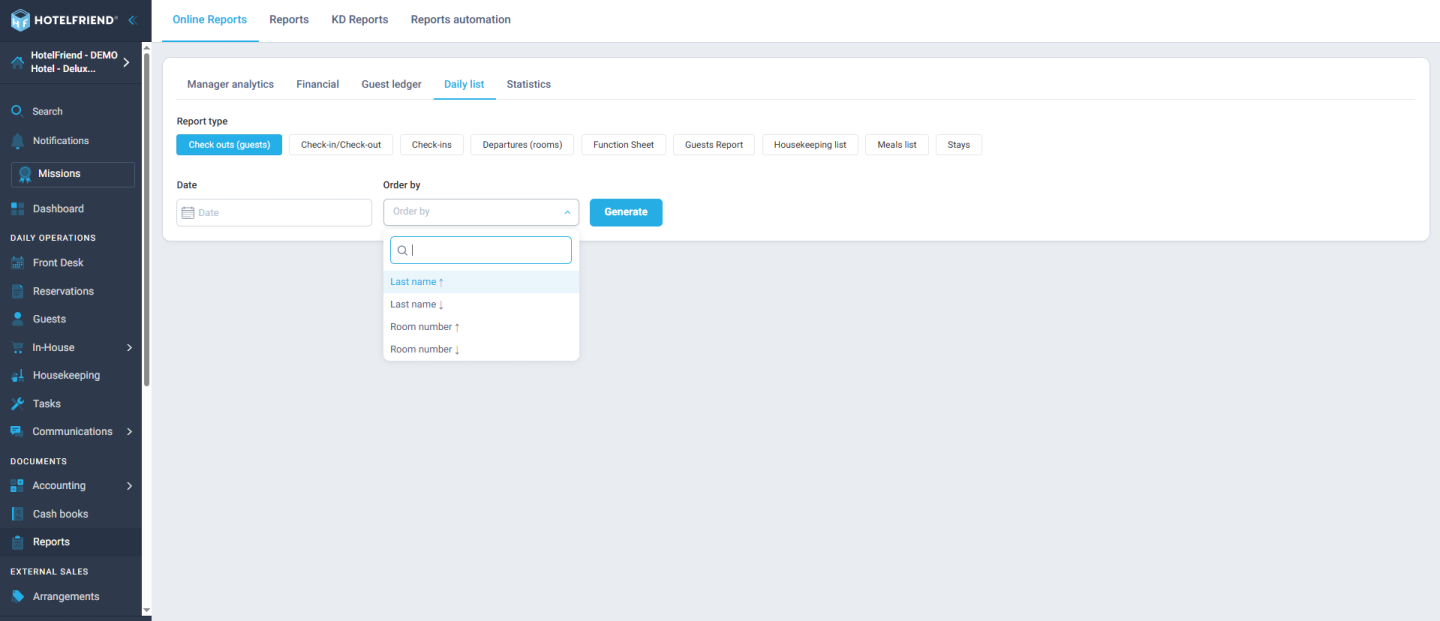
In Reports → Online Reports → Daily list → Check-outs → Sort by, the report can now be sorted by:
- Last name (A→Z / Z→A)
- Room number (↑ / ↓)
- The default order stays floor, then room
- Exports and Reports Automation keep the chosen order
Different teams use the check-out list in different ways. Reception looks guests up by name, while housekeeping follows rooms.
Both can now generate the list in the order that suits them, without re-sorting by hand after export.
9. Check-ins report: sorting and a new Occupancy column
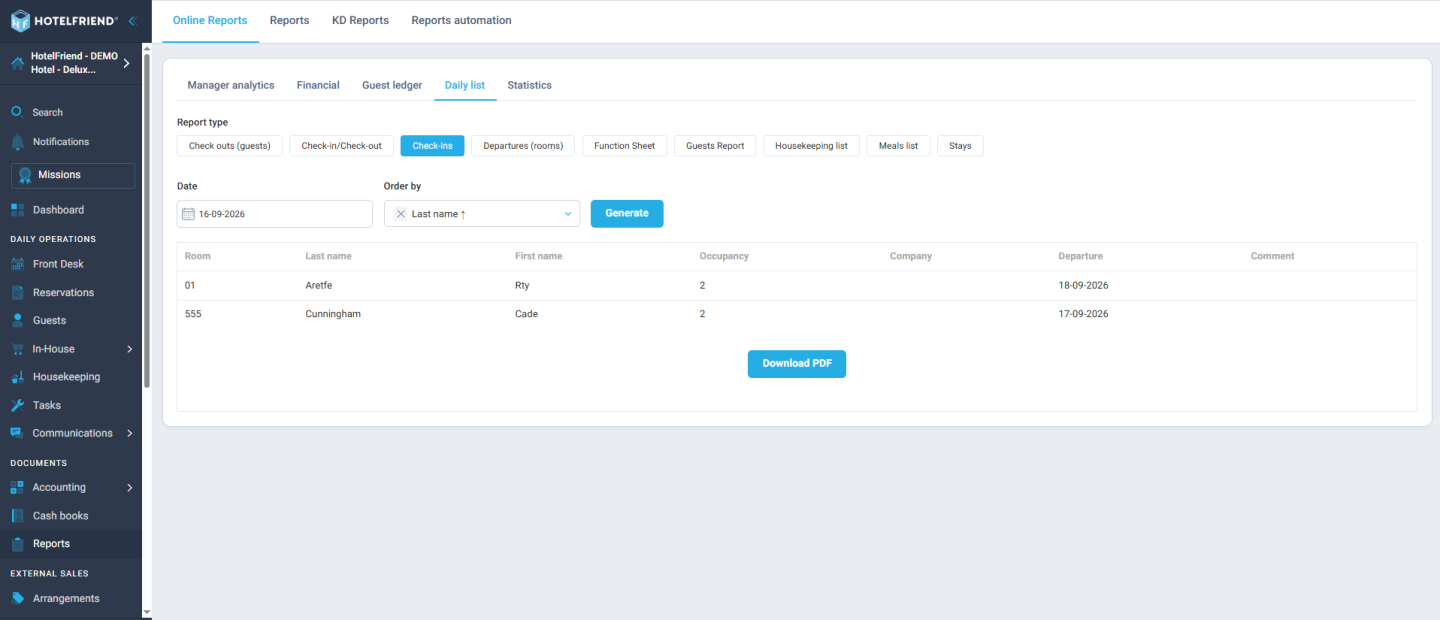
In Reports → Online Reports → Daily list → Check-ins, you get the same Sort by option as in Check-outs, plus a new column in Report Settings → Occupancy:
- Sort by last name (A→Z / Z→A) or room number (↑ / ↓)
- New Occupancy (Belegung) column showing the actual number of adults and children on each reservation
- Exports and Reports Automation keep the order and the column
- With the column switched off, the layout is as before
The Occupancy column shows how many people are actually arriving, so the front desk can prepare rooms, extra beds and welcome items before the guests are at the desk.
Combined with flexible sorting, the Check-ins report becomes a better working list for the arrivals shift.
Communication & Emails
10. Email Template Constructor (MJML): build custom emails visually
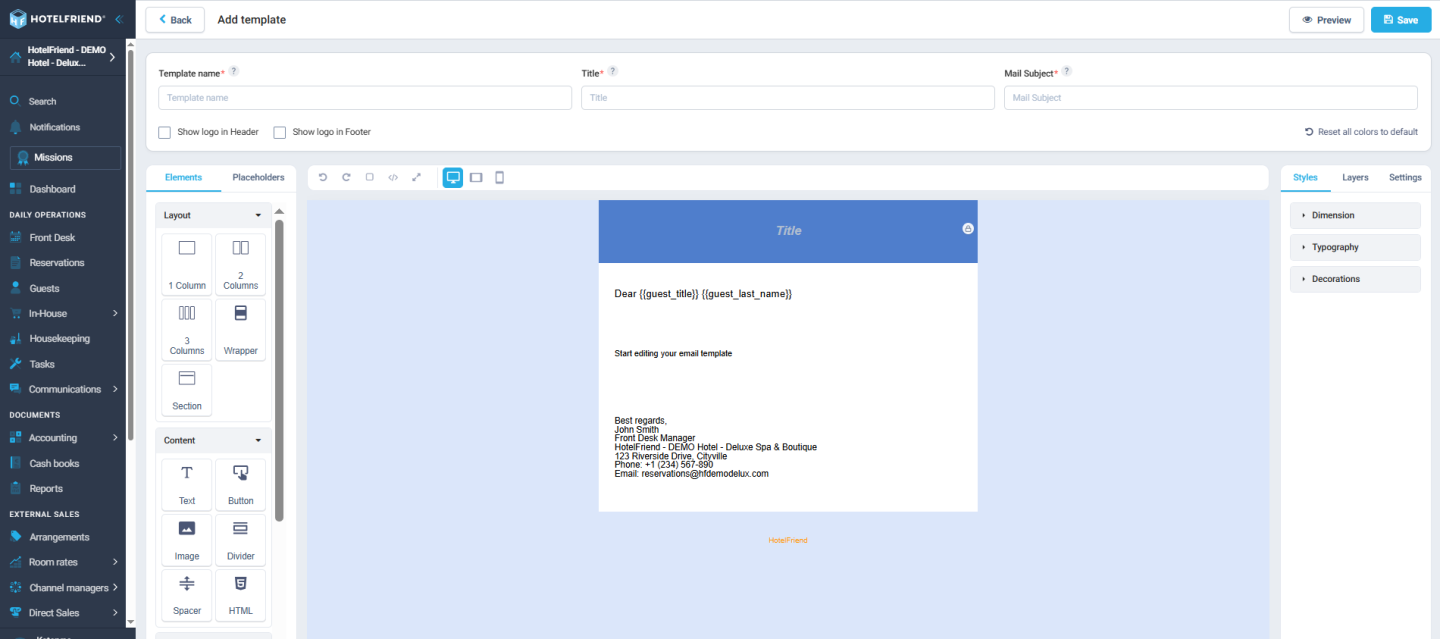
In Communication module → Settings → Custom Emails → Add Template / Edit, hoteliers now have a visual Email Constructor:
- Full-screen editor instead of a modal window with limited options
- Drag-and-drop blocks
- Placeholders for guest and reservation data
- HTML support
- Custom colors
- Multi-language capability
- Create your own templates based on existing ones
Editing emails in a small modal window limited what hotels could do with their guest communication. The Email Constructor gives them a proper builder, so emails can match the hotel’s branding and speak to guests in their own language, without any coding knowledge.
Starting from an existing template keeps the work short, and HTML support is there for those who want full control.
In v4.38 Product Updates, front desk teams can resend any guest email and see card status in seconds, Swiss properties can offer QR-bill payments, and accounting gets payment dates that match reality. Reports are more accurate and easier to use in daily operations, and the new Email Constructor opens up custom guest communication.
This release reflects direct requests from properties using the system daily, and we’ll keep refining these features based on real-world use.
Learn more about the System Explore Pricing
